
In Outlook, as you start typing a name in the To box, a drop down list may appear, showing names of people to whom you’ve previously sent an email.
Here’s how you can remove old addresses from Outlook drop down list, in Outlook for Windows or Outlook.com.
Old Email Addresses
Sometimes those names are out of date, and the list includes old email addresses.
In my Outlook drop down lists there are multiple entries for some people – a current address and one or more older addresses.
When sending email to those people, I waste time trying to remember which address is the correct one.
I’d like to get rid of the old items in the list, so the correct addresses are the only ones left.
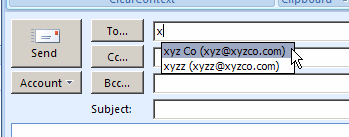
Remove the Old Addresses — Outlook for Windows
If you’re using Outlook for Windows (not Outlook.com), follow these steps to remove one of the suggested email addresses from the list.
- Create a new email message
- Start typing a name in the To box
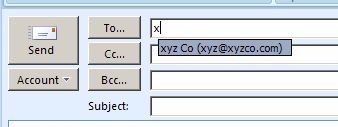
- When the drop down list appears, click the down arrow (or up arrow) key on your keyboard, to move to the name that you want to delete.
- On the keyboard, click the Delete key.
Now when you start typing the name, the deleted names don’t appear.
Manage Suggested Addresses — Outlook.com
If you’re using Outlook.com, the above suggestion will not work — you can’t remove individual address in Outlook.com.
However, you can follow these steps to manage the suggested email address list.
With this technique, only names from your contact list appear, instead of everyone you’ve ever communicated with in Outlook.com.
- In Outlook.com, click the Settings icon (a gear wheel), at the top right of the screen.
- In the drop down list, click Options
- In the Customizing Outlook.com section, click Advanced privacy settings.
- In the Auto-complete suggestions section, select “Only suggest people in my contact list” .
- Click Save, then click the Outlook.com link, at the top left of the screen, to return to the main page.
Now when you start typing the name, only the names from your contact list appear.
_________________
YOU make my job easier. I thank you! Wonderful tip; keep them coming!
thanks, I’ve been trying all different sorts of actions without results. this worked!
Ahhhhh, what a relief–thought I’d go crazy. thanks so much for this invaluable tip. 😉
Someone teach Yahoo webmail how to do this please!!
My sister was having this problem and I do not use the autcomplete on eMails so did a google search and found this thread. It worked so THANK YOU.
This did NOT work for me. When I begin to type the name, the dropdown box appears, but the wrong address is first in line and already highlighted in blue, as is my Outlook custom. I hit the Delete key — and nothing is deleted.
I am SO morose, as all the other comments say Thank you thank you thank you, this tip is so easy and it works! Why doesn’t it work for me? (I’ve tried both the down and up arrows, with the same results. — Shirley