
In Outlook, as you start typing a name in the To box, a drop down list may appear, showing names of people to whom you’ve previously sent an email.
Here’s how you can remove old addresses from Outlook drop down list, in Outlook for Windows or Outlook.com.
Old Email Addresses
Sometimes those names are out of date, and the list includes old email addresses.
In my Outlook drop down lists there are multiple entries for some people – a current address and one or more older addresses.
When sending email to those people, I waste time trying to remember which address is the correct one.
I’d like to get rid of the old items in the list, so the correct addresses are the only ones left.
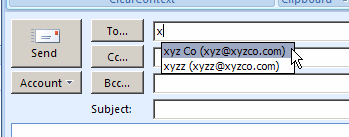
Remove the Old Addresses — Outlook for Windows
If you’re using Outlook for Windows (not Outlook.com), follow these steps to remove one of the suggested email addresses from the list.
- Create a new email message
- Start typing a name in the To box
- When the drop down list appears, click the down arrow (or up arrow) key on your keyboard, to move to the name that you want to delete.
- On the keyboard, click the Delete key.
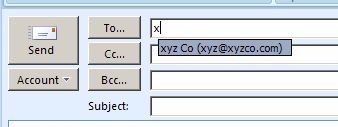
Now when you start typing the name, the deleted names don’t appear.
Manage Suggested Addresses — Outlook.com
If you’re using Outlook.com, the above suggestion will not work — you can’t remove individual address in Outlook.com.
However, you can follow these steps to manage the suggested email address list.
With this technique, only names from your contact list appear, instead of everyone you’ve ever communicated with in Outlook.com.
- In Outlook.com, click the Settings icon (a gear wheel), at the top right of the screen.
- In the drop down list, click Options
- In the Customizing Outlook.com section, click Advanced privacy settings.
- In the Auto-complete suggestions section, select “Only suggest people in my contact list” .
- Click Save, then click the Outlook.com link, at the top left of the screen, to return to the main page.
Now when you start typing the name, only the names from your contact list appear.
_________________
This works for the autocomplete lists Internet Explorer stores as well.
An excellent tip. I’ve sent things to the wrong address by clicking on an outdated address. I’ve also sent things to the wrong address by not paying attention to the auto-complete function. When Bob Denver died, I sent an e-mail to my wife about how I couldn’t believe Gilligan was dead. The problem is that the e-mail went to a client, whom I didn’t know that well, with the same first name as my wife’s. Luckily, the client just responded by saying “I can’t believe it either!”
I now have an Outlook rule that delays the sending of e-mail by two minutes. It’s kind of a pain if you send something out just before you leave work, and you want to shut your machine down. But, I leave my machine running most of the time anyway to do maintenance chores.
Toad, my Outlook 2007 also uses a rule to delay sending (by 5 minutes) but I also have an override to send NOW. I don’t click SendNow it sits in the Outbox and the only way I’ve found is to create (reply) to the original email and copy from the one in the Outbox, click SendNow and send it, then delete the original Outbox email.
SendNow is a macro that sets a category, and the rule checks if the category is set then it causes the delay to skipped. The macro is activated by a button I have in the QAT of the message being composed. It is applied to the Outlook client (and not Outlook webmail).
I found the code by consulting Slipstick systems. Here is the macro:
‘20130828 Basic code from Diane Poremsky, Slipstick Systems:
‘http://www.slipstick.com/developer/how-to-use-outlooks-vba-editor/#comment-178945
Public Sub SetSendNowCategory()
Dim toBeSentMessage
Set toBeSentMessage = ActiveInspector.CurrentItem
toBeSentMessage.Categories = “SendNow”
End Sub
You also have to create a category (mine is SendNow, and it’s green, if that matters. Red might be good to get rid of a hot potato.)
The rule has no chosen condition, with “action” to delay sending by 5 minutes except if assigned to a category, which is SendNow.
Thanks, Jan Karel, that’s a good tip too.
Toad, Gilligan is dead? Geez, why doesn’t anyone email me with important news? I’ve emailed a couple of things to the wrong person, thanks to that drop down list and its enthusiastic autofill. I’ve received a couple of erroneously sent emails from clients though, so it all balances out.
Those autocomplete entries are stored in an NK2 file – on my computer the path is C:Documents and SettingsdougApplication DataMicrosoftOutlook. If you back this up before a system reload you can restore all the autocompletes. There are also NK2 freeware editors out there.
Great tip. Of course, it presumes you know which is the correct address and which is the old defunct one!
This works great…Thank you!!!!!