
Occasionally a client asks me to create a shared workbook in Excel, so two or more employees can work in it at the same time. It sounds good in theory, but I always try to come up with a different solution.
There are many reasons for avoiding shared workbooks in Excel.
Note: See a newer version of this article: Shared Workbook Limits in Excel 2010
Your Thoughts on Shared Workbooks
Maybe you’ve had success with shared workbooks, and I’d love to hear about it in the comments. For me, the limitations far outweigh the benefits, and there’s usually another way to accommodate multiple users.
[Update] Your Comments
Thanks to everyone who left a comment below, detailing their experiences with Excel shared workbooks.
- Be sure to read through those comments, if you plan to share an Excel workbook. They might convince you to find a different solution!
- Or, if you have no choice in the matter, and have to use a shared workbook, you might find helpful tips in the comments, and workarounds for some of the problems they cause.
Too Many Missing Features
After you share a workbook, many of Excel’s features can’t be used. There’s a list of unavailable features for Excel 2003 on the Microsoft site, and in Excel’s help.
For example, you can’t add any of the following features, and in some cases you can’t even change the existing items:
- Conditional Formatting
- Data Validation
- Lists
- Protection
- Pivot Tables
If you do need to create a shared workbook, check the list of restricted features, and make sure you have everything set up exactly the way you want it, before you share the file.
Test everything after you share the file, because things might not work the way they did before.
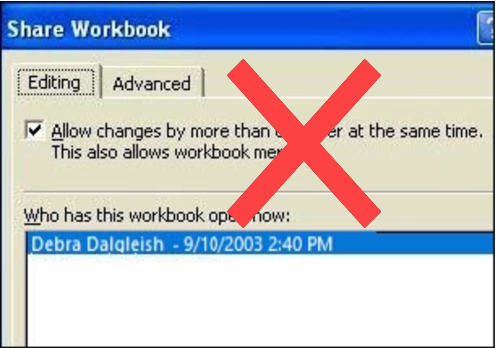
Alternatives to Shared Workbooks
What can you do instead? Find out exactly what the workbook’s purpose is, and why multiple people need to use it.
- If users are entering data, they could get in and out of the workbook quickly, so another person has a chance to enter their data. Excel will notify the next user when the workbook is available.
- If users need the workbook as a calculator, make the file read only, or save it as a template, so anyone can open a copy. Users can save the file with a different name, if they need to save their work.
- If users enter data on separate sheets, create separate workbooks instead. Then, create a summary workbook to pull all the data together.
- If users need to enter data many times throughout the day, a database might be a better option.
If you have other solutions, I’d like to hear them.
Note: See a newer version of this article: Shared Workbook Limits in Excel 2010
===========================
Shared workbooks can be made to respond just as reliably as an access DB. I have done so, with more than 8000 SLOC. It took 2 months to build, but it works flawlessly, logs errors, tracks changes, many conditional formats, popups including calendars and userforms that are very aesthetically appealing. One thing to avoid is a large file size and worksheet formulas. I use macros to do everything. And it’s sweet. Even hyperlink creation is possible; and who needs conditional formatting when a macro can handle everything. Even better, I have written code that accepts userform inputs to create new custom macros that filter and display data as necessary. No need for Pivots when you can filter and copy data from one xlVeryHidden sheet to a visible sheet, and no one is any the wiser. So much that is possible, if you really want to get it to work.
I may be willing to share thoughts, modules and functions with anyone who is interested.
This workbook does it all, and it never crashes.
For all the “experts” that state this and that negatively of shared workbooks–well, suck it.
Interested in your solution to the Shared Workbook problem….please email me at [email protected] if you are interested in sharing this with me.
Elena
I am trying to set up a workbook where multiple users may need to edit in the same data ranges on some sheets, and yet allow only one editor at a time on other sheets. I suspect I need to record user & network machine details and then asign prority rights from userform menus (so only allowing one person to do one type of task at a time, with option for other users to try again after a couple minutes, and then get the workbook to resave itself & update before and after each task). So I am interested in your approach, please email me at [email protected] thank you
Can you send me the awesome shared workbook you created?
[email protected]
Would love a copy as well, living in shared workbook h3ll here…[email protected]
I would love a copy too. Thanks: [email protected]
I would like to have a copy too, VBA’s_mac_daddy.
[email protected]
Will do!
Sharing workbooks works quite well, providing you remove free will from the user. Over the past year or so, I have constantly updated a shared workbook. Slowly but surely removing all routes by which a user could enter data incorrectly or generally screw things up. Now, entering data involves userforms and lots of code to avoid errors and multiple entries in the same cell. It works very, very well and is totally secure. I like Access also and think it is a better tool for the job, but most people do not like Access and do not know how to use it. Hence my work securing shared wookbooks.
I got a little excited recently when I saw that Excel had this shared write feature. Overall, this discussion is discouraging and a wet blanket that will make me reconsider proposing that our group switch to using sharing for one file for now, and others in the future if the first one works well. Please understand: that is not to be critical of the people who have had bad experiences (the word “corrupt” gives me pause) and report them here. I’m better off knowing this than not knowing. Thank you all for taking the time to relate your experiences.
I wonder if our circumstance is such that we can avoid many of the problems reported here, especially the ones going back to about three years ago. What do you think? …
– We’re all on Win 7 with Office/Excel 2010.
– The file we want to use this to start out with is one that is used monthly to track the status of the process used to produce bills for our our customers.
Ours is a low price / high volumn business — millions of purchases per month. However, the file we want to share is just 5 sheets that track the status of customer groups and report creation as they pass thru the process. Typical end size of the spreadsheet: about 220K.
– We start the process each month with a fresh copy of a template .xlsx, and we’d have no reason to convert the template to being shared. Instead, we’d clone/copy from the template each month and make the clone sharable. So there’s no exposure to the ravages of one instance of the file being used and growingindefinately.
– There are five of us who would write to the file, but only three in any given month. Two of the roles are shared by pairs of people for the safety of redundancy, and they alternate months. So, there are no overlaps between the two people who are doing it a given month — the members of one pair never change the cells of the other pair.
But, there are a striking number of steps to the process, so people are in and out of the current file quite often over the course of four days or so. Plus, we recently added some tracking sheets that are such that you’d really rather park yourself in the file for most of the day than have to go in and out many times to allow others to save their changes. Opening read-only and wawaiting exclusive access doesn’t cut it. And we’s rather use one file — the bosss prefers to monitor one file,
– After a planned dry run in the next few days with just two of us trying Excel sharing for the first time on an unrelated project/file, we’ll consider going live with it for the next billing process. (Actually, I’ve tried it out myself using two logins on a copy of the billing xlsx while learning aout this. That was fine, but just a toy exercise.)
– The billing sheet is pretty simple. It’s over whelmingly just a matter of entering a “Y” (meaning a task is done) or entering a number in some cases. The fanciest it gets is conditional formatting, which we wouldn’t need to change dring the process. It doesn’t even havea any sums, formulas, macros or VBA.
The process and file are pretty stable over the long term, and definitely stable WRT sharing’s functionally restrictions.
– If this works out well, then we’d be tempted to use it for tracking testing, especially when we test major, weekend Oracle upgrades with about 15 testers entering the pass/fail results for the tests they own, and occasionally a comment when appropriate. Just those small things “pass” or “fail” and maybe a comment in a test field. Oh, and a few functions to give the runing pass/fail/not-yet-run counts.
– There would be virtually no conflict/collision resolution to do in either example. Each person has their assigned part of the billing process and their designated test cases. I’ve done these for about 4 years, and it’s hard to think of any cells in either case where more than one person would have occasion to overwrite someone else’s cell.
What do you think? At this point, with Win 7, Excel 2010 and simple worksheets, how conderned should we be that this could backfire on us?
> So, there are no overlaps between the two people who are doing it a given month — the members of one pair never change the cells of the other pair.
That was jumbled. Clarification: Each month, it’s either Eric or Patrick doing one part of the process and either Carol or me doing another part. There’s also Renee every month doing a third part. There are several other people involved in the overall process, but they don’t touch the spreadsheet. So, a typical rotation would be: January: Patrick, Carol & Renee;
February: Eric, Paul & Renee;
b>March: same as Jan:
April: same as Feb; etc.
So:
– not many users,
– very few, probably no, change conflicts,
– small file,
– file lifetime = about 1 week;
– current software (Win 7; Office 2010).
We use Shared Workbooks because it allows us to operate collectively without having to have a database solution designed, built, tested, installed and trained on. We can create the whole process in 10 minutes and be up and running. Everyone who knows excel can use immediately.
As to the excel functionality we lose. If you need to do some of those things that you cannot, you just unshare the file, put in what you need, and reshare the file. If you are doing pivot tables or charts or whatever, you just copy of the file and produce what you want. But we rarely need those things for the shared workbooks files. That is not their purpose.
Shared Workbooks have the big problem of getting corrupted. It is going to happen. Copying the file with copy and paste or saving it to a new name do not help anything. Here are two ways to minimize the problems:
Do not keep history period. If you need to be able to track who has changed what, then your application needs something more powerful than Shared Workbooks.
You can watch the file size grow. It is an exponential process. So, when it starts to increase in size, it will increase in size faster and faster. Before this gets out of hand do the following:
Highlight all of the TABS
Use the Worksheet Move or Copy command
Check Mark ‘Copy’.
Choose New Book in the drop down.
Save the New Book to the name of your choice.
We do this every friday night on our Shared Workbooks.
You will be amazed.
I have one workbook that is 12 Meg. When it blows up it exceeds 200 Meg.
When we do the move and copy procedure above. It takes it back down to 12 Meg.
You obviously have to do this before it says it is corrputed.
So, everyone is right. Share Workbooks is not very stable. A database solution or any of the other fixes mentioned are great – if you have the IT staff or your own staff can build those solutions, and it is cost effective for the application you are trying to accomplish.
However, there are many things that Shared Workbooks can do cost effectively, as long as you realize the limitations.
Easier than copying the sheets is to unshare & then re-share; which removes the history bloat. To get an idea when to prune, one can use a rough calculated value to estimate the expected file size from the number of entries to compare to the actual filesize (divide one by the other and await until say x10). Provided there are down-times when no one needs access, an on-sheet autoshape button links to VBA code that checks the number of currently shared users is 1 (i.e. oneself) and then unshares and reshares the file – takes but 1 minute:
If need set any sharing attributes, then these must be applied after the file has been reshared, i.e. the file gets saved 3 times in the process.
If ubound(ActiveWorkbook.UserStatus,1) >1 Then Goto lquit ‘number of users should be just us !
If Not (ActiveWorkbook.MultiUserEditing) And Not (ActiveWorkbook.ReadOnly) Then GoTo lquit ‘must be currently shared and not read-only
ActiveWorkbook.ExclusiveAccess ‘ un-share (SAVED#1)
ActiveWorkbook.SaveAs Filename:=ActiveWorkbook.FullName, AccessMode:=xlShared ‘re-shared (SAVED#2)
‘set certain shared features…
ActiveWorkbook.AutoUpdateFrequency = 10
ActiveWorkbook.PersonalViewListSettings = False
ActiveWorkbook.PersonalViewPrintSettings = False
‘… and a final SAVED#3
Application.DisplayAlerts = False
ActiveWorkbook.SaveAs Filename:=ActiveWorkbook.FullName
.lquit