
Occasionally a client asks me to create a shared workbook in Excel, so two or more employees can work in it at the same time. It sounds good in theory, but I always try to come up with a different solution.
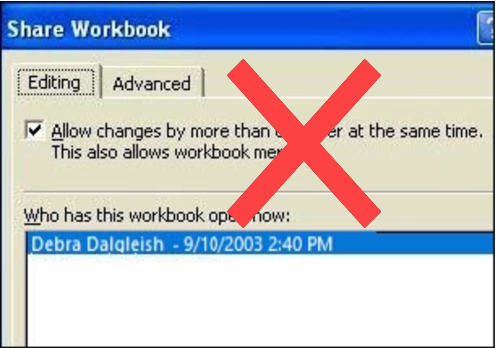
There are many reasons for avoiding shared workbooks in Excel.
Note: See a newer version of this article: Shared Workbook Limits in Excel 2010
Your Thoughts on Shared Workbooks
Maybe you’ve had success with shared workbooks, and I’d love to hear about it in the comments. For me, the limitations far outweigh the benefits, and there’s usually another way to accommodate multiple users.
[Update] Your Comments
Thanks to everyone who left a comment below, detailing their experiences with Excel shared workbooks.
- Be sure to read through those comments, if you plan to share an Excel workbook. They might convince you to find a different solution!
- Or, if you have no choice in the matter, and have to use a shared workbook, you might find helpful tips in the comments, and workarounds for some of the problems they cause.
Too Many Missing Features
After you share a workbook, many of Excel’s features can’t be used. There’s a list of unavailable features for Excel 2003 on the Microsoft site, and in Excel’s help.
For example, you can’t add any of the following features, and in some cases you can’t even change the existing items:
- Conditional Formatting
- Data Validation
- Lists
- Protection
- Pivot Tables
If you do need to create a shared workbook, check the list of restricted features, and make sure you have everything set up exactly the way you want it, before you share the file.
Test everything after you share the file, because things might not work the way they did before.
Alternatives to Shared Workbooks
What can you do instead? Find out exactly what the workbook’s purpose is, and why multiple people need to use it.
- If users are entering data, they could get in and out of the workbook quickly, so another person has a chance to enter their data. Excel will notify the next user when the workbook is available.
- If users need the workbook as a calculator, make the file read only, or save it as a template, so anyone can open a copy. Users can save the file with a different name, if they need to save their work.
- If users enter data on separate sheets, create separate workbooks instead. Then, create a summary workbook to pull all the data together.
- If users need to enter data many times throughout the day, a database might be a better option.
If you have other solutions, I’d like to hear them.
Note: See a newer version of this article: Shared Workbook Limits in Excel 2010
===========================
There’s an alternate way to do shared editing, which may eliminate all the corruption problems people are reporting.
Instead of storing the workbook in one location for several users to edit, you distribute separate copies of the shared workbook to each user. Then, after their edits are done, they send the changed workbooks back to you, and you merge the workbooks together. (this is NOT the same as “Consolidation”). Then, you never have the situation where two people have the same copy open at the same time.
To merge multkple books together, click Compare and Merge Workbooks. To add the Compare and Merge Workbooks command to the Quick Access Toolbar, click the Microsoft Office Button Button image, click Excel Options, and then click Customize. In the Choose commands from list, click All Commands, select Compare and Merge Workbooks, click Add, and then click OK.
You should use worksheet protection, to ensure people don’t do things that can mess up your merge, such as adding or deleting rows.
Johny. The problem with linking files among them is that the time response in Excel is so bad at times that it would be worst than even trying to share the file. An apparent solution is to try to manipulate sectors of the spread sheet and it works until you need protection on the sheet, which is a huge downfall and dissapointment on Microsoft. The only visible option would be to have a mastersheet where all data is consolidated, and some how administrate users coming to the workbook so they are directed to a zone in the workbook where no protection, or special tools lost by the sharing option is required. Then once is finisthed, put back the data changed or updated into the centralized file. I have done similar type of things in the past and although they are pretty demanding in macros and design, they are for sure a safe option. Of course, with good Access knowledge, you may sure find another solution but this would requied to pay for the Access licences por user.
ACA
Aca, i don’t know what you mean by “linking files among them”. Who said anything about linking? i don’t know what you mean by “time response in Excel is so bad”. What time response? i don’t know what you mean by “it works until you need protection on the sheet…” Sharing the way i described DOES include protection. I don’t know what you mean by “… which is a huge downfall.” What about protection is a downfall? Works fine for me. True some functionality is lost in a Shared workbook, but for our purpose the benefits outweigh the drawbacks. Our clients have been using both types of sharing (single book vs multiple book) for months, without a hitch. (btw, might be a good idea to avoid using the word “consolidate” in this context, since consolidate has a special meaning in Excel). -Cheers!
I have often had problems merging sheets with defined names on them. The formulas in the parent workbook don’t know where to point when re-integrating imported copies of the same worksheet they had been pointing at. And the sheet that is moving often has formulae pointing to other sheets in the workbook, and copying the sheet or moving it into the master workbook leaves those pointing back at the other file. Basically, merging workbooks has always been a nightmare for me. Sorry this is off topic a bit.
Used one of Debra’s VBA solutions for making Excel drop-downs larger by adding a Combo Box. Worked like a charm-Genius!! But, when I share the workbook, the combo-box solution no longer works. I didn’t notice VBA being one of the things lost in shared workbooks. Anyone have an idea if there is a solution or workaround. The file needs to be shared because I need to track changes and it’s possible more than one user will be in there at the same time. Please advise.
Hi
Not sure if this has been covered, but having major issue with printing shared workbooks – different computers (all macs, but different versions of Excel) print different page breaks, headers ad footers etc. It’s a calendar/planner, with twelve monthly worksheets, which automatically transpose onto a Yearly summary sheet.
And no, before you ask, the differences are not relative to the versions – one Excel 2004 user will experience a different print out to another Excel 2004 user with the same workbook. They all have checkboxes cleared under ‘Include in personal view’. I’ve gone round and tried to configure all machines the same way for this particular workbook, but impossible to get them all to print the same way
any ideas – apart from the obvious – get a database – and yes we do have Filemaker and am considering reworking it.
Richard,
Not sure how this impacts printing, but I found I needed to delete all custom views after changing any layout (hidden columns etc.) in order for everyone to see the worksheet in the same way. In 2007 it is found in the View ribbon. Not sure where to find this in 2004. It may not help your printing problem, but it’s worth a try.
Jim
we have no corruptions in our shared books. maybe it’s because they are short-lived– we use them to collect data just for one month, then the book is retired. we keep ’em simple-no macros, charts, pivots, etc– we use them for data-collection only. After collecting all our data, we pull that into an access database and generate whatever reports are needed. For our needs, Shared books works great.
That is the thing, for basic access without controls, passwords, and knowing who access what and when, probably sharing is ok, but when it comes to high level sharing access, then things are different and they simply don’t deliver what they are made for. It is like a medication that would fix your stomache but damage your leber, no really that good. Thanks aniway for your help.