
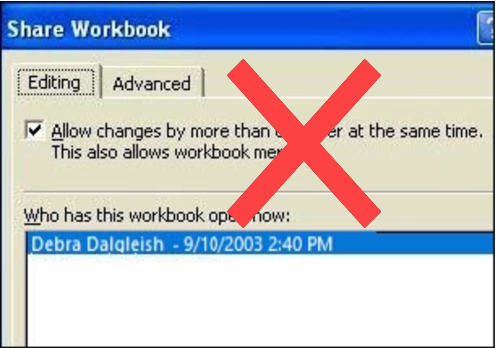
Occasionally a client asks me to create a shared workbook in Excel, so two or more employees can work in it at the same time. It sounds good in theory, but I always try to come up with a different solution.
There are many reasons for avoiding shared workbooks in Excel.
Note: See a newer version of this article: Shared Workbook Limits in Excel 2010
Your Thoughts on Shared Workbooks
Maybe you’ve had success with shared workbooks, and I’d love to hear about it in the comments. For me, the limitations far outweigh the benefits, and there’s usually another way to accommodate multiple users.
[Update] Your Comments
Thanks to everyone who left a comment below, detailing their experiences with Excel shared workbooks.
- Be sure to read through those comments, if you plan to share an Excel workbook. They might convince you to find a different solution!
- Or, if you have no choice in the matter, and have to use a shared workbook, you might find helpful tips in the comments, and workarounds for some of the problems they cause.
Too Many Missing Features
After you share a workbook, many of Excel’s features can’t be used. There’s a list of unavailable features for Excel 2003 on the Microsoft site, and in Excel’s help.
For example, you can’t add any of the following features, and in some cases you can’t even change the existing items:
- Conditional Formatting
- Data Validation
- Lists
- Protection
- Pivot Tables
If you do need to create a shared workbook, check the list of restricted features, and make sure you have everything set up exactly the way you want it, before you share the file.
Test everything after you share the file, because things might not work the way they did before.
Alternatives to Shared Workbooks
What can you do instead? Find out exactly what the workbook’s purpose is, and why multiple people need to use it.
- If users are entering data, they could get in and out of the workbook quickly, so another person has a chance to enter their data. Excel will notify the next user when the workbook is available.
- If users need the workbook as a calculator, make the file read only, or save it as a template, so anyone can open a copy. Users can save the file with a different name, if they need to save their work.
- If users enter data on separate sheets, create separate workbooks instead. Then, create a summary workbook to pull all the data together.
- If users need to enter data many times throughout the day, a database might be a better option.
If you have other solutions, I’d like to hear them.
Note: See a newer version of this article: Shared Workbook Limits in Excel 2010
===========================
Roger:
A database “only” costs you the development time, your systems do not need an Access installation to be able to use it, just the (Free) Access viewer.
I’d still urge you to consider porting to Access.
and you can hire Debra to build the database
Excel is probably the most commonly known tool in the Office Suite for managing data. Best tool? There’s a long debate. From the standpoint of collecting information from various personnel throughout a company, Excel is the application everyone “knows how to use”. Low learning curve means lower cost.
The add-in called Distributed Spreadsheet has helped a number of companies collect data from various parts of companies and then export the data to other systems. In this way, the reliance of workbook integrity is not an issue and the deployment costs are minmized.
Sometimes the answer lies in combining tools rather than the same tool used from beginning to end.
Hello.
I agree that database is the best solution.
I use Excel with MS SQL Server and it works great.
Server stores the data and controls the limitations and Excel with VBA is a User Interfase and Reporting Tool.
You can use free MS SQL Server Management Studio Express.
Mariusz
When you want multiple users to interact with an excel file – use it in a “Database” mode.
Create a Template which can add and edit records in a database (Excel/Access etc) stored in a network folder with proper access.
Create a Reporting application which can pull data from the database.
Excel 2000 has a very interesting addin called Template wizard with Data tracking which allowed users to add data to a database from an excel template. Instead of improving it MS decided to discontiue it from XP onwords….
At my office, we did the shared workbook thing a lot. It was quick and dirty, and we didn’t need the advanced features. Just a few people working remotely who needed to edit a few cells on a common workbook.
We did end up with a few corrupted workbooks, but fortunately there were nightly backups, so the data loss was minimal. But the sad part is the rationale behind it all. They didn’t want to buy more Access licenses (getting IT to do installations is a rude welcome to the bureaucracy), and paying someone to write the code that would write the information to a database (or create anything more than a rudimentary solution) was out of the question. All I got were blank stares when I suggested alternatives to shared workbooks.
Sam, I remember that Template wizard, and lots of people found it useful, so I don’t know why it was dropped from later versions.
JP, at least you your office wasn’t expecting miracles from the shared workbooks, but it’s pretty bad if even a very simple workbook gets corrupted when shared.