
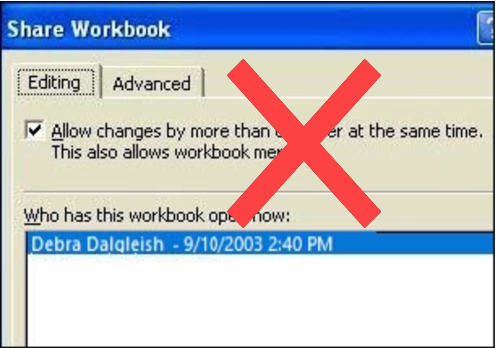
Occasionally a client asks me to create a shared workbook in Excel, so two or more employees can work in it at the same time. It sounds good in theory, but I always try to come up with a different solution.
There are many reasons for avoiding shared workbooks in Excel.
Note: See a newer version of this article: Shared Workbook Limits in Excel 2010
Your Thoughts on Shared Workbooks
Maybe you’ve had success with shared workbooks, and I’d love to hear about it in the comments. For me, the limitations far outweigh the benefits, and there’s usually another way to accommodate multiple users.
[Update] Your Comments
Thanks to everyone who left a comment below, detailing their experiences with Excel shared workbooks.
- Be sure to read through those comments, if you plan to share an Excel workbook. They might convince you to find a different solution!
- Or, if you have no choice in the matter, and have to use a shared workbook, you might find helpful tips in the comments, and workarounds for some of the problems they cause.
Too Many Missing Features
After you share a workbook, many of Excel’s features can’t be used. There’s a list of unavailable features for Excel 2003 on the Microsoft site, and in Excel’s help.
For example, you can’t add any of the following features, and in some cases you can’t even change the existing items:
- Conditional Formatting
- Data Validation
- Lists
- Protection
- Pivot Tables
If you do need to create a shared workbook, check the list of restricted features, and make sure you have everything set up exactly the way you want it, before you share the file.
Test everything after you share the file, because things might not work the way they did before.
Alternatives to Shared Workbooks
What can you do instead? Find out exactly what the workbook’s purpose is, and why multiple people need to use it.
- If users are entering data, they could get in and out of the workbook quickly, so another person has a chance to enter their data. Excel will notify the next user when the workbook is available.
- If users need the workbook as a calculator, make the file read only, or save it as a template, so anyone can open a copy. Users can save the file with a different name, if they need to save their work.
- If users enter data on separate sheets, create separate workbooks instead. Then, create a summary workbook to pull all the data together.
- If users need to enter data many times throughout the day, a database might be a better option.
If you have other solutions, I’d like to hear them.
Note: See a newer version of this article: Shared Workbook Limits in Excel 2010
===========================
Wow Debrah, you’ve been way too kind about this “feature”.
My advice: DON’T USE IT. EVER.
I frequent the crashes/gpf’s newsgroup and I simply see too many complaints about loss of data, corrupted files, “unexpected” data, loss of the complete file, all related to shared workbooks.
Excel isn’t a multi-user platform. Maybe it will be in the future, but it certainly isn’t now.
I can echo Jan Karel’s statement: Don’t Use Shared Workbooks. If you need to share data, use a separate database to house the data.
Debra left off charting from her list of shared workbook incapabilities. If I can’t do charts and pivot tables, then shared workbooks are less than useless.
Our clients have been using both types of sharing (single book vs multiple book) for months, without a hitch. Re the loss of the ability to do charts and pivot tables, why are you using a shared workbook to show pivots and charts? Those are for DISPLAYING data– use a separate workbook for that. We use shared books for data-collection ONLY, which is their purpose. We keep it simple– no macros.
Thanks Jan Karel, I didn’t realize that shared workbooks could also get corrupted so easily. That should convince everyone to avoid them.
And Jon, how could I have omitted charts? Thanks for adding it to the list of things you can’t do in a Shared Workbook. It would probably be quicker to list the few things that you ARE able to do.
If you are going to list the things you ARE able to do with a shared workbook then lets just call it Microsoft Word with Tables.
Christopher, good point, and Word can probably make better tables!
We have used shared workbooks for many years now, and live with the problems described. But so far I have not found an affordable alternative. We use it to share details, in real time, of our production system. We do some calculations within the workbook, for resource loadings for instance, so a spreadsheet is ideal. It also needs to be simple for people to use who are not very computer literate – “click here” kind of instructions. I understand a database is the “proper” solution, but it would cost a lot more than a basic license for MS office, which most machines at work have already. Used by about 10 people at the same time. Works 99% of the time OK. OOo is nearly there now, but not quite as good yet. If you know of any other solutions I too would be pleased to hear about them.