
Occasionally a client asks me to create a shared workbook in Excel, so two or more employees can work in it at the same time. It sounds good in theory, but I always try to come up with a different solution.
There are many reasons for avoiding shared workbooks in Excel.
Note: See a newer version of this article: Shared Workbook Limits in Excel 2010
Your Thoughts on Shared Workbooks
Maybe you’ve had success with shared workbooks, and I’d love to hear about it in the comments. For me, the limitations far outweigh the benefits, and there’s usually another way to accommodate multiple users.
[Update] Your Comments
Thanks to everyone who left a comment below, detailing their experiences with Excel shared workbooks.
- Be sure to read through those comments, if you plan to share an Excel workbook. They might convince you to find a different solution!
- Or, if you have no choice in the matter, and have to use a shared workbook, you might find helpful tips in the comments, and workarounds for some of the problems they cause.
Too Many Missing Features
After you share a workbook, many of Excel’s features can’t be used. There’s a list of unavailable features for Excel 2003 on the Microsoft site, and in Excel’s help.
For example, you can’t add any of the following features, and in some cases you can’t even change the existing items:
- Conditional Formatting
- Data Validation
- Lists
- Protection
- Pivot Tables
If you do need to create a shared workbook, check the list of restricted features, and make sure you have everything set up exactly the way you want it, before you share the file.
Test everything after you share the file, because things might not work the way they did before.
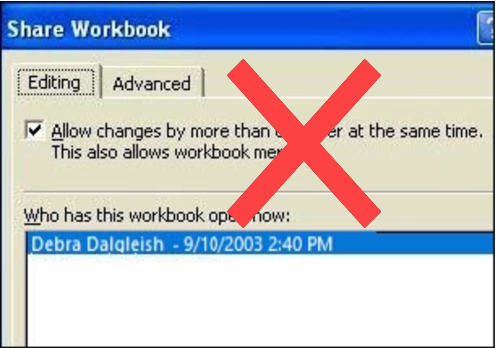
Alternatives to Shared Workbooks
What can you do instead? Find out exactly what the workbook’s purpose is, and why multiple people need to use it.
- If users are entering data, they could get in and out of the workbook quickly, so another person has a chance to enter their data. Excel will notify the next user when the workbook is available.
- If users need the workbook as a calculator, make the file read only, or save it as a template, so anyone can open a copy. Users can save the file with a different name, if they need to save their work.
- If users enter data on separate sheets, create separate workbooks instead. Then, create a summary workbook to pull all the data together.
- If users need to enter data many times throughout the day, a database might be a better option.
If you have other solutions, I’d like to hear them.
Note: See a newer version of this article: Shared Workbook Limits in Excel 2010
===========================
Since three years before working in network infrastructure, all is well but recently got one error in shared excel workbook 2003. dono what is the solution. the problem is , shared workbook working good in all systems but its unexpectedly stopped working for single user,but other excel working good in same folder. we tried all other ways as in microsoft website, but still same problem . is ther any solution?
Hi everyone
I have made a system of 15 types of applications (interfaces) with VBA and used excel 2010 shared workbooks (17 workbooks) for reading-writing data, it is a very large project with >200 worksheets and about 190,000 lines of VBA codes, in fact the system calculates the fees of our products (Prosthesis and Orthotics) and many other data, such as working hours of personnel by product production not by the time they spend in the clinic.
it is really amazing that after 2.5 years I encountered the “locked by another user” problem. all the users open the workbooks as read-only all the time and only when they want to write into the workbook it is reloaded as writable for a few milliseconds and then closed and reopened as read-only. for all this time I had no such problem till the data workbooks got bigger (smallest = 19,000 records for only the reception workbook, having 26 columns) and the saving time extended.
at the cashier desk we have 2 cashiers and their data workbook is very large, now it takes 1.5 seconds to save the workbook (the data workbooks are binary workbooks “.Xlsb”) and if one is writing on it the other encounters the message, if she/he is trying to save some data at the same time. I am a physician and not a software expert but I have become familiar with excel and VBA as I have encountered most of the problems posted on the internet (such as UserForms with >500 controls and many other huge problems).
assuming that all the users open workbooks as writable only when saving some data (a few seconds), I think if we make a loop to check if a workbook is Locked by another user and let it check until the other user’s application closes and reopens the workbook as read-only (in fact unlocks the workbook), then VBA can exit the loop and continue the writing code.
I will try it in a few days and may be the problem can be solved, and the users won’t see the annoying message!
thanks for reading the long story!
I have a workbook with multiple worksheets. I need specific people to be able to log in and specific data from one worksheet to populate for viewing, while the rest of the data remains hidden and the other worksheets remain hidden. The people will not be able to do anything other than view the data. There is only one person that maintains the workbook.
Help?
I have applied the excel template (Project Tracking) and have been trying to share it with my co-workers so everybody can update the file. It doesn’t let me to do it. System asks me to convert it to normal range which I did. It also told me to remove XML maps which got none. Now I really don’t know how to do with it. Please help…
Hi Debra,
i am searching for only one workbook in a screen vba very badly. ( total no. of workbooks opened = one)
Because of excel vba run from another workbook will pull all details from existing workbook ( book2 is open and we will pull details from Book1 by using code as ” Sheets(“sheet1″).Cells.Copy ” to other book.
To avoid the above instance,
Kindly help me in this regard.