
Occasionally a client asks me to create a shared workbook in Excel, so two or more employees can work in it at the same time. It sounds good in theory, but I always try to come up with a different solution.
There are many reasons for avoiding shared workbooks in Excel.
Note: See a newer version of this article: Shared Workbook Limits in Excel 2010
Your Thoughts on Shared Workbooks
Maybe you’ve had success with shared workbooks, and I’d love to hear about it in the comments. For me, the limitations far outweigh the benefits, and there’s usually another way to accommodate multiple users.
[Update] Your Comments
Thanks to everyone who left a comment below, detailing their experiences with Excel shared workbooks.
- Be sure to read through those comments, if you plan to share an Excel workbook. They might convince you to find a different solution!
- Or, if you have no choice in the matter, and have to use a shared workbook, you might find helpful tips in the comments, and workarounds for some of the problems they cause.
Too Many Missing Features
After you share a workbook, many of Excel’s features can’t be used. There’s a list of unavailable features for Excel 2003 on the Microsoft site, and in Excel’s help.
For example, you can’t add any of the following features, and in some cases you can’t even change the existing items:
- Conditional Formatting
- Data Validation
- Lists
- Protection
- Pivot Tables
If you do need to create a shared workbook, check the list of restricted features, and make sure you have everything set up exactly the way you want it, before you share the file.
Test everything after you share the file, because things might not work the way they did before.
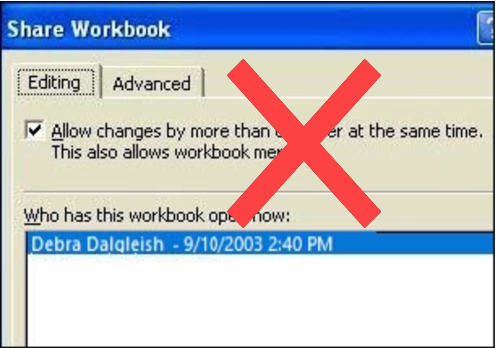
Alternatives to Shared Workbooks
What can you do instead? Find out exactly what the workbook’s purpose is, and why multiple people need to use it.
- If users are entering data, they could get in and out of the workbook quickly, so another person has a chance to enter their data. Excel will notify the next user when the workbook is available.
- If users need the workbook as a calculator, make the file read only, or save it as a template, so anyone can open a copy. Users can save the file with a different name, if they need to save their work.
- If users enter data on separate sheets, create separate workbooks instead. Then, create a summary workbook to pull all the data together.
- If users need to enter data many times throughout the day, a database might be a better option.
If you have other solutions, I’d like to hear them.
Note: See a newer version of this article: Shared Workbook Limits in Excel 2010
===========================
Can I just ask, can multiple users be in one database document then, updating it from their different desks and there will be no conflicts????
Is it really possible for multiple users to be in one database updating it, adding deleting info AT THE SAME TIME and there will be no conflicts whatsoever?
The short answer is
–Yes, a database can handle “many” concurrent updates without conflicts. —
There are limits (usually well documented), but a database should also deal with such limitations “gracefully” (for instance declining to commit the update in a saturation condition) rather than “ungracefully” (losing data).
Your mileage may vary. (Cue discussions of what’s a “REAL” database and what is not…)