
If you create a pivot chart in Excel, with dates along the axis, you might want to change the format of those dates.
Here are the steps for formatting Pivot Chart dates.
Format Axis Dialog Box Problem
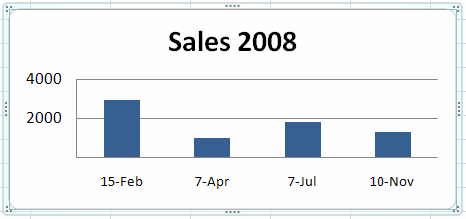
For example, if the date format is November 10, 2008, you may prefer something shorter, such as 10-Nov.
However, if you try to format the dates through the Format Axis dialog box, the change won’t be successful.
Pivot Field Format Settings
The pivot chart date formats are controlled by the field format in the pivot table. To change the date format:
- Right-click a date in the pivot table (not the pivot chart).
- Click on Field Settings
- Change the Number Format to the date format that you want.
This tip, and the answers to your other burning pivot table questions, can be found on the Pivot Table FAQ page on my web site.
Did you ever solve this problem? I am having a similar problem. I have a label that is in plain number format, and it keeps converting to a date.
Thanks,
Stephanie
Here’s a solution that worked for me. The end goal – have a (pivot) chart build from “endless” range (e.g. $A:$D, not $A$1:$D$10), where column A is represented by dates.
1. Create a pivot for a finite range first ($A$1:$D$10 in my example)
2. Make a pivot chart off that table
3. Format dates in pivot table to what you need them to be (mm/d for me) via Fields List -> Row Labels -> Field Setting. The format will update in both the table and the chart.
4. Go to “Change Data Source” and correct the reference from $A$1:$D$10 to $A:$D. Blank dates get introduced immediately and in the table, date format re-sets; however, in the pivot chart, my format of choice remains.
(based on Excel 2010)
Great, thank you. It solved my problem.
Wow. I hunted for an hour trying to resolve this. I probably backed up 10x before I was willing to change the data source settings and try this, but it did work. Really helpful, thanks!
I had the same problem and Irina’s detailed solution (the post above mine) worked! I had to go to the Pivot Table’s “Field list” to modify the field setting because the other solutions did not work.
Thanks Irina 🙂
Thanks for this great tip! Lifesaver and instant headache-reliever! 🙂
Thanks all, It really helped a lot.
I was having blank cells as I was using the $A:$D range. Instead, i will use the dynamic named range for the pivot.
Ayush Jain
Microsoft Excel MVP
discussexcel.com
Had a similar problem. A PT based on and Excel ‘table’ in another sheet. I could not change date format on PT row labels – all locked on ‘d-mmm’. I tried copying the source table and making new PT – this worked so reasoned problem must be with the table. I set all number formats on source table to ‘General’ then refreshed the PT. This caused row lables to change from ‘d-mmm’ format to ‘dd/mm/yyyy’ format, which is what I wanted. Finally I re-applied the formatting to the source table and refreshed the PT again. Date formats stayed at ‘dd/mm/yyyy’.