
If you create a pivot chart in Excel, with dates along the axis, you might want to change the format of those dates.
Here are the steps for formatting Pivot Chart dates.
Format Axis Dialog Box Problem
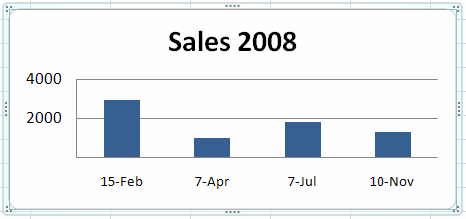
For example, if the date format is November 10, 2008, you may prefer something shorter, such as 10-Nov.
However, if you try to format the dates through the Format Axis dialog box, the change won’t be successful.
Pivot Field Format Settings
The pivot chart date formats are controlled by the field format in the pivot table. To change the date format:
- Right-click a date in the pivot table (not the pivot chart).
- Click on Field Settings
- Change the Number Format to the date format that you want.
This tip, and the answers to your other burning pivot table questions, can be found on the Pivot Table FAQ page on my web site.
This only works if the date field is a value. If the date field is a row (very common usage), there is no number format button available in the Field Settings. How does one change the x-axis date format? All the obvious solutions have zero impact on what date format the chart displays…it’s always the original source date format (even if that format was changed on the source cell).
Gary, in this example the date is a row field, and the Number Format button is available.
However, you won’t see that button in the row field if there are blank cells, or non-numeric entries, in the Date field.
Debra’s answer is what solved it for me:
Ah. What I meant was my date field is a row label (as in months) in the PivotChart. In this case there’s no number format and the chart axis is stuck in only one date format.
Gary, Debra’s comment is still valid. If there are blank cells or non-numeric entries, you won’t see the “Number Format” button available for your X-Axis dates. I was encountering the same problem my dates were stuck in 1 format, i.e. 1/1/2008 – I checked if there were blanks in my date column and there were – this is because my pivot range for the table/chart was set to all 65,000 rows in the worksheet, even though I only had dates filled in for my data which didn’t take up the spreadsheet.
Once you edit your range to fit exactly your data, the number format button will appear for the dates, and you will be able to change the format. This will be reflected in any subsequent charts you create. Hope this helps…
Excellent; I used this trick and it fixed my date format on the X axis. Thank you so much.
Cyrus, thanks for responding. It’s been a while and i don’t have the file any longer, but I do remember checking the range, looking for blanks, etc. Unfortunately that did not resolve the problem. The range was tight to the specific data, no blanks in the date cells.