Excel 2010 Conditional Formatting Nightmare

[Updated June 2018] I’m a big fan of Excel’s conditional formatting, and often use it to highlight cells on a worksheet. But this week I ran into a conditional formatting nightmare, and had to start from scratch. Fortunately, the fix didn’t take too long, but with complex formatting, things could have been much worse.

Continue reading “Excel 2010 Conditional Formatting Nightmare”

Automatically Format an Excel File

Do you open the same type of Excel file every day, and make a few standard formatting changes, before you start to use it?

One of my clients was getting tired of manually formatting a daily list of customer information, and asked for some help.

Record a Macro

I suggested that she record a macro while formatting the file, and run the macro each day, when the new file arrives.

Other people in her company were in the same situation, so I set up a workbook with some fake data, and made a video, to show them the steps.

Excel Tips Too

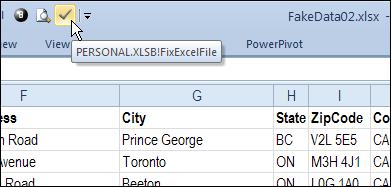
I included a few Excel tips too, like using the F4 key to repeat the last action, and adding a button to the Quick Access Toolbar.

Add macro button to Quick Access Toolbar

Watch the Record and Run a Macro video

If it’s something that you’d like to learn, or share with a co-worker (so they’ll stop asking you for help!), you can watch this short Excel video tutorial.

You could save time by automating some your daily tasks in Excel!

And by recording and editing a few macros, you’ll learn a bit about Excel VBA programming too!

_________________

AutoFit Merged Cell Row Height

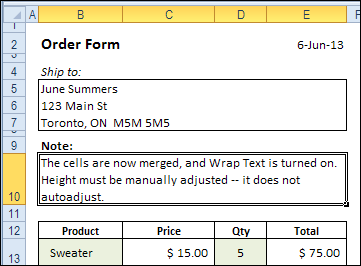
You’ve most likely heard this warning — “Avoid merged cells in your Excel worksheets!”, and that is excellent advice. Merged cells can cause problems, especially when they’re in a table that you’ll be sorting and filtering. You’ll run into more problems if you try to autofit merged cell row height.

Continue reading “AutoFit Merged Cell Row Height”

Compare Top and Bottom Sales in Pivot Table

An Excel pivot table is a great way to summarize a large amount of data, and with its Top 10 filter, you can compare the top values to the bottom values.

But don’t limit yourself to the Top 10 versus the Bottom 10 – dig deeper by using the other options in the filter.

Summarize the Data

With a few mouse clicks, you can summarize thousands of rows of data into a concise and informative pivot table.

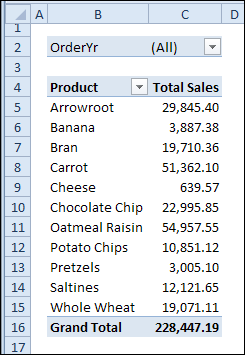
In this example, there is a list of product, and their total sales over two years.

pivottop10filter00

Sort by Sales Values

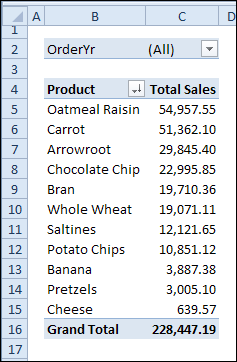
Instead of viewing the products alphabetically, you can sort by total sales, in descending order, to see the best selling products at the top of the list.

Here is the same list, with Oatmeal Raisin at the top.

pivottop10filter01

Spotlight the Best Selling Products

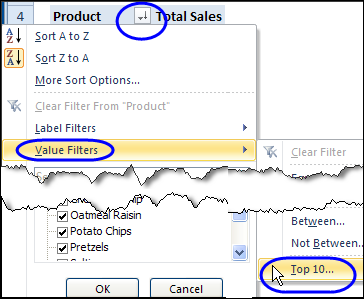
Instead of showing all the products, you can use the pivot table’s Top 10 filter in the Product field, to filter the results.

pivottop10filter01b

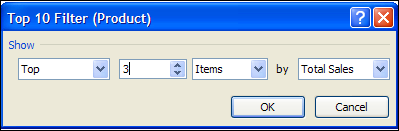
The Top 10 filter is customizable, and can be used to show the top 3 items, instead of the top 10.

pivottop10filter01c

Top 3 Sales in Pivot Table

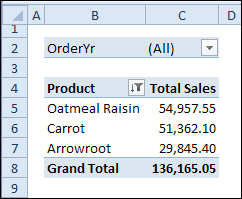
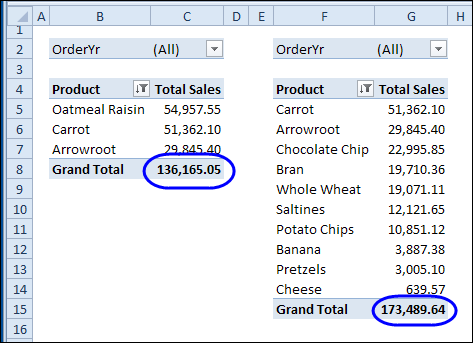
Here is the pivot table, with the Top 3 items showing, and the grand total for those items.

pivottop10filter02

Compare to Bottom Items

If you’re working on a sales plan, you might want to decide where to focus your efforts, and a pivot table, or two, could help.

  • If the top 3 products have total sales of approximately $136K, how are the bottom selling products doing, in comparison?
  • How many of those bottom selling products are required to match the top 3 sales?

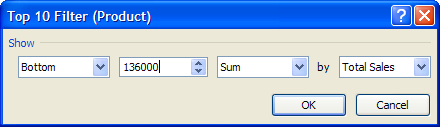
To find out, you can make a copy of the pivot table, and change the Top 10 filter. Instead of Top 3 Items, filter for Bottom Sum, and use the $136K amount as the target SUM.

pivottop10filter03

Difference in Comparison Results

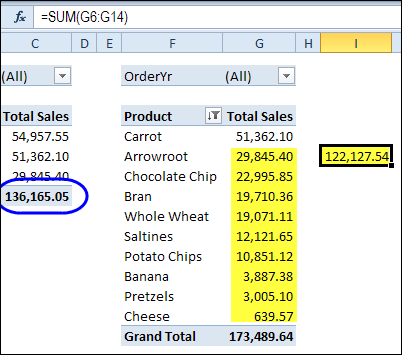
In this example, the top 3 sales were $136,165, and the bottom 10 products have sales of $173,489. The totals are not an exact match, because the pivot table filters for the products that total the specified sum, or more.

pivottop10filter04

Find Best Results

The bottom 9 products don’t reach the target amount, so the 10th lowest product is also included. That puts the total over the target, and it shows that the best results come from a small number of products.

Focus your sales efforts there, and you might have a great sales year.

pivottop10filter05

Watch the Pivot Table Top 10 Compare Video

To see the steps for comparing top and bottom values in a pivot table, you can watch this short Excel video tutorial.

________________

Trouble Counting Excel AutoFilters on Sheet

It seemed simple enough, but counting the AutoFilters on an Excel sheet is a tough job!

The answer to “How many worksheet AutoFilters are there?” is “It depends!”

You can read the fascinating (to me!) results below.

The Good Old Days

In the old days, before Excel 2003, you could only have one AutoFilter on a sheet. That’s pretty easy to count – either 1 or 0.

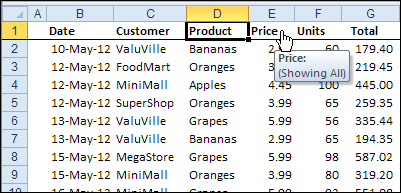
For example, this Excel 2010 sheet has a single list that is not a named table. An AutoFilter was applied to this list, and the AutoFilter arrows have been turned off.

If you point to one of the headings, where the hidden arrow is, the tooltip for that filter appears, so that shows us the AutoFilter is still active.
autofiltercount01

Count the Worksheet AutoFilters

To count the worksheet AutoFilters, I usually use AutoFilterMode to check if one exists.

Recently, Pascal (forum name: p45cal) emailed me, to suggest that checking for a worksheet AutoFilter would be more reliable. Thanks, Pascal, for inspiring this test!

Macro Code Count AutoFilters

This code tests for a worksheet AutoFilter, by using either AutoFilterMode or AutoFilter:

Sub CountSheetAutoFilters()
Dim iARM As Long
Dim iAR As Long
'counts all worksheet autofilters
'even if all arrows are hidden
If ActiveSheet.AutoFilterMode = True Then iARM = 1
    Debug.Print "AutoFilterMode: " & iARM
If Not ActiveSheet.AutoFilter Is Nothing Then iAR = 1
    Debug.Print "AutoFilter: " & iAR
End Sub

When I test that code in the Immediate window, both counting methods show 1 AutoFilter.
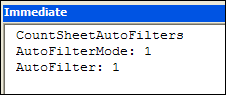
autofiltercount02

Named Table on the Worksheet

What happens if there is a named table on the worksheet, and it has its own AutoFilter? I ran the code again, on the worksheet shown below.

The worksheet has a named table, and it has an AutoFilter applied, with all the arrows hidden.
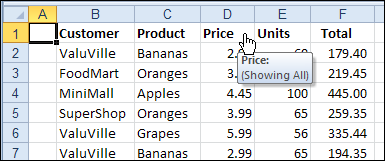
autofiltercount03

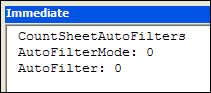
When I test the code in the Immediate window, both counting methods show zero AutoFilters.

I consider that count correct, because there is a ListObject with an AutoFilter, but no worksheet AutoFilter.
autofiltercount04

Different Count Results

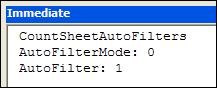
In the screen shot above, you can see that cell A1 is selected – outside of the named table. When I selected cell B1, inside the table, and ran the code, the results were different. AutoFilterMode was still zero, but AutoFilter detected one.

Apparently, Excel is counting the active cell’s table as a worksheet AutoFilter, with the AutoFilter counting method. I’d rather go with the AutoFilterMode’s zero, and count the ListObject AutoFilters separately.
autofiltercount05

Test With Visible AutoFilter Arrows

Maybe the hidden arrows are affecting the results. To check, I ran code to show all the list AutoFilter arrows, and tested again.

The results were the same as in the previous tests, so visible arrows don’t make a difference.

Multiple Tables on Worksheet

For some final tests, I created a sheet with 3 lists:

  1. Named Table – no AutoFilter – no arrows
  2. Named Table – AutoFilter – visible arrows
  3. Worksheet table – AutoFilter – visible arrows

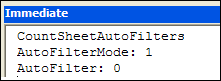
With a cell in Named Table 1 selected, AutoFilterMode counted one, and AutoFilter counted zero.

As in the previous test, the AutoFilter counting method is based on the active cell’s table AutoFilter. It doesn’t detect the AutoFilter in Worksheet Table 3.
autofiltercount06

And More Results

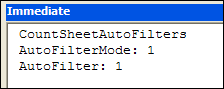
With any other cell in the worksheet selected, the results were different – both AutoFilter and AutoFilterMode counted one – the correct count of worksheet AutoFilters.
autofiltercount07

Counting Worksheet AutoFilters Conclusion

Because ActiveSheet.AutoFilter detects the AutoFilter in the active cell, it could cause a miscount of worksheet AutoFilters.

I’ll stick to the AutoFilterMode for a count of worksheet AutoFilters, and use other code to count the ListObject AutoFilters.

AutoFilters in Other Excel Versions

After running these tests in Excel 2010, I tested the AutoFilter counting code in Excel 2003, and got the same results.

If you find different results in other versions of Excel, please let me know.

___________

Add Products to Excel Order Form

imageThe summer is off to a good start here in Canada – we had perfect weather for our first long weekend of the season. My garden is almost ready, and I haven’t killed any of the plants yet!

Over the weekend, my Contextures website and blog were moved to a different web host and servers. It seems to have gone smoothly, but please let me know if you see anything strange. Well, stranger than usual. 😉

Click to Add Products to an Order

As you know, when you’re moving, you sometimes find interesting things in the back of the closet. While I was checking the website, I found this sample file, that lets you click to add products to an Excel order form.

On the Data Entry sheet, you can select a product category, from the drop down list.

productordercode01

When a category is selected, the Excel Worksheet_Change event code runs, and lists all the products in the selected category.

Worksheet Change VBA Code

The code uses an Advanced Filter to copy the products onto the Data Entry sheet.

productordercode02

In the list of products, click on any row, in column G, to add that product to the order form.

productordercode03

The Order Form Move Code

Another event code runs when you click on a cell in column G – the SelectionChange event.

It checks the column and row number of the cell that was selected, and checks for an entry in column A.

productordercode04

If the selection was in column G and the row number is greater than 6, and there is something in column A, an X is added to the cell.

Then, the MoveRow code runs, and it copies the selected row to the order form, in the row below the previous product ordered.

productordercode06

Here is the OrderForm sheet, with condiments and dairy products listed.

productordercode05

Future Enhancements to the Product List Order Code

When you go back an look at an Excel project, you can usually think of several things that would improve it. In this example, I’d like to add code that prints the completed order form, and clears the OrderForm sheet.

Is there anything else that you’d add or change?

Download the Product List Order Workbook

To download the product list order form workbook, you can visit the Sample Files page on the Contextures website. In the Filters section, look for FL0016 – Move Items to Order Form.

The file is in Excel 2003 format, and zipped. It contains macros, so enable those, if you want to test the code.

Another Excel Order Form

To see another example of an Excel order form, go to the Excel Order Form page on my Contextures site.

In the video below, I give a quick demo of how that order form works.

_________________