Hide Pivot Table Subtotals

Sometimes the Excel macro recorder creates code that gets you off to a good start. Other times, it’s not so helpful.

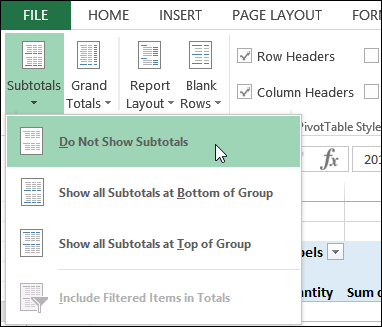
This week, I was working on a pivot table macro, and wanted to turn off all the Row Field subtotals. Fortunately, there is a handy command for this on the Ribbon, on the Design tab, under PivotTable Tools. One click, and the subtotals disappear, or reappear.

Let’s get the code for that, which I’m sure will be equally clean and simple. Ha!

removesubtotalsvba02

Continue reading “Hide Pivot Table Subtotals”

Save Space With Compact Worksheet Buttons

Last week, AlexJ sent me a tip for making better worksheet buttons, and I’ll be using it from now on, instead of my old method. I’ll show you both button types, and maybe you’ll switch too.

Big Bold Buttons

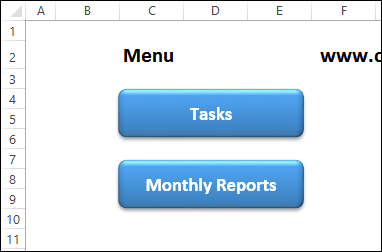
If I’m making a workbook with several sheets, I usually add a menu sheet at the front, with buttons that link to the other sheets. In the screen shot below, you can see a typical menu, with buttons for two of the worksheets. Each button has a hyperlink to cell A1 on the named sheet.

  • The buttons are wide enough to fit the longest sheet name
  • The font is bold, and big enough to read on the dark background.

They work well, but look a bit big and clunky.
buttoncaptions02

Clear and Compact Buttons

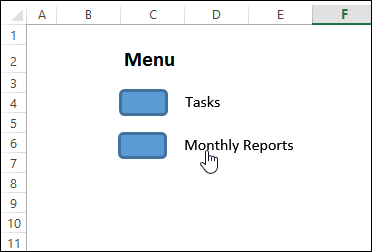
Then, AlexJ sent me his tip for worksheet buttons. Make the buttons small, and let the text flow out to the right side.

  • With this method, all the buttons can be compact – just big enough to see, and click easily
  • The text doesn’t need to be big and bold, because we’ll use black font on the white worksheet.

The captions are clickable too, so that is an extra advantage.
buttoncaptions01

Set Up the Text

Here are the steps for creating a compact button and caption:

  • Add a small shape to the worksheet, and type a caption
  • Right-click on the shape, and click Size and Properties
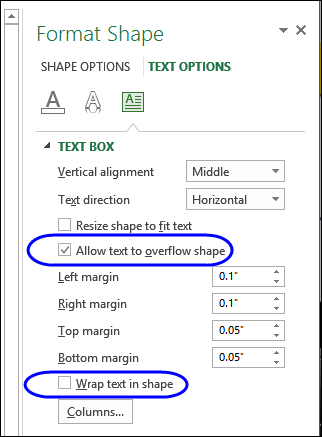
  • Click the Text Box heading, to see the options
  • Add a check mark to Allow Text to Overflow Shape
  • Remove the check mark for Wrap Text in Shape
  • Add a few spaces at the start of the text, so it moves to the right of the button shape
  • Change the Font colour to black

buttoncaptions03

Download the Sample File

To see how the buttons work, you can download the sample file from AlexJ’s Sample Files page on my Contextures website.

In the Excel Tips section, look for ET0001 – Compact Buttons With Captions. The zipped file is in xlsx format, and does not contain macros.

Watch the Video

To see the steps for creating compact buttons with captions, please watch this video tutorial.

Or watch on YouTube: Save Space With Compact Excel Buttons And Captions

__________________

Excel Roundup 20150202

Happy Groundhog Day! Please feel free to read this roundup over and over again.

Poynter posted a couple of videos from the early days of Lotus 1-2-3, which was released 32 years ago, on Jan. 26, 1983. In this video, you can see how exciting a workday becomes, when new spreadsheet software is installed. Does Excel ever make you feel like dancing?

Continue reading “Excel Roundup 20150202”

Football Fun in Excel

This Sunday is Super Bowl XLIX – the last one that will start with “XL”.  Next year, it will be Super Bowl L – that doesn’t exactly roll off the tongue!

In 2011, I showed how you can use the ROMAN function in Excel, to change a number into a Roman numeral. That year, they were playing for the 45th time, which was XLV.

=ROMAN(A2)

FootballRoman

Other Football Functions

There are other Excel functions that sound like they could be used in a football game. Here are a few, and I’m sure you can think of others:

  • CONVERT
  • RECEIVE
  • YIELD
  • SUBSTITUTE
  • ISREF

Okay, that last one was a bit of a stretch, but I’ll allow it. What functions did I miss?

Close Football Games

While you wait for the game to start, you can look back at some historic games, with the data that Kevin Lehrbass compiled in an Excel file. You can download Kevin’s workbook, which contains enough data to entertain you for a couple of days, while you try to decide which was the closest game.

Did Kevin think of all the factors that make a football game close, and exciting to watch?

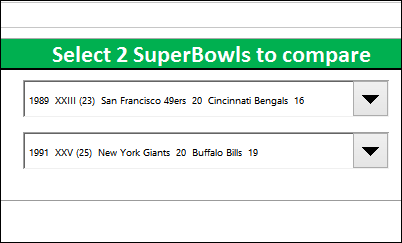
You can even select a couple of Super Bowls, and compare them. Have fun, and enjoy Sunday’s game!

superbowl

_____________________

Combine Data on Two Worksheets

Have you been experimenting with the Power BI tools that are available in the newer versions of Excel. I’ve done some work with Power Pivot, and was impressed by what could be done with that add-in. But, despite its capabilities, I haven’t been using it for big projects, or client work.

Recently though, I’ve been testing Power Query, and the things that it can do are very exciting. I’m just getting started with this add-in, but was amazed by how easy it is to combine data on two different worksheets.

Once the data is combined, you can filter and sort it, all in one place. Or, create a pivot table from the combined data. It’s much easier, and with better results, than the old methods of working with Multiple Consolidation Ranges.

Continue reading “Combine Data on Two Worksheets”

Excel Roundup 20150119

In this tutorial, from the Lynda.com website, you can learn 5 helpful Excel keyboard shortcuts, for tasks such as toggling the Ribbon on and off, and showing a print preview.

I use the mouse, and buttons on the QAT, for most of these commands, but if you’re a keyboard person, you might like a couple of these shortcuts. Or did you know all of them already?

[Update is no longer available]

Contextures Posts

Here’s what I posted recently:

  • Robert Lepper sent me his tip for creating a color spectrum with 2-color gradients in a range of cells, and I added it to my Formatting Tips page.
  • For a humorous peek at what other people are saying about spreadsheets, read the latest collection of Excel tweets, on my Excel Theatre blog.

Other Excel Articles

Here are a few of the Excel articles that I read recently, that you might find useful.

  • Here’s a quick Power Pivot tip from Melissa Coates (SQL Chick), so you can see the calculated measures in alphabetical order. That makes it easier to find things in a long list. You can do the same thing for the field list in a regular pivot table.

Excel Announcements

Here are some upcoming events, courses, recently published books, and other new items, related to Excel.

Dashboard Course

  • Mynda Treacy has opened registration for her acclaimed Excel Dashboard Course, and you’ll get 20% off, if you sign up by January 22nd. I reviewed this excellent dashboard course when it first opened, and just updated my review, after taking a look at the latest version. You can read my detailed review here. The course is an even better investment now, with many new videos added.
  • Mynda is also offering a free introductory webinar on How to Build Excel Dashboards. Get the details on this one-hour session, and sign up for a date and time that is convenient for you.

PASS BA Marathon

  • Feb. 3, 2015 — Sign up now, for this free online preview of the upcoming Business Analytics Conference. There will be 6 live webinars, including “Productivity Revolution in Excel”, led by Chandoo (Purna Duggirala) and Avi Singh. Unfortunately, it has nothing to do with bacon, which was my first thought, when I saw the website name, “passbaconference.com”.

Excel Summit

  • Amsterdam Excel Summit, April 13-15, 2015. Mark your calendar for April 13-15, so you can attend this amazing Excel event. Last year’s summit was an outstanding success, and registration will open soon, for this year’s event. Bookmark this page, for event details and registration: Amsterdam Excel Summit 2015

Share Your Events and Articles

If you read or wrote any other interesting Excel articles recently, or have upcoming Excel events, please let me know. Thanks!

Weekly Excel Roundup http://blog.contextures.com/

Delete Rows With Conditional Formatting Color

If you’ve highlighted cells with conditional formatting, what’s a quick way to delete the rows those cells are in? Someone asked that question on one of my old blog posts last week. That article showed how to use the Find command, to get a list of cells that contain a specific word. Then, delete the rows for those cells.

It’s a handy trick, but won’t work to select cells that are colored with conditional formatting.

Continue reading “Delete Rows With Conditional Formatting Color”

Excel Roundup 20150112

Doug Glancy used Excel’s camera tool, and some VBA, to create a mesmerizing “selfie” of a range which has conditional formatting applied. Doug describes the results:

Kind of like when you’re in a dressing room with the mirrors front and back and you get a reflection of a reflection of a reflection … Unless you’re like me and you just keep buying the same pants online.

I downloaded the sample file, and changed the colours, to match my Contextures logo. I’m not sure if this has too many practical applications, but perhaps you can use it to hypnotize your boss, and get a big raise.

Continue reading “Excel Roundup 20150112”