
If you use the mouse most of the time, when you’re working in Excel, you probably right-click, to see the popup menus. For example, right-click a column heading to insert a new column. If your favourite commands aren’t on those popup menus, here’s how you can change Excel right-click menus, to add them. Also, if you have a minute, please take the 3-question Excel survey on my Debra D blog. Thanks!
Author: Debra Dalgleish
Excel Lookup With Two Criteria
If you need to get a product price in Excel, you can use VLOOKUP or INDEX/MATCH to get the price from a lookup table, based on a product code. But what if you have two pieces of information, such as a product name, and a size, and you want to find the price based on that information? How can you do an Excel lookup with two criteria?
Macro to List All Pivot Fields and Pivot Items
If you’re setting up a big pivot table, it’s easy to lose track of what you’ve added, and what filters have been applied. To help you stay organized, I’ve created a macro to list all pivot fields and pivot items in the selected pivot table’s row, column and filter areas. You can download the sample file, and test the macro in your own files.
Continue reading “Macro to List All Pivot Fields and Pivot Items”
How to Create a Pivot Table Style
You don’t have to stick with the default formats for your pivot tables. You can create a pivot table style with your own colours, and other formatting options that you like. Here’s how to get started, and a video with a simple formatting change that you can make.
Macro to Remove Pivot Table Calculated Fields
Have you ever recorded a macro to remove pivot table calculated fields? Just turn on the recorder, right-click on the field and hide it, and turn off the recorder. Then, if you try to run that macro later, Kaboom! You get an error message, “Run-time error ‘1004’: Unable to set the Orientation property of the PivotField class”.
Good news – you can download my sample file that has a macro that actually removes those pesky calculated fields, without creating an error message. The video shows how it works.
Continue reading “Macro to Remove Pivot Table Calculated Fields”
Enter Complex Excel Formulas Fast
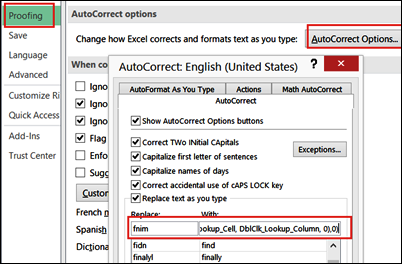
On Chandoo’s blog, Hui is running a series of articles with Excel Tips. There were some great tips in this week’s list, but my favourite one was down in the comments section – how to enter complex Excel formulas fast.
I’ve been using Excel for a long time, and I’ve never seen this suggestion before. And it’s a real time saver!
Free Excel Dashboard Tools
Mike Alexander, from the Bacon Bits Excel blog, has just released a major update to his Dashboard Tools add-in. And the great news is that you can get a free copy for the next few days! Mike is making this available until May 7th, at midnight (Central Time Zone).
Use Running Total to Compare Years in Excel
If you’re analyzing sales data from year to year, you can make a line chart that shows each month’s sales. That lets you see if there were any months with big differences, and shows how sales went up and down over the year. Another option is to use a Running Total to compare years in Excel. It’s quick and easy to set up with a pivot table and pivot chart.
Continue reading “Use Running Total to Compare Years in Excel”
Choose From List to Change Excel Data
Do you need a quick way to show different data in a worksheet? For example, on an order form, you could let people select a region, and automatically include the shipping cost or tax rate for the selected region. I added an English/French selector to a workbook last week, so a formula would work correctly, in either language.
Create an Excel Hyperlink With Drag and Drop
In a big Excel file, it’s handy to have hyperlinks that take you from one sheet to another. Maybe you need a table of contents, or a single link on a summary sheet that takes you to a data entry sheet. You can use the Insert Hyperlink command on the Ribbon, but it’s even quicker to create an Excel hyperlink with drag and drop. Here are a couple of ways to do that.
And there are a couple of Excel announcements too.
Continue reading “Create an Excel Hyperlink With Drag and Drop”