Sort Multiple Columns in Excel

Without family, where would Excel blog ideas come from?

My daughter called today, and asked how to sort more than 3 columns in Excel. She uses Excel 2003, and the Sort dialog box only allows three column choices.

There’s no box to choose the fourth column – Name.
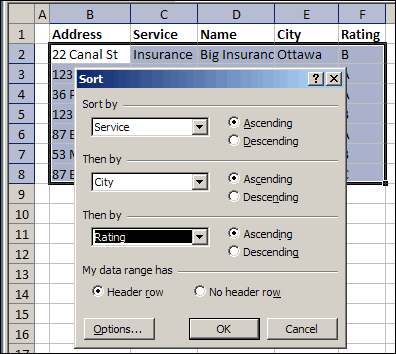
Sort dialog box in Excel 2003

Sort By Multiple Columns

Obviously, she didn’t check my website, where she would have found the instructions to sort by four columns in Excel.

You can sort in groups of 3, working up from the least important to the most important.

So, I told her to sort the fourth column (Name), then the first three (Service, City, Rating).

Sorting in Excel 2007

If you like to sort lots of columns, you’ll be happier in Excel 2007. There, you can sort up to 64 columns at one time.

If my daughter had Excel 2007, she could choose all four columns, and sort them in one step.

In the Sort dialog box, click the Add Level button, to include another column in the sort specifications.
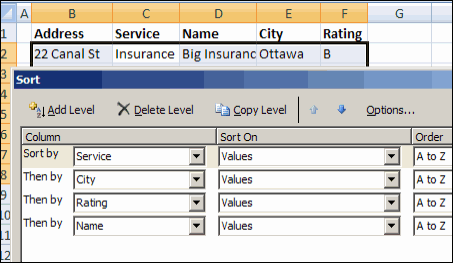
Sort dialog box in Excel 2007

Automating the Sort

If you turn on the macro recorder while sorting in Excel 2007, you can create a macro to sort the table.

Then, run that macro later, when you need to sort the table again, using the same settings.

Macro Error in Excel 2003

However, if you’re sending the workbook to someone who uses Excel 2003, they’ll get an error message if they try to run your sort code.
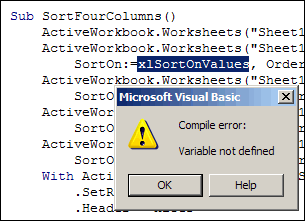
SortMulti02

Just like families, sometimes the different generations don’t communicate too well. 😉 Because the sort feature changed so much in Excel 2007, the older versions don’t recognize some of the new properties.

Sort Macro for All Excel Versions

If you plan to use the workbook in both versions of Excel, record the sort macro in Excel 2003. This will also run without problems in Excel 2007.

Here’s the code from this example, with the Name in column D being sorted first.
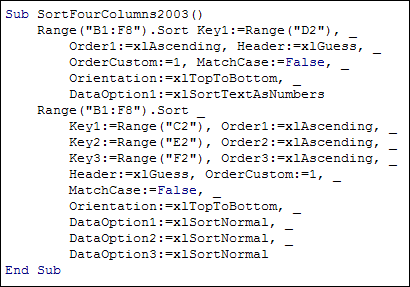
SortMulti04
_______________

Advanced Filter Macro Problem in Excel

I love advanced filters, but this week they caused me some serious grief.
Advanced filters in Excel are quick and powerful, and I use lots of them.

They’re a great way to pull a list of unique items from a table, or send specific data from one sheet to another.

Advanced Filters

People sometimes have trouble with an advanced filter, usually because the headings are incorrect, or there are no headings.

The advanced filter criteria can be a bit tricky too, if you go beyond the basics.

I know about those problems, and am careful to avoid them.

A Simple Filter

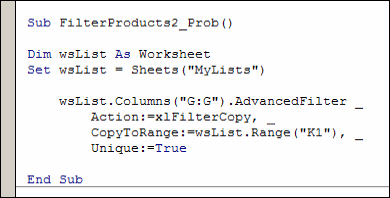
This week, as part of a larger procedure, I had an advanced filter, similar to the one shown below.

AdvFilterCode01

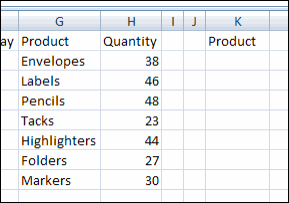
Filter for Unique Products

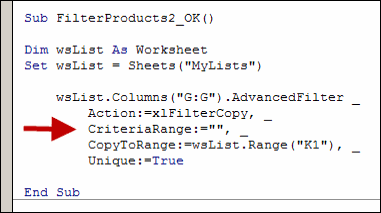
The code was designed to pull a list of unique products from column G, and put it in column K.

In this example, all 7 products in column G are unique, so they all should have been filtered to column K.

However, after I ran the filter, there was nothing in column K, except the heading!

AdvFilterCode00

Leftovers Clog the Filter

I checked, and the headings were an exact match, so that wasn’t the problem.

I checked the code carefully, and everything looked okay. Similar code had run hundreds of times, without a hiccup.

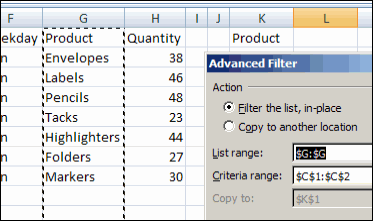
To troubleshoot, I tried to run the advanced filter manually, and in the screen shot below, you can see what appeared in the Advanced Filter dialog box when it opened.

Hmmm. There, in the Criteria Range box, was the range from a previous advanced filter.

AdvFilterCode03

Clear Criteria Range Setting

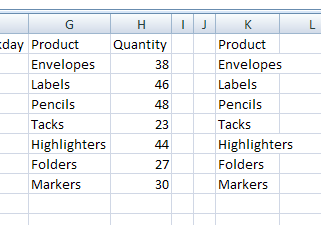
I cleared out the Criteria Range setting, and the filter ran without problems.

As expected, all 7 products showed up in column K.

AdvFilterCode05

Change Advanced Filter Macro Code

To prevent the macro problem from happening again in the future, I revised the macro code.

Even though the advanced filter didn’t use a criteria range, I added one to the code, with the setting as an empty string.

AdvFilterCode04

Good Housekeeping Prevents Clogging

With that change, the code ran perfectly, even if a previous filter had a criteria range.

To prevent your own advanced filter headaches, add that empty criteria range to your code, if you’re not using a criteria range.

It will clear out the setting, in case a previous advanced filter used a criteria range.

I’ll certainly do that from now on!
__________________

Excel Twitters, Takeaways and Trials

It’s been quite a while since the last one, but I’ve finally posted another list of Excel Twitters.

The Twitter spam was making it too tough to collect the interesting tweets, and that’s why I stopped. However, I managed to create a few search settings that helped a bit, and this new list is the result.

The new Excel Twitters list is on my Excel Theatre blog, where I have all the archived Excel Twitters posts, plus some Excel video tutorials, and a few other things.

Excel Takeaways

My friend, Heather Mak, has started a new blog – Five Takeaways. In the blog, Heather and friends will “interview subject matter experts and ask them to provide the five takeaways (hence the name) of a subject area.”

  • UPDATE: The blog is no longer online

She asked if I’d like to create a list of five takeaways for Excel, so I’m working on it. If you’d like to help, please add a comment with one or more things that you’d include as an Excel takeaway. Thanks!

Excel Trials

I’ve been testing some Excel products recently and here’s one that I tried this weekend.

  • [update] This add-in is no longer available

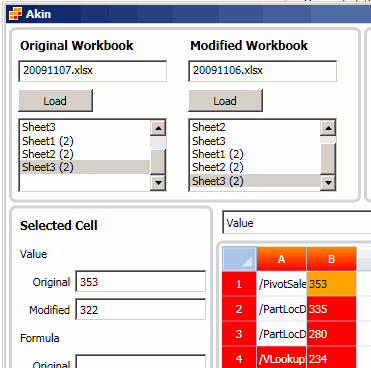
Mathias Brandewinder of Clear Lines Consulting sent me a link to Akin, an Excel file comparison program.

This is a free download, and was very simple to install. Open the Akin program, and select two Excel files to load.

  • Akin compares the files, and highlights the cells on the selected sheets, where there are differences.
  • You can click on a row or column heading, or the Select All button, to see only the cells where there are differences.

Find Differences in Large Worksheets

That feature is useful in a large worksheet, letting you focus on the differences, without searching through the sheets manually.

The program is easy to use, and a good tool to use if you’re trying to find changes that someone else has made in a file. It shows changes to both values and formulas.

Here’s a screen shot of the Akin window, with the original and modified value in cell B1 shown.

screen shot of the Akin window

_____________

Excel Recent Documents List Settings

You open lots of Excel files every day, and sometimes open the same file several times.

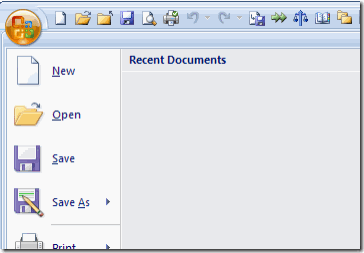
In Excel 2007, if you click the Office Button, you can see a list of documents that you’ve opened recently. Click on file name, to open that file again.

List of Recently Used Documents

Change the Number of Documents

My Recent Documents List was showing 17 files, and I guess that’s the default number, since I don’t remember changing it.

Instead of leaving the default setting, you can show more or fewer files.

To change the setting:

  1. Click the Office Button, then click the Excel Options button
  2. Click the Advanced category
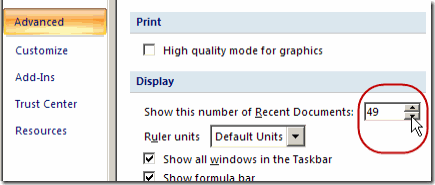
  3. In the Display section, change the number for Show this number of Recent Documents.
  4. Click OK, to close the Excel Options window.
Show this number of Recent Documents

The maximum number of files is 50, but that many might not show unless you have a really tall monitor.

Change the Setting in Excel 2003

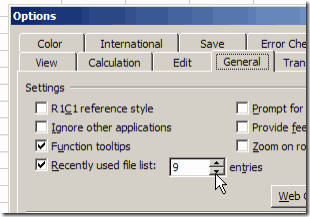
In Excel 2003, the maximum number of files you can show in the list is 9. To change the setting:

  1. On the Tools menu, click Options.
  2. On the General tab, change the number for the Recently Used File List.
  3. Click OK, to close the Option dialog box.

RecentDoc03

Clear the Recent Documents List

In either version of Excel, you can clear the list, by changing the number to zero.

In Excel 2003, you can also remove the check mark from the Recently Used File List setting.

After the list is cleared, you can change the setting to a higher number, to start building the list again.

RecentDoc04

Pin Items to the List

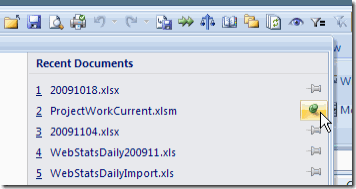
Normally, the older items in the list drop off the bottom, as new files are opened. In Excel 2007, there’s a push pin icon at the right of each file name. To keep a file on the list, click that push pin, to activate it.

This is another one of the Excel 2007 features that I didn’t notice until recently. (Maybe that’s why it’s call the Recent Documents list!) Now I use it quite often, to “stick” files that I’m working with for a few days.

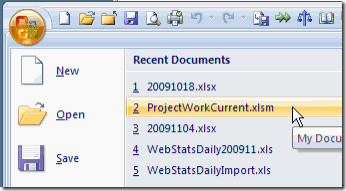
In the screen shot below, the ProjectWorkCurrent.xlsm file is pinned to the list. Instead of the flat grey push pin, there’s a vertical green push pin.

That file will work it’s way down the list, if it’s not opened for a while, but it will stick to the list, and won’t drop off.

RecentDoc02
_____________

Creating Excel Hyperlinks Is a Drag

Almost a year ago, we talked about creating a table of contents sheet in Excel. In that post, one of the suggestions was to type a list of sheets on a worksheet, then change each sheet name into a hyperlink.

Today, you’ll see a quicker way to create hyperlinks — by dragging and dropping. There are written steps and a video below.

Continue reading “Creating Excel Hyperlinks Is a Drag”

Do You Make and Sell Excel Add-Ins?

If you create an Excel add-in, and offer it for sale, how do you decide what to charge for that utility?

How Do You Price Software?

What is your pricing strategy?

  • Do you check out the competition and price your utility in the same range?
  • Do you crunch a pile of numbers in Excel, and base your price on the results?
  • Do you just make a wild guess, and put that price on the sticker?
  • Or something else?

Product Pricing Guide

To help you with pricing, you can get a copy of the book:

  • Don’t Just Roll the Dice: Usefully Short Guide to Software Pricing

It’s written by software developer, Neil Davidson, of Red Gate Software.

Your local library might have a copy of the book, that you could borrow. Or, check your local bookstore, to see if they have it in stock.

Or, if you’d like your own paperback copy of the book, or a digital copy for your Kindle reader, you can buy the book on Amazon.

Author’s Experiences

The book explores the economics and psychology of pricing, and the author cites his own experiences (good and bad) with software pricing.

It’s easy to read, with clear explanations and examples, and ends with a product pricing checklist.

It also has this sensible advice: “Try out your pricing and see what happens.”

Excel Add-Ins

If you buy someone else’s Excel utilities, there are steps on my Contextures site, for how to Install and Use Excel add-ins.

Usually, Excel add-ins are installed in Excel’s default folder for Add-ins. My instructions show you how to find that folder, or choose a different folder, if you prefer.

Free Excel Add-ins

I use a few free add-ins that make Excel even better, and asked other people what free add-ins they use, and would recommend.

I compiled a list, starting with my favourites. Maybe you’ll see a few that you can download and install, and make working in Excel a bit easier.

Click here to see my list of recommended free Excel add-ins.

More Excel Resources

For the latest Excel courses, Excel books and Excel add-ins and tools, go to the Debra’s Excel Picks page, on my Contextures website

I’ve listed my top picks for Excel courses, add-ins, books, and Excel tools. See how to raise your skills to expert level, and get tools that will save you time

Excel courses, books and tools - Debra's list
Excel courses, books and tools – Debra’s list

______________

Freeze Panes to Hide Rows in Excel

For the past 82 years (approximately), I’ve used Excel almost every day. Along the way, I’ve learned a few tricks, and produced some sophisticated workbooks.

One of the joys of Excel is that there’s always something new to learn. And this week I learned how to freeze panes to hide rows in Excel.

Continue reading “Freeze Panes to Hide Rows in Excel”

Very Scary Fall Giveaway for Excel Nerds Winners

Thanks for participating in the Very Scary Fall Giveaway for Excel Nerds! Your Excel horror stories were truly frightening, and the costume ideas were very creative. Thanks again to the generous prize donors:

A Bonus Prize for Every Participant

As a bonus for everyone who entered the giveaway, Patrick O’Beirne has an entertaining pdf file — “The Devil’s guide to creating spreadsheets.” If you’d like a copy, send me an email at ddalgleish @ contextures.com and I’ll email you a link to the download.

DevilGuide

And the Winners Are…

I did a random draw of prizes and entries, using the macro that I created for the Summer Giveaway for Excel Nerds. You can see the Summer video there, and download the macro sample file.

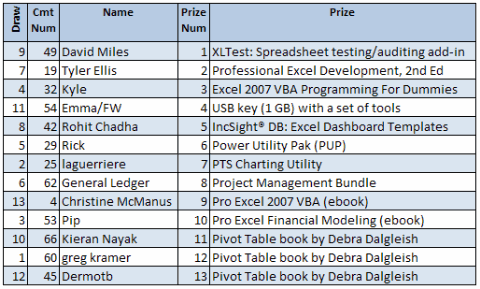
After the numbers were selected, I used VLOOKUP formulas to pull the prize names and winner names from the original lists of numbered prizes and entries. Congratulations to all the winners! Here’s the list:

ExcelGiveaway20091028

Collect Your Prize

I’ll send an email to all the winners today, with instructions for claiming your prize. If you’re on the list of winners, and don’t receive an email by end of today, please let me know at ddalgleish @ contextures.com or add a comment here.

Please reply by 5 PM (Eastern time zone) on Monday November 9, 2009, or your prize will be forfeited.
______________

Excel Sheet Names Cause Formula Errors

Do you have Excel horror stories, that you like to tell around the campfire, to scare your friends?

One of my recent Excel horror stories involves Excel sheet names. I set up a client’s workbook with pre-formatted data entry sheets, so sales managers could plan their annual product promotions.

They would rename the data entry sheets while working, to make it easier to navigate the completed workbook.

Hidden Sheet With Formulas

On a hidden summary sheet in the workbook, I added formulas to calculate the sheet names.

In another column on that sheet, a few Excel INDIRECT function formulas pulled data from specific cells on each data entry sheet, and other formulas created grand totals.

At the front of the workbook, the summary data was displayed in a monthly calendar, for sales managers to review. It was a work of art!

The Scary Phone Call

Everything worked well in testing, so we distributed the files to all the sales managers, and they started filling in their data.

The next day, the phone rang – some of the workbooks were “broken.”

Budget deadlines were looming, and the sales managers with broken files were in a panic. They sent me a couple of problem files, so I could figure out what was wrong.

Summary Sheet Formula Errors

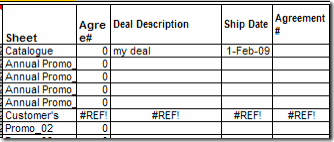
On the Summary sheet, some of the formulas were working correctly, but others showed #REF! errors.

Comparing the good and bad sheets, I couldn’t see any problems with the data that had been entered, at first glance.

Summary Sheet Formula Errors

Sheet Name Apostrophes

Finally, after checking a few of the problem sheets, I spotted a similarity.

  • All of the problem sheets included an apostrophe in the sheet name!
  • I removed the apostrophes, and the problem was solved.

All the data showed up in the summary sheets, and the world was in harmony once again.

Note: For the next version of the workbook, I updated the workbook’s Summary sheet formulas, using the Excel SUBSTITUTE function.

Sheet Naming Rules

I hadn’t anticipated that problem, since I never use apostrophes in sheet names. They’re valid characters for a sheet name, but maybe they shouldn’t be.

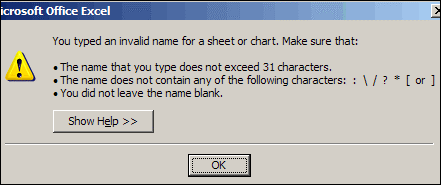
It’s hard to find the sheet naming rules in Excel’s help, but you may have seen an Excel error message that lists them.

  1. The name can’t be more than 31 characters
  2. You can’t leave the sheet tab blank
  3. Only a few characters are listed as invalid, like the following ones from the error message below:
  • : \ / ? * [ ]
  • colon, back slash, forward slash, question mark, asterisk, open square bracket, close square bracket

Apostrophes are okay though!

Excel error message: You typed an invalid name for a sheet or chart"
Excel error message: You typed an invalid name for a sheet or chart”

Sheet Naming Suggestions

In addition to those rules, I have a couple of guidelines of my own.

  1. Use only letters, numbers and underscores in sheet names.
    • Sometimes I have to use a space character, if a client requests specific sheet names, but I try to avoid it.
    • For example, I’d use SalesData or Sales_Data, not Sales Data.
    • And please – don’t use apostrophes!
  2. Use different names for worksheets and named ranges, to avoid confusion.

There’s lots more information about Excel names on my Contextures site, and sample files to download.

Your Sheet Naming Rules

  • What kind of names do you use for worksheets?
  • Any characters that you avoid or problems you’ve run into?

____________