Using MAX IF With Multiple Criteria

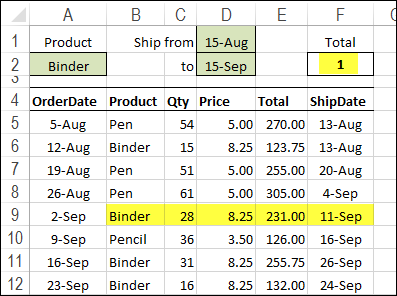
Excel doesn’t have a MAXIF function, but we’re able to create our own version, by combining the MAX and IF functions. But how about a bigger dream – MAX IF with multiple criteria? Could we create our own MAXIFS function too, with multiple IFs?

Continue reading “Using MAX IF With Multiple Criteria”

Excel Roundup 20131118

There’s always something new to learn about Excel, and it’s good to be reminded of a few old tricks.

For example, I’m sure you know that you can’t make a holiday meal without a spreadsheet, as this video shows. The spreadsheet section starts at the 1:57 mark, and continues a little later.

Contextures Posts

Here’s what I posted last week:

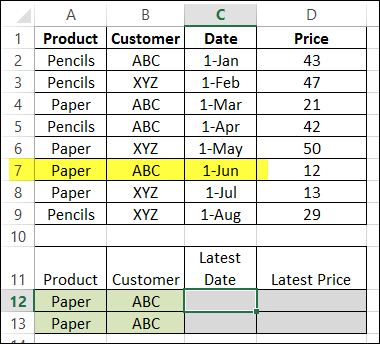
  1. Use MAX and IF to find the latest date that a product’s price was changed. Then, using the product name and that date, we can find the latest price for the product – even if it isn’t the highest price.
  2. After you create a pivot table, select one or more fields, and run this macro to change all the selected fields to SUM. Other fields are left unchanged.
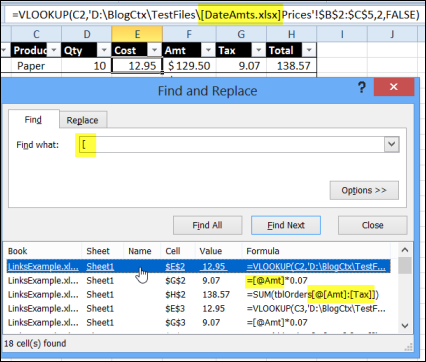
  3. To look for external links in an Excel file, you can use a free add-in – FindLinks. Or, follow a few steps, and try to fix the links.
  4. Finally, for a humorous peek at what other people are saying about Excel, read this week’s collection of Excel tweets, on my Excel Theatre blog.

Other Excel Articles

Here are a few of the Excel articles that I read last week, that you might find useful:

  1. Do you ever use the Window key on your computer keyboard? Chandoo shows how to use it as a quick way to paste as values
  2. For the perfect Christmas (or Thanksgiving) meal, be sure to use a spreadsheet! Read about the spreadsheet man in Sainsbury’s Christmas commercial, and you can download my holiday meal planner here.
  3. Do formulas that refer to their own sheet calculate faster than formulas that refer to other sheets? Charles Williams runs a few tests, and is surprised by the results.
  4. Even if you aren’t a cricket fan, take a look at the Excel dashboard that Chandoo created as a tribute to retiring player, Sachin Tendulkar.
  5. If you ever get a list of dates and tasks in Excel, Jimmy Pena (JP) show how to create Outlook tasks from that list, by using Excel VBA.
  6. If your data isn’t set up correctly, you can’t build a flexible pivot table. Microsoft’s Power Query add-in makes it easy to “unpivot” your data, and Ken Puls shows the steps on his Excel Guru blog.

What Did You Read?

If you read any other interesting Excel articles last week, that you’d like to share, please add a comment below.

Please include a brief description, and a link to the article.

_________________

Get Latest Price for Specific Product

In a previous article, we combined the MAX and IF functions, to find the highest price for a specific product. Today we’ll use that technique to find the latest date that a product’s price was changed. Then, using the product name and that date, we can find the latest price for specific product – even if it isn’t the highest price.

Continue reading “Get Latest Price for Specific Product”

Excel Roundup 20131111

Here are a few of the Excel articles that I read last week, that you might find useful:

Microsoft has improved the Office Web Apps, and you can read the details on the Excel Team’s blog. The feature that looks most interesting to me is the real-time collaboration in Excel files — you can’t do that in the desktop version.

If you use the MOD operator in Excel VBA, you could run into problems with large numbers. Chip Pearson suggests some alternative formulas and code that you can use.

Dick Kusleika ran into some problems while running code on a pivot table that has calculated items. Lots of problems are caused by pivot table calculated items, in my experience!

If you read any other interesting Excel articles last week, that you’d like to share, please add a comment below.

Please include a brief description, and a link to the article.

________________________

Create an Excel Line Chart with Target Range

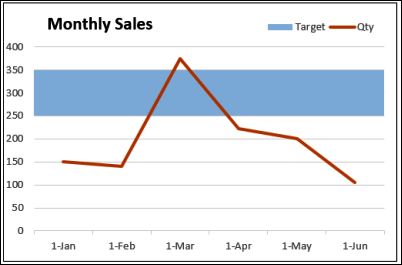
With an Excel line chart, you can show the sales results from a date range, to see how things have gone. For example, in the chart shown below, you can see the sales quantities for the first six months of the year. To add context to those numbers, you can create an Excel line graph with target range.

Continue reading “Create an Excel Line Chart with Target Range”

Block Changes in Excel Drop Down List

Happy Halloween! It’s the day for tricks and treats, so here is a useful trick that you can use with your drop down lists.

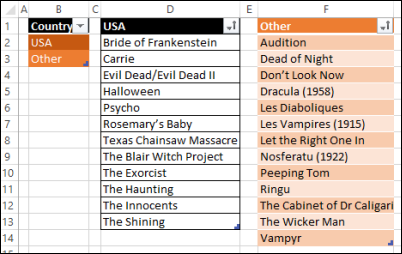
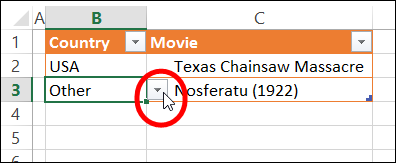
We’ll block changes in Excel drop down list cells, and that could prevent your worksheet’s data from turning into a nightmare!

block changes in first drop down list

Continue reading “Block Changes in Excel Drop Down List”