
How can you count items in one column, based on criteria in a different column? We’ve shipped orders to the East region, and want to know how many of those East orders have a problem note in column D. Instead of the COUNTIF function (1 criterion) we’ll use the COUNTIFS function (multiple criteria).
Use COUNTIFS for Multiple Criteria
With the Excel COUNTIFS function, we can get a count based on multiple criteria.
In this worksheet, we’ll check these two criteria:
- Region (column B) — look for the region name typed in cell G5 (East)
- Problem (column D) — find cells that are not empty — “<>”
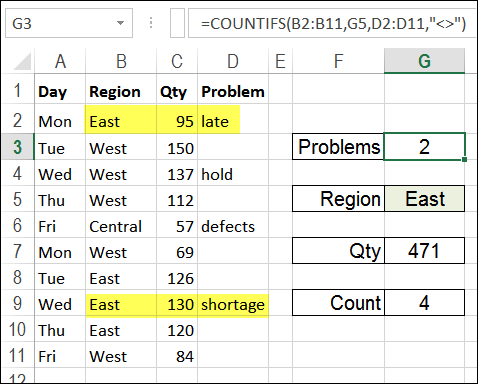
Here is the formula in cell G3, to count East orders, with problems:
=COUNTIFS(B2:B11,G5,D2:D11,"<>")
Video: Count with Multiple Criteria
This video shows more examples of how to use the COUNTIFS function to count cells based on multiple criteria.
Below the video, there are more details on the “East region Problems” example, and a link for the video’s sample file.
There is a full transcript of the video directly beneath the clip.
VIDEO TRANSCRIPT
Counting With Criteria
In Excel you can count using criteria with the COUNTIF function.
In later versions of Excel (2007 and later) you can count multiple criteria with the COUNTIFS function.
So here we have a list of items that we’ve sold and the quantity for each.
We would like to find the number of orders where a pen was the item sold and the quantity is greater than 10.
First Criteria
So in this cell I’m going to start with an equal sign and then type COUNTIFS an open bracket and the first thing I’m going to check is the item that was sold.
The range, first range is A2:A10. Then I’ll type a comma and the criteria for that range I’m just going to type in here inside double quotes pen, and then another comma.
That’s the first thing we’re going to check, is what item was sold.
Additional Criteria
Next will be the quantity so I’ll select the range that has the quantities, another comma and we want quantity greater than or equal to 10 so within double quotes
I’ll do a greater than symbol, equal, and a 10, then another double quote
Close the bracket and press Enter. There were two orders for pen where the quantity is greater than 10. Instead of typing these criteria in here I can refer to a cell.
So instead of typing pen inside double quotes, I could click on a cell where I have typed the word pen. The same for this criteria for the quantity
I’m going to take out the 10 just by deleting that, leaving the operators within the double quotes.
Adjustments
Then I’ll type an ampersand and the cell that has the number. So this is greater than or equal to whatever number is in cell E3.
When I press ENTER I get the same result. It’s just easier to change.
Then I could type a 5 here now, and we see that there were 4 orders where the quantity is greater than or equal to 5 instead of the 10 that we had in there before.
So this formula is much more flexible if you use cell references, rather than typing the values in as hard-coded values.
End Of Transcript
Use Multiple Criteria With COUNTIFS
With Excel’s old COUNTIF function, you can only use 1 criterion. Fortunately, there is a newer COUNTIFS function, which allows you to get a count based on multiple criteria.
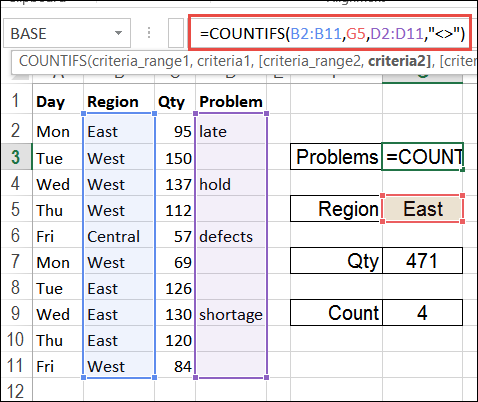
In this example, the COUNTIFS formula, in cell D3, checks column B for “East” region entries, and checks column D for cells that are not empty.
=COUNTIFS(B2:B11,G5,D2:D11,"<>")
- Note: In Excel, <> is the “not equal to” operator. In this formula, it means “not equal to ‘no text'”, so it only counts cells that are NOT empty.
See COUNTIFS Formula Result
In the screenshot below, you can see the COUNTIFS formula result in cell D3. There are 2 orders where the region is East, and there is an entry in the Problem column.
- Note: I highlighted the related rows in yellow, so they stand out.
Blank <> Empty
In this example, the notes were typed into the Problem column, and the remaining cells were empty. Our COUNTIFS formula correctly counts the cells that are not empty.
However, if column D contained formulas, and some cells had a result of “” (an empty string), those cells would be also counted as “not empty”, even though they look like an empty cell.
So, be sure that your blank cells are really empty, if you’re going to use the formula shown above.
Otherwise, if some cells could contain an empty string, you could use the SUMPRODUCT function, like I did in the following formula:
=SUMPRODUCT(—(B2:B11="East"),—(D2:D11<>""))
NOTE: Those are two minus signs before each section of the SUMPRODUCT formula, not long dashes. That is a double unary, and converts TRUE or FALSE to numbers — 1 (true) or 0 (false)
Download the Sample File
To get the sample file from the video, and more details on this “East Problem Orders” example, go to the Count With Column Criteria page on my Contextures site.
To see additional ways to count in Microsoft Excel, you can visit the Excel Count Function page on my Contextures website, and download the sample file.
The zipped file is in xlsx format, and does not contain macros.
___________
if one column is production line (1, 2, 3) and other is issue (a, b, c) so i want to calculate count of a for 1 .
IM ALSO WANT TO KNOW THAT…
1. If item Count in Column-A have equal Count of the same item in corresponding Column-B, Result should be “Complete”
2. If item Count in Column-A have Count at least one in corresponding Column-B but less than Count in Column-A, Result should be “In progress”
3. If item Count in Column-A have no Count in corresponding Column-B, Result should be “Not Complete”
4. If there is no Count in Column-A and corresponding Column-B have no count, Result should be “Blank”