
If a list contains blank cells, the usual method for creating a dynamic named range doesn’t work. Usually, you would use an OFFSET formula, and count the entries in the column, to calculate the number of rows in the range. Here is a workaround to create a dynamic list with blank cells.
Blank Cells in a Column
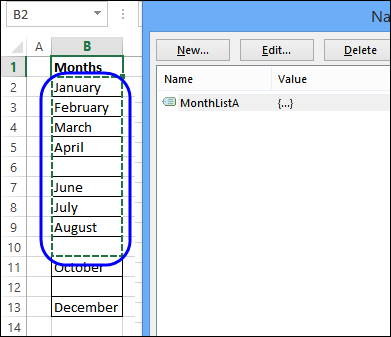
When there are blanks, as in the screen shot below, the dynamic range with blank cells is incorrect. There are 9 items, so 9 rows are included, but the last item is in the 12th row of the list.
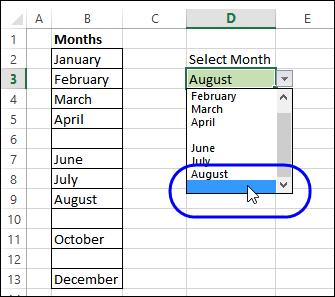
If you create a drop down list based on this dynamic range of 9 rows, it includes blanks, and August is the last month, instead of December.
Fix the Problem
To fix the problem, create a list with all the items, and no blank cells. That will create a usable source list for the drop downs, instead of trying to create a dynamic list with blank cells.
Number the Non-Blank Cells
To create a drop down list without blanks, based on a range with blank cells, add formulas to the worksheet.
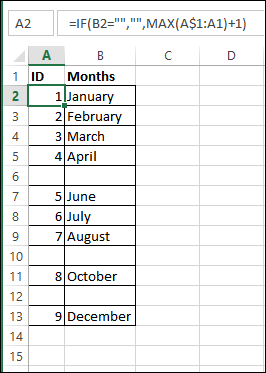
First, add a formula in cell A2, and copy it down to cell A13. This will number the cells that are not blank.
=IF(B2=””,””,MAX(A$1:A1)+1)
Create a List Without Blanks
Next, to create a source list without blanks, use formulas to pull the numbered items into a new column.
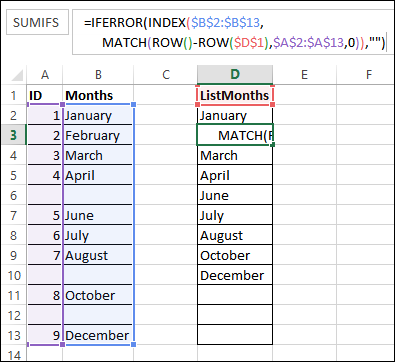
Enter this formula into cell D2, and copy down to D13. This INDEX/MATCH formula creates a list with all the blanks at the end.
=IFERROR(INDEX($B$2:$B$13,MATCH(ROW()-ROW($D$1),$A$2:$A$13,0)),””)
Create a Dynamic Range Without Blanks
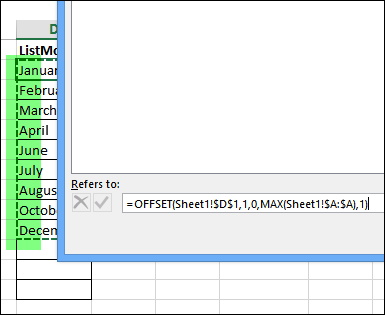
After you use formulas to create a second list, without the blanks, you can name that range, and base the dynamic range on that.
This range is named ListMonths, and uses the MAX from column A as the row count.
=OFFSET(Sheet1!$D$1,1,0,MAX(Sheet1!$A:$A),1)
New Dynamic Range
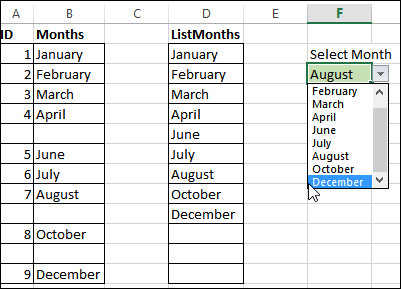
If you create a drop down list based on the ListMonths range, it does not include blanks, and December is the last month.
Instead of the original dynamic list with blank cells, the new list does not have blanks, and can be used for the drop down lists.
Download the Sample File
To see the formulas, you can download the file from my Contextures website.
On the Sample Excel Files page, go to the Data Validation, and look for DV0063 – Dynamic List With Blank Cells. The zipped file is in xlsx format, and does not contain macros.
________________________
Wonder if there is a way to put a standard cell first and if i use the drop down, then it will be selected. dunno if that makes sense to anyone.
excel if returning an error stating ‘IFERROR’ is unrecognized text. Not sure how to overcome that.
This feature about drop down list to skip blanks in between is great!.. Will this work to suppress the blank rows at bottom of a range also ? i mean, if data is in Cells B10 to B15 and B16:B20 are blank, the list should not display the latter, but only first 5 items (and no blank rows beyond it).
Thank you Debra!
Exactly what I needed!
You’re welcome Tim! Thanks for letting me know that it helped.
This is a very informative post. Thanks so much! By referring to this, I was able to implement this solution on one of our data forms.
I just have a simple question – if one of the entries in the list needs to be removed, and I ‘delete’ that cell entry and then ‘cut’ the other entries below the deleted entry, paste them one cell up, then the formulas in column ‘ID’ get corrupted (#REF) and the list gets messed up. I believe this is because the formulas in column ID are relative reference.
Is there a way to workaround this?
Your help is much appreciated.
Ryan