
If a list contains blank cells, the usual method for creating a dynamic named range doesn’t work. Usually, you would use an OFFSET formula, and count the entries in the column, to calculate the number of rows in the range. Here is a workaround to create a dynamic list with blank cells.
Blank Cells in a Column
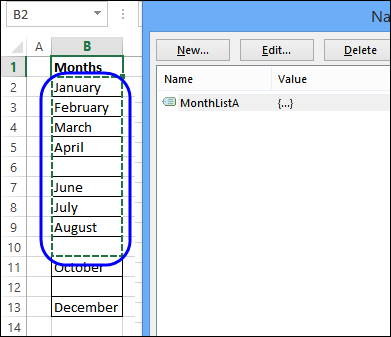
When there are blanks, as in the screen shot below, the dynamic range with blank cells is incorrect. There are 9 items, so 9 rows are included, but the last item is in the 12th row of the list.
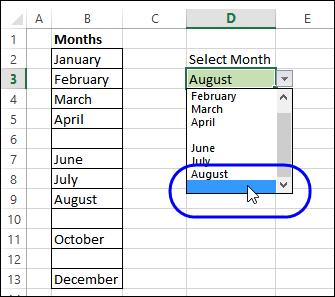
If you create a drop down list based on this dynamic range of 9 rows, it includes blanks, and August is the last month, instead of December.
Fix the Problem
To fix the problem, create a list with all the items, and no blank cells. That will create a usable source list for the drop downs, instead of trying to create a dynamic list with blank cells.
Number the Non-Blank Cells
To create a drop down list without blanks, based on a range with blank cells, add formulas to the worksheet.
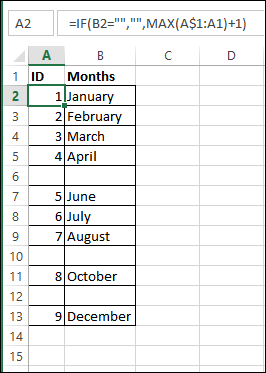
First, add a formula in cell A2, and copy it down to cell A13. This will number the cells that are not blank.
=IF(B2=””,””,MAX(A$1:A1)+1)
Create a List Without Blanks
Next, to create a source list without blanks, use formulas to pull the numbered items into a new column.
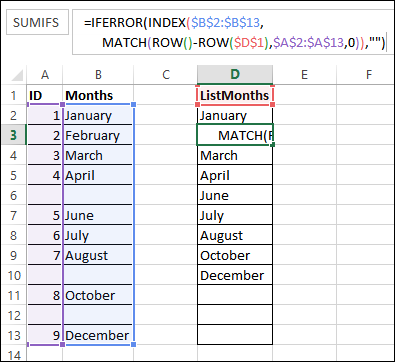
Enter this formula into cell D2, and copy down to D13. This INDEX/MATCH formula creates a list with all the blanks at the end.
=IFERROR(INDEX($B$2:$B$13,MATCH(ROW()-ROW($D$1),$A$2:$A$13,0)),””)
Create a Dynamic Range Without Blanks
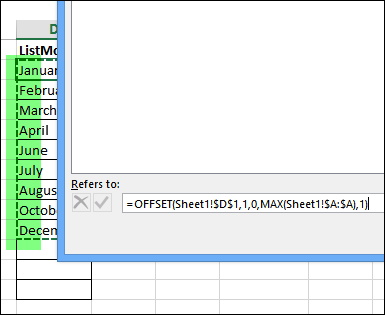
After you use formulas to create a second list, without the blanks, you can name that range, and base the dynamic range on that.
This range is named ListMonths, and uses the MAX from column A as the row count.
=OFFSET(Sheet1!$D$1,1,0,MAX(Sheet1!$A:$A),1)
New Dynamic Range
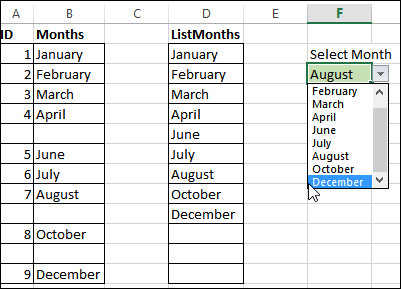
If you create a drop down list based on the ListMonths range, it does not include blanks, and December is the last month.
Instead of the original dynamic list with blank cells, the new list does not have blanks, and can be used for the drop down lists.
Download the Sample File
To see the formulas, you can download the file from my Contextures website.
On the Sample Excel Files page, go to the Data Validation, and look for DV0063 – Dynamic List With Blank Cells. The zipped file is in xlsx format, and does not contain macros.
________________________
Ryan: If you just clear/delete the contents from the cell in the original input list and leave it blank, you need do no more! The second table containing the INDEX/MATCH combo formulae will just have another blank cell to deal with in the same way as they dealt with those that existed before your change.
I came across this article and it was perfect to spark my idea of what to do to fix and issue we had. We needed something that works precisely like this but had to tweak it in the ID “helper” column to not number if the person didn’t have any data for the month. In our case the list wasn’t missing data we just wanted a short list that contained only those who had data. A simple sort would not have worked for us. Hiding the columns would not work because we do not want to confuse all the end users who are not very familiar with excel. Thanks so much for sharing this.
How to EXCLUDE BLANK VERTICAL COLUMNS using ID COLUMN with OFFSET MAX or INDEX MATCH?
How can I use same formula but not count cells with formulas that have no results.
this starts with the formula: =IFERROR(INDEX($B$2:$B$13,MATCH(ROW()ROW($D$1),$A$2:$A$13,0)),””), but what if one doesn’t know the last cell in the range, that is, the “A13” cell? I need this to be dynamic, as my range could be any length, depending on the user’s input. How could this be done?