
You can use check boxes on a worksheet, and link the results to a cell. If the box is checked, the cell shows TRUE, and if it’s not checked, the cell shows FALSE or the cell is empty. This makes it easy for someone to give a quick answer to a question, or select an option. You can even link check boxes to cells with a macro, so something happens automatically when the box is clicked.
Two Part Tutorial
This will be a two part tutorial on how to link check boxes to a macro.
- First, we’ll set up the check boxes, and link them to cells. You’ll see how to do this manually, and with a macro.
- In the next part, we’ll link check boxes to cells with a macro.
Creating a To Do List
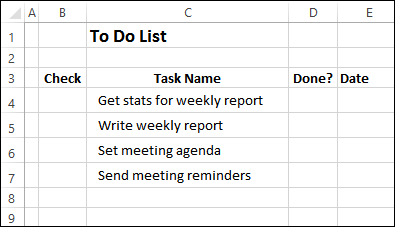
To see how the check boxes can be used, we’ll set up a To Do list, with a check box for each item. Here is the list, ready for the check boxes.
Insert a Check Box
To insert a check box, follow these steps:
- Click the Developer tab on the Ribbon. If you don’t see the Developer tab, follow the instructions here, to show it.
- In the Controls group, click the Insert command
- There are two types of check boxes – Form Control and ActiveX Control.
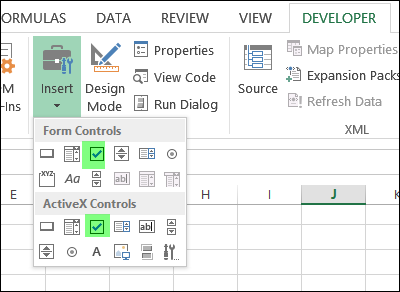
- For this example, we’ll use the check box from the Form Controls, so click that.
- On the worksheet, click near the top left corner of the cell where you want to add the check box — cell B4 in this example.
- The top left border of the check box frame should be inside cell B4. If necessary, move it down or right, so it’s inside the cell.
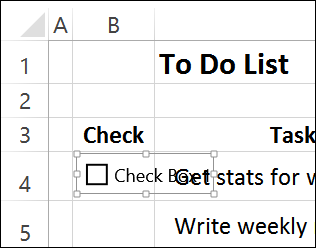
- Click inside the check box frame, then select all the text, and delete it.
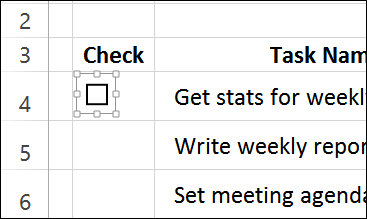
- Make the check box frame narrower, so it just fits the box.
Copy the Check Box
Now that you’ve created and formatted one check box, you can copy it, and paste copies into the other cells.
NOTE: For a quicker way to add check boxes, you can use the macro from the Excel VBA – Check Boxes page on my Contextures site.
- Press Ctrl, and click on the check box, if it is not already selected.
- On the Ribbon’s Home tab, click Copy (or use the Ctrl + C shortcut)
- Select cell B5, and paste the check box, then paste into cells B6 and B7
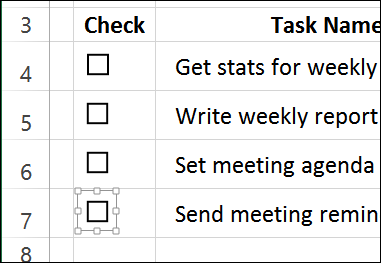
Link the Check Boxes to Cells
If you add a check box to a worksheet, it isn’t automatically linked to a cell. If you want to capture the check box result, you’ll have to link it to a specific cell.
If there are only a few check boxes, you can link them manually, by following these steps:
- To select the check box in cell B4, press the Ctrl key, and click on the check box
- Click in the Formula Bar, and type an equal sign =
- Click on the cell that you want to link to, and press Enter
You can see the formula in the screen shot below: =$D$4
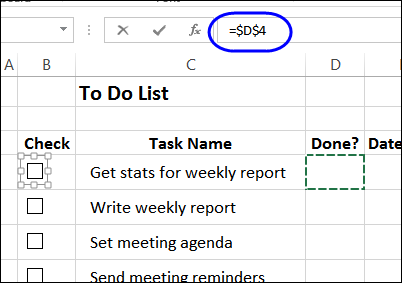
NOTE: You can also link to a cell by going into the check box’s properties, but that takes longer.
Use Programming to Create Cell Links
In an ideal world, you would be able to use a relative reference to a cell as the check box link. Then, if you moved or copied the cell to a different location, it would automatically adjust to refer to the cell that in the same row, 20 columns to the right.
Unfortunately, that doesn’t work, and you have to link each check box individually. The good news is that you can link check boxes to cells with a macro, if you have lots of check boxes to link.
Instead of manually linking the remaining check boxes, we’ll use the following macro. To add this code to your own workbook, copy it to a regular code module.
Sub LinkCheckBoxes()
Dim chk As CheckBox
Dim lCol As Long
lCol = 2 'number of columns to the right for link
For Each chk In ActiveSheet.CheckBoxes
   With chk
      .LinkedCell = _
         .TopLeftCell.Offset(0, lCol).Address
   End With
Next chk
End Sub
Run the Macro
Then, with the To Do list worksheet active, run the macro:
- Click the Ribbon’s View tab, and at the far right, click Macros, then click View Macros, if a drop down list appears.
- In the list, click LinkCheckBoxes, and click Run.
You won’t see anything happen, but each check box will be linked to the cell two columns to its right.
Test the Check Boxes
To test the check boxes, click on each one.
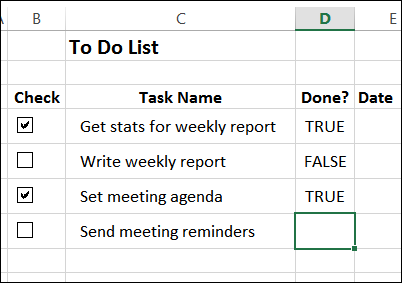
- If you add a check mark, the cell that’s two columns to the right should show TRUE.
- If you clear a check box, the linked cell should show FALSE.
- If you clear the linked cell, the check box will also be cleared.
Next – Adding Macros to Check Boxes
In my next post, on Thursday, we’ll add a macro to each check box.
I’ll also have the completed sample file that you can download, to see how it all works.
____________
Hi Debra,
Thank you so much this solution. I’m trying to make an attendance list for a group of 200 people in check boxes.
Attendance is recorded weekly and I’m trying to make a spreadsheet to capture a whole year.
That’s 52 x 200 cells = approx 10,000 cells.
At the moment, Excel is hanging, and based on the short time it took to only do 200, I’m doubtful it should take this long (it has been churning away for around 20 minutes). CPUs are running at around 12%, and I’m only using 25% of my memory.
Excel has marked itself as “Not Responding”. Do you think excel “gives up” when it reaches this stage, or do you think it’s actually still doing something productive?
Cheers.
Shaun, it’s probably still doing something, although I hope it’s finished by now!
That’s an awful lot of check boxes though, and Excel is giving you a clear message that it’s not happy about it.
I’d just mark the cells with “X” characters, or a number 1, instead of loading the sheet with check boxes.
Thanks for this, very helpful! For me (newest version of excel on windows 10), the checkbox is TINY. Any way to increase the size of the checkbox within the cell? Thanks!
Dan, thanks, and unfortunately there’s no way to change the size of the check box.
This has been very helpful thank you, however I am experiencing a small issue with the worksheet I am trying to do this with.
For my use I have multiple columns in the workbook with check boxes all the check boxes start in row 3 and go to row 200 so $H$3:$H$200 for example. I have them in Col H,K, N,Q,U, and X and I have a blank Col next to each for the True/False input.
This is the code from you that I am running:
Sub LinkCheckBoxes()
Dim chk As CheckBox
Dim lCol As Long
Dim c As Range
lCol = 1 ‘number of columns to the right for link
For Each chk In ActiveSheet.CheckBoxes
With chk
Set c = .TopLeftCell.Offset(1, lCol)
.LinkedCell = c.Address
c.Value = False
End With
Next chk
End Sub
Now my issue is the first col H works just fine it returns a value of false in the cell exactly one col to the right of the check box, however in Col K the value is returned one cell to the right and one down, but Col N is correct, then Col Q,U,X the first check box is correct but Row 4-200 are returned one to the right and one down.
Any ideas what might be causing this error?
Thank you for any help.
change this
Set c = .TopLeftCell.Offset(0, lCol)
Here I have a peculiar problem when arriving a serial number with each mark (Check).
I want a running serial number for each check mark else nil entry.
Suppose M10 is positive (Check mark) then entry in N10 should be 1 else ” ” and so on..
M11 is Negative a/a N11 Should be ” ” else…
M12 is positive a/a N12 Should be 2 here (=IFERROR(IF(AND(O11>=”a”,F11=2),P10+1),””) is working fine but does not display anything when formatted to ;;; and w/o format it display error which I do not want to.
Please enlighten me how to go about It
Thanks
Ajit Phape
Hello,
Thanks, I can’t stress enough how much this has helped me. I was wondering if there is way to check or uncheck a checkbox from macro. If I have a checkbox, I want it to be able to be checked or unchecked either by human or by a macro? Is it possible? Thanks in advance.
Good! The first recomendation that works! Thanks!