
You can use check boxes on a worksheet, and link the results to a cell. If the box is checked, the cell shows TRUE, and if it’s not checked, the cell shows FALSE or the cell is empty. This makes it easy for someone to give a quick answer to a question, or select an option. You can even link check boxes to cells with a macro, so something happens automatically when the box is clicked.
Two Part Tutorial
This will be a two part tutorial on how to link check boxes to a macro.
- First, we’ll set up the check boxes, and link them to cells. You’ll see how to do this manually, and with a macro.
- In the next part, we’ll link check boxes to cells with a macro.
Creating a To Do List
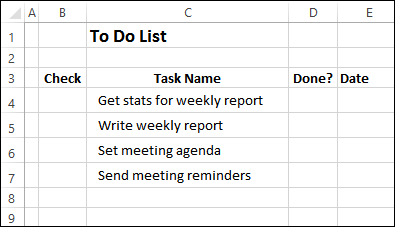
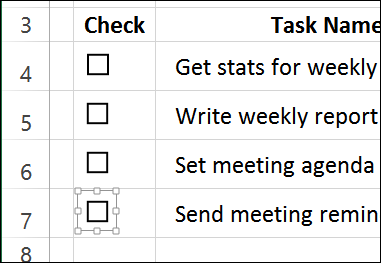
To see how the check boxes can be used, we’ll set up a To Do list, with a check box for each item. Here is the list, ready for the check boxes.
Insert a Check Box
To insert a check box, follow these steps:
- Click the Developer tab on the Ribbon. If you don’t see the Developer tab, follow the instructions here, to show it.
- In the Controls group, click the Insert command
- There are two types of check boxes – Form Control and ActiveX Control.
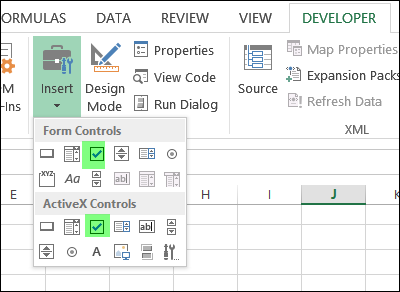
- For this example, we’ll use the check box from the Form Controls, so click that.
- On the worksheet, click near the top left corner of the cell where you want to add the check box — cell B4 in this example.
- The top left border of the check box frame should be inside cell B4. If necessary, move it down or right, so it’s inside the cell.
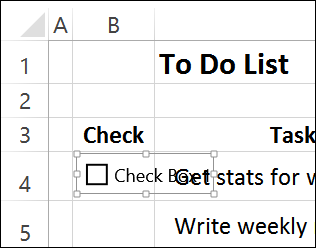
- Click inside the check box frame, then select all the text, and delete it.
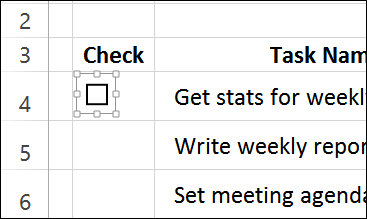
- Make the check box frame narrower, so it just fits the box.
Copy the Check Box
Now that you’ve created and formatted one check box, you can copy it, and paste copies into the other cells.
NOTE: For a quicker way to add check boxes, you can use the macro from the Excel VBA – Check Boxes page on my Contextures site.
- Press Ctrl, and click on the check box, if it is not already selected.
- On the Ribbon’s Home tab, click Copy (or use the Ctrl + C shortcut)
- Select cell B5, and paste the check box, then paste into cells B6 and B7
Link the Check Boxes to Cells
If you add a check box to a worksheet, it isn’t automatically linked to a cell. If you want to capture the check box result, you’ll have to link it to a specific cell.
If there are only a few check boxes, you can link them manually, by following these steps:
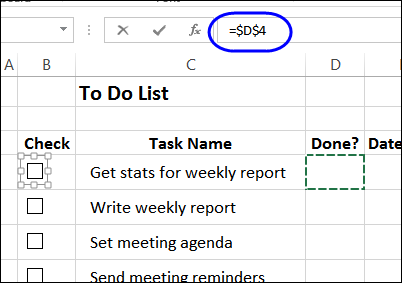
- To select the check box in cell B4, press the Ctrl key, and click on the check box
- Click in the Formula Bar, and type an equal sign =
- Click on the cell that you want to link to, and press Enter
You can see the formula in the screen shot below: =$D$4
NOTE: You can also link to a cell by going into the check box’s properties, but that takes longer.
Use Programming to Create Cell Links
In an ideal world, you would be able to use a relative reference to a cell as the check box link. Then, if you moved or copied the cell to a different location, it would automatically adjust to refer to the cell that in the same row, 20 columns to the right.
Unfortunately, that doesn’t work, and you have to link each check box individually. The good news is that you can link check boxes to cells with a macro, if you have lots of check boxes to link.
Instead of manually linking the remaining check boxes, we’ll use the following macro. To add this code to your own workbook, copy it to a regular code module.
Sub LinkCheckBoxes()
Dim chk As CheckBox
Dim lCol As Long
lCol = 2 'number of columns to the right for link
For Each chk In ActiveSheet.CheckBoxes
   With chk
      .LinkedCell = _
         .TopLeftCell.Offset(0, lCol).Address
   End With
Next chk
End Sub
Run the Macro
Then, with the To Do list worksheet active, run the macro:
- Click the Ribbon’s View tab, and at the far right, click Macros, then click View Macros, if a drop down list appears.
- In the list, click LinkCheckBoxes, and click Run.
You won’t see anything happen, but each check box will be linked to the cell two columns to its right.
Test the Check Boxes
To test the check boxes, click on each one.
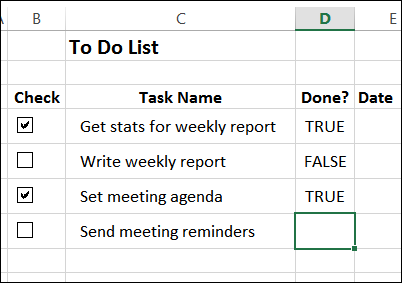
- If you add a check mark, the cell that’s two columns to the right should show TRUE.
- If you clear a check box, the linked cell should show FALSE.
- If you clear the linked cell, the check box will also be cleared.
Next – Adding Macros to Check Boxes
In my next post, on Thursday, we’ll add a macro to each check box.
I’ll also have the completed sample file that you can download, to see how it all works.
____________
Thank you for this piece of code. Very helpful. Exactly what I was looking for.
Hi Debra, thanks for putting this together.
How would you adjust the macro instruction if I want the “TRUE”/”FALSE” value to appear directly on the cell that the checkbox is in?
The code on Debra’s site:
http://www.contextures.com/excelcheckboxvba.html
(in the “Add Check Boxes” section)
made the link cell the same cell that contained the checkbox.
The line that tells the program what to use for the linked cell is:
.LinkedCell = c.Offset(0, 0) _
.Address(external:=True)
That cell is empty to begin with, but changes to true/false when you check/uncheck it.
But (in my opinion), that really clutters up the look of the worksheet.
Thanks Dave, and I agree with you about the clutter.
If the true/false really needs to be in the same cell, I’d make the cell wide, with the checkbox at the right, and text in a small font at the left.
Or make the font color the same color as the cell’s fill color (white on white, for example).
You could still see the true/false value in the formulabar if you wanted.
Hiya,
You’ve just helped me run my first macro, but your macro makes my results happen 2 columns away from where i need it!
I need to change the code so the cell links to itself (creating a data set for a number of clients where I measure many things, have to total each column which is a different piece of data, eg: homeless, at risk, substance abuse etc etc _. So … I have the data measure across the top and a new row for each client. IE: cell A1 =homeless, b1=at risk etc, cell A2 downwards is the check box) . I need to add up each column. Please can you tell me which bit of the macro code I need to change (I figure it’s the bit where it says “lCol = 2 ‘number of columns to the right for link” but I have no idea what to write.
Please can you help??? You have already revolutionised my life … would love it if you can do it again!
Thanks (PS .. tried to give you a screen shot but not working for me!
Liz, you guessed correctly! Change that line to a zero, so it doesn’t move to the right at all
=lCol = 0
Debra,
You are a goddess, and I am your humble worshipper. I can now go to the office tomorrow and tell the man who said you can’t add up tick boxes that I can and indeed have added up text boxes (even if I do admit to having help)!
Thanks SO much xx
Glad to help! And just tell him you got it working, don’t mention how. 😉
Debra,
I’m trying to get one check box to prompt a certain text clause and another checkbox to prompt a slight variation of that clause. I want the check box to prompt the cause on a different worksheet too. Any guidance would be greatly appreciated! Thank you in advance!
Link the check box to a cell, then put formulas in the other cells, and show a result based on TRUE or FALSE in the linked cell.
For example: =IF(A1=TRUE,”The box was checked”,”No check mark”)
I tired doing what you mention but the text itself isn’t appearing
What formula did you use, and which cell is linked to the check box?
I linked my “One borrower” checkbox (which on sheet one) to I2 (on sheet 3). G3 has the correct text I need for “One borrower” and G9 has the correct text for multiple borrowers (both still on sheet 3). I then need that text to prompt on A66 on sheet 5.
I used the formula you mentioned above to give me a true or false answer. Then I tried us another if formula at IF true would prompt for the on borrower text and if false would prompt for the multiple borrower text.
I’ve also tried to use VBA to prompt for the right text but can’t get the actual to appear. It’s also worth noting that the one/multiple is actually a formula that is pulling information from my data entry sheet on sheet one.
Am I even going about this the right way or is my logic off?
Use this formula in cell A66 on Sheet5:
=IF(Sheet3!I2=TRUE,Sheet3!G3,Sheet3!G9)