
Last week, we had a giveaway for the new Excel Tips Workbook from Vertex42. Thanks to Jon Wittwer for donating the prizes, and here are the winners:
- Tim, with comment 5
- Ute-S, with comment 34
Congratulations, and I will email you later today, to arrange sending your copy of the file.
PivotPower Premium
We’ve been fortunate to have some great prizes for the summer giveaways, and I really appreciate the generosity of my Excel colleagues.
Now it’s my turn to provide the prizes. This week, you’ll have a chance to win a copy of my Excel add-in for working with pivot tables – PivotPower Premium (Ribbon Version). There will be 2 winners, so be sure to enter!
[Update: This product is no longer available]
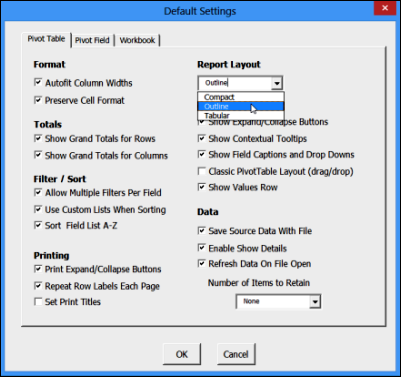
The add-in is easy to install, and is designed for Excel 2007 and later (Windows only). One of its time-saving features is Set Defaults, which lets you store your favourite pivot table settings. Then, select any pivot table, click Apply Defaults, and all those settings are applied.
More Tools for Pivot Table Work
There are many more tools in the PivotPower Premium add-in, including number formats, and a button that changes all the fields to Sum. That’s handy when Excel decides that half of your fields should be “Count of”.
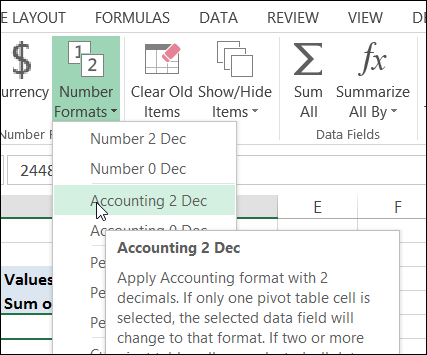
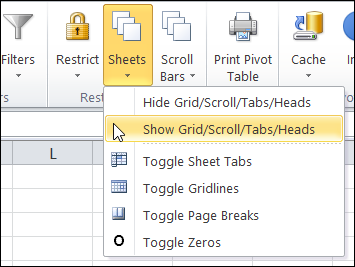
There are even a few tools for changing your workbook and worksheet settings, so your pivot tables can look their best. The screen shot below shows the Ribbon in Excel 2010, and the one above is in Excel 2013.
Enter the Giveaway
I’m picking 2 winners for this giveaway. If you’d like a chance to win a copy, please read the rules, and then make a comment below.
- In your comment, tell me one thing that you love about pivot tables, AND/OR one thing that pivot tables should do better.
- Include your email address, so I can contact you if you win. Your contact information won’t be publicly visible, and it won’t be used for any other mailings.
- The deadline is Wednesday, August 21st, 2013, at 12 noon Eastern Daylight Time.
- One entry per person.
- The 2 winners will be announced on Thursday, August 22nd, 2013.
- Each winner will have 24 hours to claim the prize, and if not claimed, another name will be selected.
__________________________
TX for these opportunities to win these books and add-ins. All of them are amazing!
What I love about Pivot Tables is their efficiency and flexibility. Everything is automatic, from sorting, grouping and calculating. Then the ability to swop data into different positions to view different combo’s is a joy! One of my ultimate favourite things is the grouping options on dates. Give a pivot a column of dates or numbers and it auto-groups it into various intervals with summaries! Awesome!
I have nothing to say about what Pivots can do better…they are already so refined and well-tuned!
TX
I love almost everything about PivotTables, but what would be really awesome if pivot tables could be incorporated in Excel data tables. I’d love to be able to add additional columns to the right of the pivot table, perform calculations based on the data in the pivot table and have those additional columns automatically resize with the pivot table and move to the left or right if the pivot table expands or contracts.
PivotTable has already saved tremendous amount of time managing large data-sets.
Although, I would like to see improvement in “Calculated Field” & “Calculated Item” so that I able to use other Excel functions, and also faster calculation (in secs) when dealing with large data.
The one feature I like & learned through Contexures.com is PivotTable’s functionality to grab data from multiple sheets. That was rocking!
Using pivot tables is a great way to create quick and easy summaries of data. They are very easy to use and are extremely flexible. Thanks so much for the opportunities to win these great tools!
Sean
I love how flexible my data is with a pivot table – they allow me to recalculate in seconds what could take hours of fussing otherwise.
One change I’d like to have – an ‘easy’ way to convert a pivot table into a non-pivotable output. Sometimes I need to take the results of a pivot table and give them to someone else who will be using the data in such a way that the pivot table won’t work for them. Copy/Paste Special does work to get the results of the table into a new spreadsheet – but I don’t get to keep the nice formatting set I had from the pivot table, so I still have to do additional work to make it look decent.
@Heather R:
I used to face this problem too, so I now copy-paste the pivot table to get ‘values only’, in this sequence :
1. Copy the pivot table
2. In the new sheet, PasteSpecial > Column Widths
3. PasteSpecial > Formats
4. PasteSpecial > Values
You could also put steps 2, 3 and 4 into a simple macro to make it a 1-click process.
With Selection
.PasteSpecial Paste:=xlPasteColumnWidths, Operation:=xlNone, SkipBlanks:=False, Transpose:=False
.PasteSpecial Paste:=xlPasteValues
.PasteSpecial Paste:=xlPasteFormats
End With
Application.CutCopyMode = False
Hope this helps 🙂
I’ve been using PivotTables since 1995 (Excel 5.x I think), and found them really useful for summarizing information and playing around with various views of the same data.
I think the best part about pivot tables is their core ability to reduce large amounts of data into an interactive table for easy analysis.
I still remember an amusing incident many years ago, when I had shown a pivot table to a media research person who had limited knowledge of Excel. He kept asking me : “Where are the formulas ? Show me the formulas ! How did you get the summary figures without using formulas ?” 🙂
I offered to show him how to make a PivotTable in a couple of minutes, but he was too busy to learn “something that looked so complex” !
What I’d like to see pivot tables do better ? – perhaps allowing to position a text column (displayed as text !) within the data area for easier reading of the numbers.