
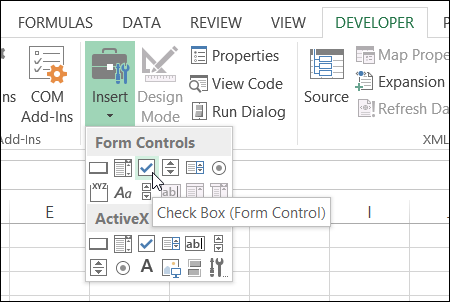
To make it easy for people to enter data on a worksheet, you can insert a check box control, using the Form Control tools on the Developer Tab. Then, use check box result in Excel formula solutions.
Form Controls on Developer Tab
If you don’t see a Developer tab, there are instructions here for showing it.
Adding these controls to a worksheet can make it easy for people to enter data – they just click to select the option that they want.
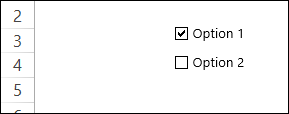
But, after they’ve checked that box, how do you capture that information, and use it in your formulas?
Link the Check Boxes to Cells
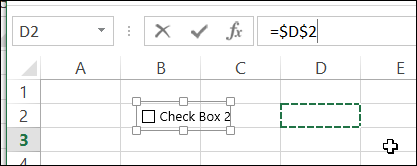
When you add a check box to the worksheet, it isn’t automatically linked to a cell. If you want to use the check box result in a formula, follow these steps to link it to a cell:
- To select a check box, press the Ctrl key, and click on the check box
- Click in the Formula Bar, and type an equal sign =
- Click on the cell that you want to link to, and press Enter
Check Box Result is TRUE or FALSE
If you have multiple check boxes, you can link each one to a separate cell on the worksheet.
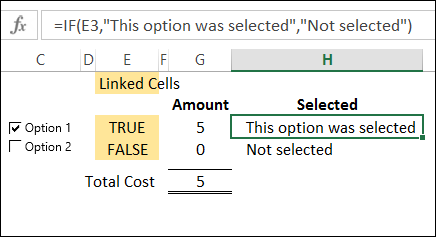
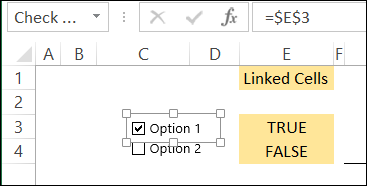
In the screen shot below, Option 1 check box is linked to cell E3, and Option 2 is linked to cell E4. When the box is checked, the linked cell shows TRUE, and if it is not checked, the linked cell shows FALSE.
Use the Check Box Result in a Formula
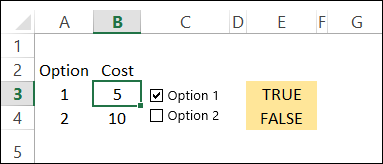
In this example, each option has a price, and I’ve entered the prices in column B.
In a worksheet formula, if you use TRUE or FALSE in a calculation:
- TRUE has a value of 1.
- FALSE has a value of 0.
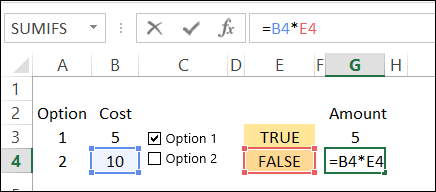
So, we can use the results in the linked cells, to calculate the cost for each option. We’ll multiply the cost in column B, by the check box result in column E.
- The formula in cell G3 is: =B3 * E3 and the result is 5, because 5 multiplied by 1 equals 5.
- In cell G4, the result is 0, because 10 multiplied by 0 equals 0.
Test the Result with IF
If your formula is fancier than a simple multiplication, you can use the IF function to test the result in the linked cell.
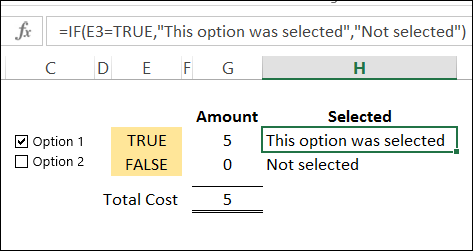
In cell H3, the following formula shows a text string if cell E3 is TRUE, and a different message if it is not TRUE.
=IF(E3,”This option was selected”,”Not selected”)
Another Check Box Formula Example
To see another example of using a check box result in a formula, take a look at Dave Peterson’s loan table formula on my Contextures website. There is a sample file that you can download.
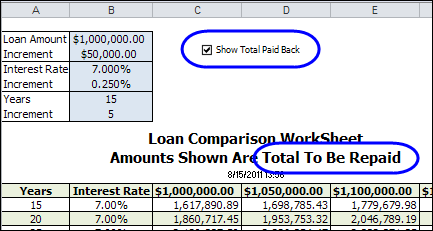
A check box at the top of the worksheet is linked to cell C1. Check that box if you want to see the total amount that will be paid back, instead of the monthly payment required.
If cell C1 is TRUE, then the monthly payment in the table is multiplied by the number of payments. If C1 is FALSE, the monthly payment is multiplied by 1.
This is the formula in cell C12:
=-PMT($B12/12,12*$A12,C$11)*IF($C$1,$A12*12,1)
_____________________
@Doug D
Use =IF(“Cell that the box is linked to”=TRUE;NOW();””)
Formula checks if the “Cell that the box is linked to” is TRUE or not, and displays current date/time if TRUE.
And displays nothing if condition isn’t met.
You may need to format the cell for the proper date and time.
Can the checkbox be hidden?
Depending on the value of another cell, I hide the row on which the checkbox is located, I want the checkbox to disappear as well.
Thanks.
Good morning,
when i try to link a formula to my check box for example =B2 i keep getting a invalid reference error message. Can you please help
I am trying to setup a document involving a several formulas. Basically I want tick boxes to indicate how a client was contacted…email or phone. From there I want excel to add up to the number of boxes ticked for calls and the number boxes ticked for emails. I have done this for one row and linked the tick boxes to different cells in a hidden sheet.
I have then highlighted the cell with the tick boxes and pulled down to copy in down the page but of cause its all linked to the first row of ticks…i.e I tick the “phone” box on row one, and all 399 other phone tick bxes become ticked.
This is a spreadsheet with 400 plus names
Hi,
Short question:
Is it possible to use the check box (form controls)and to have the possibility to check only one answer available (do not allow checking the other check boxes.
You could use option buttons, instead of check boxes. They’re designed to allow only one selection.
There is an example here:
http://blog.contextures.com/archives/2010/03/24/select-answers-with-excel-option-buttons/
Thanks this helped.