
In the screen shot below, one of the report filters in a pivot table is about to be changed. If you have multiple pivot tables in a workbook, you can use programming to update all (or some) of the pivot tables, if one pivot table’s filters are changed.
Pivot Table Report Filter
Here is one of the pivot tables, with a Report Filter being changed.
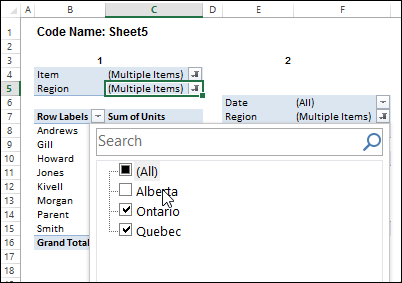
I’ve written sample code that updates multiple pivot tables, and one is changed, and last year, Jeff Weir shared his version of the code, which runs very quickly.
Pivot Table Code Benefits
Jeff’s code has another advantage too – in his version, you can specify:
- any sheets you DON’T want the macro to check
- any specific pivot tables that you DON’T want the macro to synchronize.
NOTE: Jeff’s code is intended for pivots that DO NOT all share the same cache. If your pivots all share the same cache, then you can use my approach set out here: Filter Multiple Pivot Tables With Excel 2010 Slicers
To confirm whether or not your pivots share the same cache, you can use my code here: Excel Pivot Caches
Improved for Excel 2010 and Later
This week, Jeff is sharing his latest version of his code. It now checks the Excel version that you are using.
- If you are using Excel 2010 and later, the code uses Slicers to change any pivot tables that share the same cache, as this is much faster. Any other pivots are then processed without slicers.
Download the Sample File
To download this version of the sample file, with Jeff’s code, please visit the Sample Files page on the Contextures website.
In the Pivot Tables section, look for: PT0029 – Change Pivot Table Fields on Specific Sheets
The file is in xlsm format, zipped, and contains macros. Enable the macros when opening the file, if you want to test the code.
Note: Jeff’s sample file was updated on June 16, 2013, so please download the new version if you have an older copy of the file.
__________________
Might be a version thing…works fine on my Excel 2010 version. What happens if you restart Excel? Same deal?
Yep afraid so, also tried a couple of weeks ago but had the same problem. I’ve applied the earlier version of this macro (i.e. Debra Dalgleish’s version that synchs all pivot tables)and it worked OK. Anyway, thought I’d flag it up in case other people had the same problem.
Hi Jeff!
Thanks for this great code!
I have not tested all of the functions but what I have seen works correctly.
Only one thing – one internationalization issue I realized.
In my system the decimal separator is “,” (comma) so this row:
If Application.Version >= 14 And bUseSlicers Thenraises type mismatch error, because the version 14.0 is string and could not be converted to number. Our quick solution was:
If Application.Version >= "14" And bUseSlicers ThenSeems this way it works correcty.
Cheers,
Kris
and The FrankensTeam
Thanks Kris. One thing on my list of things to do on rainy days is bulletproof this code further. Among other things, it will error out if you already have slicers in the sheet, and I can’t have that!
I’ll add your suggested tweak, and post a revised version back here in due course.
Hi Guys,
I was wondering if someone could assist
i am tryin to refresh my data in a certain sequence using some vba code but keep getting an error, it used to work perfectly before but know keep getting error code 1004.(i use excel 2010)
the code i am using:
Sub RefreshAll()
Dim PC As PivotCache
For Each PC In ActiveWorkbook.PivotCaches
PC.Refresh
Next PC
Sheet9.Range(“b1”).ListObject.QueryTable.Refresh BackgroundQuery:=False
For Each PC In ActiveWorkbook.PivotCaches
PC.Refresh
Next PC
End Sub
Sabir – Probably the error is something to due with the Sheet9.Range(“b1”).ListObject.QueryTable.Refresh bit. Are you sure there is a querytable at b1?
Also, why exactly do you refresh all pivotcaches twice? Only reason I can think of is that you might have a pivottable that uses anothe pivottable as a data source. Is that the case? If not, ditch that Sheet9.Range(“b1”).ListObject.QueryTable.Refresh bit and everything that comes after it.
Hi, this looks great and is working perfectly. I am looking for a little alterations and am hopeless with code, any chance you can help out?
I have a single data source and many workbooks and pivot tables working from this source.
I would like only 1 of the Filters to change throughout the workbooks, leaving all other filters alone.
Is this something this code can do? Or be altered to do?
I am using Excel 2010.
Thanks!!
Jeff,
I keep getting an error with this line:
Set slrField = sc.Slicers.Add(ActiveSheet)
Any help would be appreciated.
Thank you.