
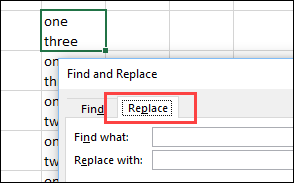
When you want to create a line break (line feed) in a cell, you press Alt + Enter, to start a new line. You can put one or more line breaks in a cell, to make the contents easier to read. But how can you find and replace line breaks in Excel?
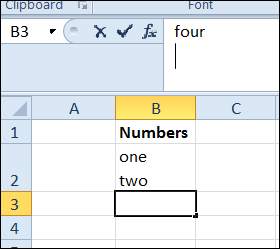
Find Line Breaks in Excel
Line breaks are easy to add, but a little trickier to remove.
To find specific text in Excel, you can use Ctrl + F to open the Find and Replace dialog box. However, if you try to type Alt + Enter in the Find What box, you’ll just hear a beep from your computer. Excel won’t let you put that shortcut into the Find What box.
Instead of using Alt + Enter, you can use a special shortcut to enter a line break in the Find What box: Ctrl + J
Why does that work? A line break is character 10 in the ASCII character set, and the Ctrl + J shortcut is the ASCII control code for character 10.
Find and Replace a Line Break
To find a line break, and replace it with a space character, follow these steps. There is a video below, that shows the steps.
- Select the cells that you want to search
- On the keyboard, press Ctrl + H to open the Find and Replace dialog box, with the Replace tab active
- Click in the Find What box
- On the keyboard, press Ctrl + J to enter the line break character — NOTE: No text will appear in the Find What box — just a small blinking dot
- Press the Tab key on the keyboard, to move to the Replace With box
- Type a space character
- Then, click Find Next or Find All, to find the cells with line breaks.
- OR, click Replace or Replace All, to replace the line breaks with space characters.
NOTE: If these steps don’t work, try the tips and troubleshooting suggestions below.
To get the Excel workbook, with the Add or Remove Line Breaks in a Cell in Excel example, go to the Excel Line Breaks page on my Contextures site.
Tips and Troubleshooting
Update: Here are a few tips and troubleshooting suggestions, to use while you find and replace line breaks in Excel. Thank you to everyone who commented, and added suggestions.
- If Ctrl + J does not work, press the Alt key, and type 0010 on the number keypad (do not use the numbers above the letters)
- If the Excel file has never been saved, try saving the file before doing this find and replace
- Try doing this find and replace when you first open Excel, before using the Find box for any other searches. Or, try the next tip — you might have extra line breaks in the Find box.
- Be sure that you aren’t inserting more than one line break in the Find box — the Find box looks empty after you type Ctrl+J, so it is easy to accidentally type in there again. To avoid this problem:
- Click on the Replace tab — you’ll see a light border around the word.
- Press the Tab key — that will select the Find What box, and anything that is entered there.
- Type Ctrl+J (that will replace anything that you previously typed in Find)
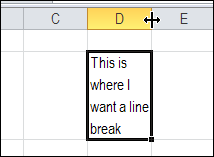
Video: Find and Replace Line Breaks
Watch this short video, to see the steps for adding a line break in a cell. Then see how to find the line breaks in Excel, and replace them with space characters.
This is supposed to be quasi-standard of office software, and there is no obvious way to find information about this and many other little extras in the official documentation … MS must be kidding!
This is as annoying as the missing “export” option for document formats – why does MS Office always assume you want to “convert” and carry on editing in a different format, instead of just exporting to it ?? Mind-boggling!
Anyway, thanks for the valuable tip!
Awesome men ! You made my day !
Hi Debra,
Ctrl + J – what a great tip, thanks! Can’t believe I never knew (or forgot) this.
Looking over some of the other comments, I noticed a few people were having trouble getting this to work. It was “on and off” for me too, until I realized that I was occasionally inserting more than one Ctrl J into the the Find box. Because it’s invisible, it’s easy to do. The Find/Replace dialog retains it’s characters during a session, so when you re-open it, the Ctrl J box looks empty, but it’s not. Once I realized this, it worked every time for me. Hopefully, this may be helpful to others having problems.
Regards
Dave
Thanks for sharing that tip Dave!
Thank you for this clarification! I got it to work once and then couldn’t repeat it – this was my problem!
SAME PROBLEM HERE
Thank you so much! Even years later, you are helping people!
I have searched high and low to do something similar, but slightly different… I would like a formula to remove everything to the right of a line break in a cell… I know a line break is Chr(10), but can’t figure out how to incorporate that into the “=replace” formula. Any help would be hugely appreciated!
Sorry… I forgot to mention that once you insert the Ctrl+J character and the type the *, you will not see the asterisk either because it is below the viewing area of the Find field… you will only see the “blinking dot”. If you play with the arrow keys you will be able to follow the dot and know how many characters, if ever, you have typed after the Ctrl+J. That would be in case you want to replace or erase a specific string. Play with it… type several characters after the Ctrl+J and then move the cursor back and forth with the arrow keys.
Cheers
Hi DJS,
Have you tried inserting Ctrl+J and an asterisk in the find field?
When you insert a Ctrl+J in the Find field, you will notice a tiny blinking dot at the beginning of the field.
That is the cursor that has gone to the “next line” as it does in Excel when we insert an Alt+Enter. If you press the Left arrow you will see the cursor fully reappear in the field and the Right arrow will make it go back down.
Anyway, back to our scheduled program, simply insert a Ctrl+J followed by an *.
I type capital J for clarity, but you actually type a lower-case j.
I hope this helps.
Cheers
Hi Alphonse,
I tried giving the asterisk afte CTRL+J.. But its replacing the entire second line with space.
So my result is coming this way.
Existing:
Retired
Policy
Expected:
Retired Policy
Actual:
Retired
Any other tricks I can try.
Thanks,
Very useful information