
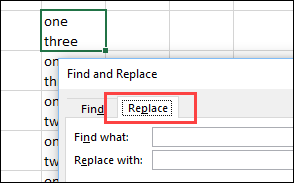
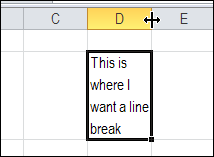
When you want to create a line break (line feed) in a cell, you press Alt + Enter, to start a new line. You can put one or more line breaks in a cell, to make the contents easier to read. But how can you find and replace line breaks in Excel?
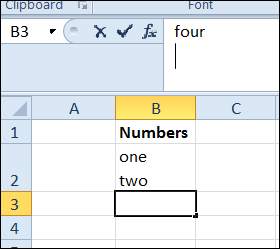
Find Line Breaks in Excel
Line breaks are easy to add, but a little trickier to remove.
To find specific text in Excel, you can use Ctrl + F to open the Find and Replace dialog box. However, if you try to type Alt + Enter in the Find What box, you’ll just hear a beep from your computer. Excel won’t let you put that shortcut into the Find What box.
Instead of using Alt + Enter, you can use a special shortcut to enter a line break in the Find What box: Ctrl + J
Why does that work? A line break is character 10 in the ASCII character set, and the Ctrl + J shortcut is the ASCII control code for character 10.
Find and Replace a Line Break
To find a line break, and replace it with a space character, follow these steps. There is a video below, that shows the steps.
- Select the cells that you want to search
- On the keyboard, press Ctrl + H to open the Find and Replace dialog box, with the Replace tab active
- Click in the Find What box
- On the keyboard, press Ctrl + J to enter the line break character — NOTE: No text will appear in the Find What box — just a small blinking dot
- Press the Tab key on the keyboard, to move to the Replace With box
- Type a space character
- Then, click Find Next or Find All, to find the cells with line breaks.
- OR, click Replace or Replace All, to replace the line breaks with space characters.
NOTE: If these steps don’t work, try the tips and troubleshooting suggestions below.
To get the Excel workbook, with the Add or Remove Line Breaks in a Cell in Excel example, go to the Excel Line Breaks page on my Contextures site.
Tips and Troubleshooting
Update: Here are a few tips and troubleshooting suggestions, to use while you find and replace line breaks in Excel. Thank you to everyone who commented, and added suggestions.
- If Ctrl + J does not work, press the Alt key, and type 0010 on the number keypad (do not use the numbers above the letters)
- If the Excel file has never been saved, try saving the file before doing this find and replace
- Try doing this find and replace when you first open Excel, before using the Find box for any other searches. Or, try the next tip — you might have extra line breaks in the Find box.
- Be sure that you aren’t inserting more than one line break in the Find box — the Find box looks empty after you type Ctrl+J, so it is easy to accidentally type in there again. To avoid this problem:
- Click on the Replace tab — you’ll see a light border around the word.
- Press the Tab key — that will select the Find What box, and anything that is entered there.
- Type Ctrl+J (that will replace anything that you previously typed in Find)
Video: Find and Replace Line Breaks
Watch this short video, to see the steps for adding a line break in a cell. Then see how to find the line breaks in Excel, and replace them with space characters.
Thanks – this has really quickly resolved a long-standing problem I’ve had of having to create extra columns to place ‘replace’ results into (TRIM etc). Much better 🙂
You’re welcome! Thanks for letting me know that it helped.
Thank for Deleting Line Breaking
NOTE: A variation of this can be used for INSERTING line breaks. I gather weekly status updates on team tasks that I want date stamped, so I pre-format the spreadsheet before team meeting:
eg: Find/Replace all: 05/27/15 – with 06/03/15 – ^J05/27/15 –
Thanks Joe!
Does not work in my version of Excel 2010. I download a csv file from an Oracle table and convert it to Excel 2010. It contains a text field for which some have just the text and some the text and a carriage return or linefeed. I can clear those out using various, time consuming, methods such as copy and paste or =Clear(), but was hoping for a Find/Replace. I tried this as soon as I saw it. Sometimes I get the flashing dot when I type Ctrl+J, most times I don’t, and in neither case, does it find anything. Alt 0010 does not work either. Any ideas why it works for others but not for me? Am I possibly getting something besides a linefeed? Sure looks like one in the cell.
Thanks,
Biff
Really great tip, thank you!!!
I’ve tried CTRL+J and it didn’t work (Excel 2010). I tried ALT+010 and it worked once, but I can’t get it to work again. Any clues?
@Ifor, Perhaps it’s a different character. Try to copy one from a cell, then use Ctrl+V to paste it into the Replace box.
I thought I had sorted this way back when, but I’m confused again.
I start with e.g.
The Farm
The Bigfield
Clapham
Bedford
after using find Ctrl+J and replace with a space I get this:
The Farm
The Bigfield
Clapham
Bedford
Any ideas?