
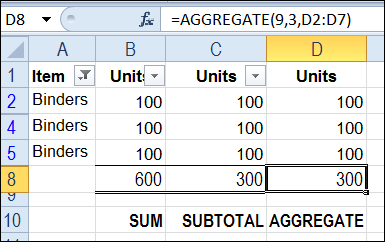
The SUBTOTAL function is great for calculating totals on a filtered list in Excel. Unlike the SUM function, SUBTOTAL ignores the values in rows hidden by the filter, and can even ignore manually hidden rows, so the total includes only the visible cells.
A new function, AGGREGATE, introduced in Excel 2010, is similar to SUBTOTAL, and has a couple of advantages.
More Functions in AGGREGATE
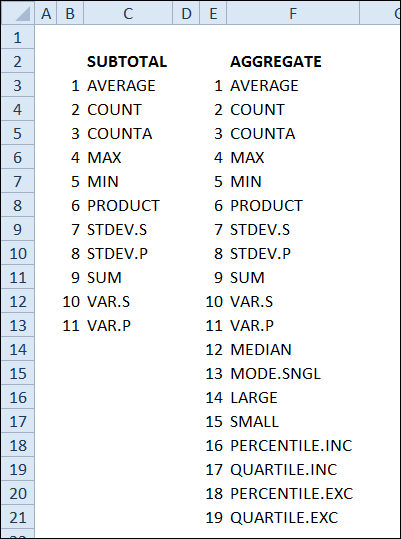
The first advantage is that AGGREGATE has 19 functions, compared to SUBTOTAL’s 11 functions.
Ignore Errors with AGGREGATE
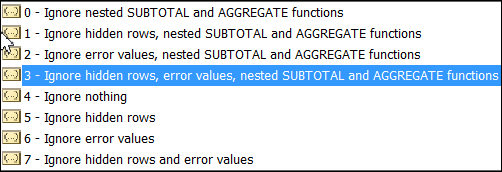
Another advantage is that AGGREGATE can ignore errors, as well as hidden rows. You can choose from a list of options, for what to ignore.
Watch the Video
Watch this short video to see the steps for setting up an AGGREGATE total, and see how it differs from SUM and SUBTOTAL
Download the Sample File
To download the sample file, please visit the Excel Sum Functions Examples page on my Contextures website.
___________
Thanks Debra.. This is really useful!!
This is good stuff. Is there a way to use AGGREGATE instead of a total in a pivot table?
@JoAnn Paules, not yet, but it would be great to have all those functions available in a pivot table too.
I would love to able to use percentiles in a pivot table!
What an odd order those eight ignore codes are. In binary terms, it ought to start with ignore nothing and end with ignore everything, or go the other way. This seems to be shifted four spaces modulo eight.
I’m not sure how I missed this. It’s only been out there for 6 years now!
The AGGREGATE function only became available in Excel 2010 — not Excel 2007.
@ruve1k Thanks, I’ve corrected that in the post.
Helpful. Thank you.
Debra,
Nice article, very helpful.
One feature I don’t like about SUBTOTAL and AGGREGATE is the use of constants to represent parameters. That is, the formula =AGGREGATE(9,3,D2:D7) is difficult to understand because the 9 and 3 have no intrinsic meaning. Instead, I define named ranges to represent the parameters I want to use. For example, I define a named range called “Sum” with a value of 9, and another named range called “IgnoreAll” with a value of 3. Then the formula would be =AGGREGATE(IgnoreAll,Sum,D2:D7).
Cheers,
Bob.
http://www.i-nth.com