
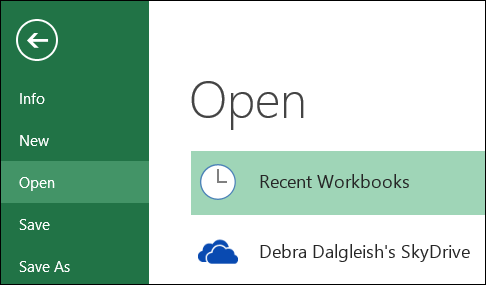
In Excel 2013, if you click the File tab, you go to the Backstage view. The Open command is selected, and you can select a file and open it.
Here is the Backstage view, with Open and Recent Workbooks selected
Add to Quick Access Toolbar
You can also add an Open icon to your Quick Access Toolbar (QAT).
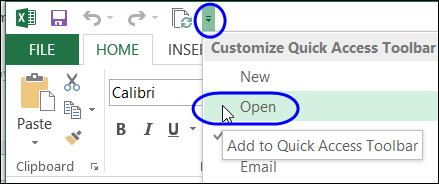
Use Quick Access Icon
If you point to that icon, after adding it to the QAT, the screen tip says “Open”.
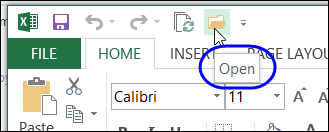
Click that icon, and it also takes you to the Backstage view, just like the File tab does.
See More Files
If you want to see files that aren’t listed in the Recent list, you can click Computer, then click the Browse button, to open the window.
That’s quite a few clicks, just to see a list of your files!
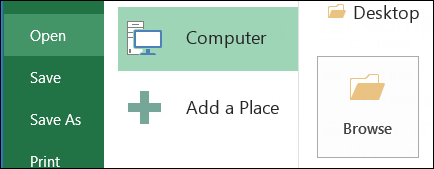
Missing File Open Window
In older versions of Excel, if you click on the Open icon, it opens the browsing window, where you can pick a file, and open it.
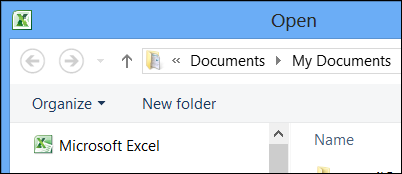
Change Setting in Excel 2010
I don’t know why that changed in Excel 2013, but if you still have Excel 2010 installed, you can change a setting, to avoid the Backstage view. Thanks, Chewing all, for pointing out this setting, in the comments below.
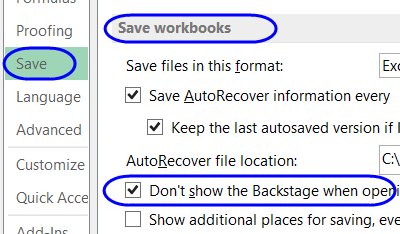
- Click the File tab, and then click Options.
- Click the Save category, and click “Don’t show the Backstage when opening or saving files”
- Click OK to save the settings
A Clunky Workaround
Before Chewing all pointing out this setting, I was using this clunky workaround, to get the functionality back.
- In Excel 2013, if you have an Open icon on the QAT, remove it.
- Then, close and re-open Excel 2013.
- Add an Open icon to the QAT
-
- Keep Excel 2013 open, and open Excel 2010
- In Excel 2010, add the standard Open button on the QAT
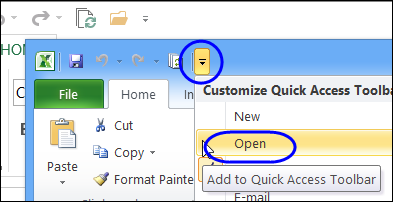
Icon on QAT
If you point to that icon in Excel 2010, the screen tip will say “Open (Ctrl + O)”
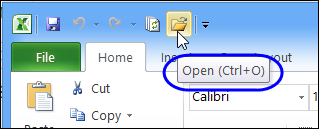
- Close Excel 2010, and the button on the Excel 2013 QAT has changed to the Open (Ctrl + O) button
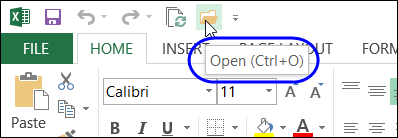
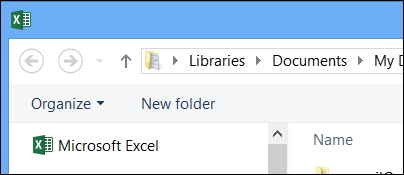
- If you click the Open icon in Excel 2013 now, it opens the Open window, instead of going to Backstage view.
This is probably a bug, from having multiple versions of Office installed, and the QAT gets confused.
The QAT icons seem to disappear occasionally, which is annoying, so it might help to set up both versions exactly the same.
_____________
Thank you so much! I spent a lot of time searching for how to change the default “Open” view. Checking the “Don’t show the Backstage when opening or saving file” selection did the trick!
Hmmm…I tried this, but I’m still getting the cumbersome multi-step process to open files. What did I do wrong?
OMG! I spent two days searching for this solution. Like the others that have already posted…Thank you! Thank you! Thank you!