
If you need to get a total in Excel, based on criteria, there are a few different ways that you could do it. Today, we’ll take a look at how DSUM and Excel Tables sum with multiple criteria.
Other Ways to Sum
First, here are other ways that you can sum with single or multiple criteria. For example:
- SUMIF – total based on a single criterion
- SUMIFS – total based on multiple criteria
- SUMPRODUCT – total based on multiple criteria
- SUBTOTAL – total based on filtered data
- Pivot Table – summarize filtered data
The SUMIF, SUMIFS and SUMPRODUCT functions can be used in multiple rows, and refer to cells in their current row or column for criteria. Charles Williams recommends using SUMIFS whenever possible, to improve performance.
The SUMIF, SUMIFS and SUMPRODUCT functions can also be used at the top of a worksheet, or on a dashboard, to summarize data in a table, based on selected criteria.
Using DSUM
Another method for summarizing results in a dashboard, based on criteria, is to use DSUM, which is one of Excel’s database functions. Because DSUM uses a criteria range, it isn’t suitable for use in multiple rows, but is a good choice for a single summary, and it can use complex criteria.
We’ll see how to use the DSUM function, with Excel’s named tables – a feature that was introduced in Excel 2007.
Video: Excel Named Table
When you work with lists in Excel, use the built-in Table feature, to make it easy to sort and filter your data. This short video shows the simple steps
Set Up the Workbook for DSUM
To use the DSUM function, you’ll have to set up the following ranges, similar to what you would use for an Advanced Filter:
- A database range
- A criteria range
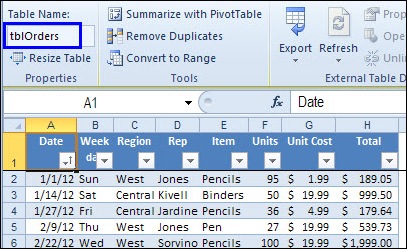
In this example, the database contains order information, and is in a table named tblOrders.
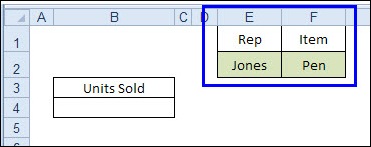
On another sheet, I’ll set up a criteria range, using headings that exactly match headings in the database. In the cells directly below the headings, I’ll type a sales rep’s name, and an item that was sold.
The address of the criteria range is E1:F2
Create the DSUM Formula
Next, I’ll create a DSUM formula that calculates the total units sold, by summing the Units column in the database, where the Rep name is Jones, and the Item is Pen.
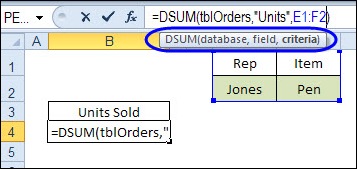
The arguments for the DSUM function are database, field and criteria.
My database is the table named tblOrders, I want to sum the Units field, and my criteria range is E1:F2
=DSUM(tblOrders,”Units”,E1:F2)
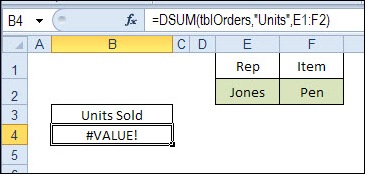
Unfortunately, that formula returns a #VALUE! error, because DSUM doesn’t recognize the named table. Apparently the database functions weren’t updated when named tables were added in Excel 2007.
Create a Named Range for the Database
The DSUM doesn’t recognize the named table, so I’ll create a named range – dbOrders – based on the table.
- On the Excel Ribbon, click the Formulas tab, and click Define Name.
- In the New Name dialog box, type a name for the range – dbOrders
- Click in the Refers To box, and on the worksheet, click on the upper left corner of the orders table, to select the entire table. The table name will appear in the Refers To box.
=tblOrders
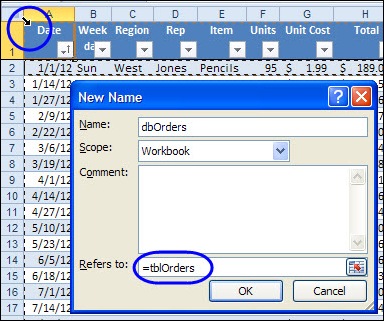
- Click on the upper left cell again, to include the heading cells in the selection. The Refers to box will change to:
=tblOrders[#All]
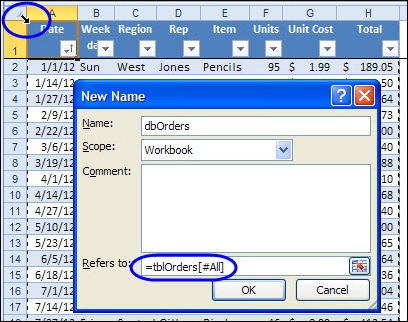
- Click OK, to complete the name.
Change the DSUM Formula
Finally, I’ll change the DSUM formula, so it uses the named range, dbOrders, instead of the named table.
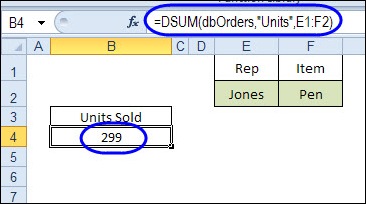
=DSUM(dbOrders,”Units”,E1:F2)
With that change, the DSUM function happily calculates the number of pens that Jones sold.
Creating Exact Criteria
In the example shown above, the DSUM function treats the text criteria as “begins with”, rather than “equal to”.
So, the total units sold would include any pen, pen sets, and pencils that were sold by Jones, because those items all begin with “Pen”
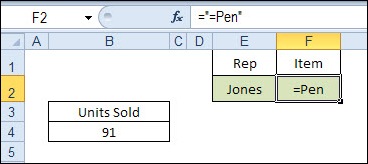
If you want to find only the items that are equal to “Pen”, change the criterion to:
=”=Pen”
With this criterion in cell F2, the total units is 91, which only includes the Pen sales, not pencils, or pen sets.
For more information and examples for setting up the criteria range, please see criteria range setup section on the Advanced Filter page – it uses the same type of setup.
Add More Criteria Rows
You’re not just limited to one row in the criteria area. For example, you could add more rep names and items, and expand the Criteria Range in the DSUM formula.
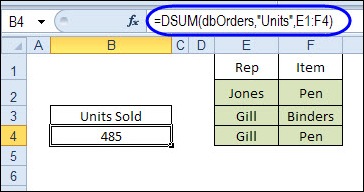
In the example shown below, the criteria range is now E1:F4
=DSUM(dbOrders,”Units”,E1:F4)
DSUM calculates the total units for orders where:
- Jones is the rep, AND the item name begins with Pen
- OR
- Gill is the rep, AND the item name begins with Binders
- OR
- Gill is the rep, AND the item name begins with Pen
Use Formulas in Criteria Cells
If you want to use more than a few criteria rows, it can be confusing and cumbersome to create a large criteria range. Instead, you can use formulas in the criteria cells, similar to the criteria formulas that you can use for an Advanced Filter.
If you’re using formulas in the criteria range, leave the heading cell blank, or use a heading that is NOT used in the database.
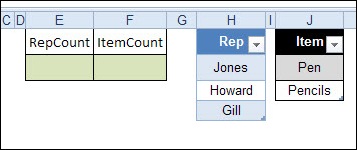
In the example shown below, the criteria headings have been changed to RepCount and ItemCount. At the right are named tables – tblRepSel and tblItemSel – where I have entered the reps and items that I want to include in the DSUM total.
Enter the Criteria Formulas
In cells E2 and F2, we’ll use COUNTIF formulas, to check if:
- the rep name from the database is in the tblRepSel table,
- the item name from the database is in the tblItemSel table.
In the criteria formula, we’ll refer to a cell in the first row of data in the database, using a relative reference. We can use a named table reference for the range argument in the COUNTIF function, but must use a normal cell reference for the criteria argument.
The formula in E2 is:
=COUNTIF(tblRepSel[Rep],Orders!D2)
The formula in F2 is:
=COUNTIF(tblItemSel[Item],Orders!E2)
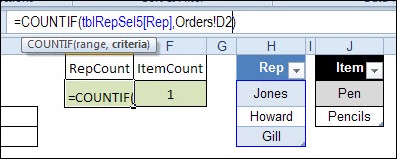
The criteria cells show the results for the first row in the database, and that row has “Jones” and “Pencil”.
Check the DSUM Formula
The DSUM formula is the same as in the previous example:
=DSUM(dbOrders,”Units”,E1:F2)
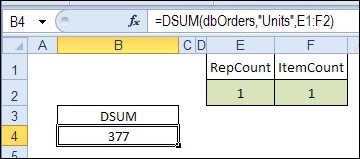
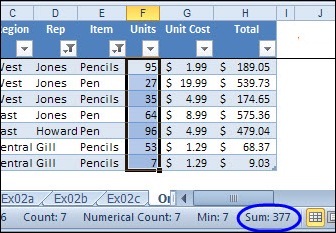
The DSUM result is 377, and we can check that by filtering the database to show the same items.
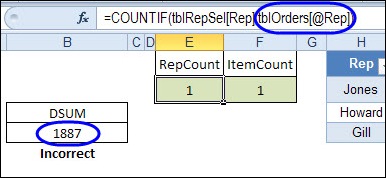
If we had used a table reference in our COUNTIF formulas, for the Criteria argument, the DSUM would have been incorrect – it adds up all the rows!
Download the DSUM Sample File
To download the sample file, you can go to the Excel Examples page on my Contextures website.
In the Functions section, look for FN0024 – DSUM With Excel Tables.
__________________
I’m using the following formula in one of my criteria in the DSUM function, but nothing seems to happen.
>=’Hourly Rates’!F3,=’Hourly Rates’!F3 is the FROM date,and
WHERE, <='Hourly Rates'!H3 is the TO date.
Can anyone help me with this?
I have a spreadsheet that has over 500 rows. I need to count all the rows that were completed in a certain month. The two worksheets are titled “Data” and “Completed_Hold”, the date is in column “Q1” in the “Completed_Hold worksheet.
I tried using the countif, but doesn’t seem to work. I keeps giving me “0”
=COUNTIF(Completed_Hold!Q:Q,”10/01/13:10/31/13″)
What am I doing wrong?
@Wanda, You can use the examples shown in this blog post – just substitute COUNTIFS or COUNTIF, where it has SUMIFS or SUMIF, and change the formula slightly for the COUNTIF(S) arguments.
http://blog.contextures.com/archives/2013/02/26/sum-for-a-date-range-in-excel/
Hi,
I am trying adapt this formula to copy it down a few hundred rows in my spreadsheet. Is there a way to adapt the “criteria” part of the DSUM formula – DSUM(database,field,criteria) so that it does not include entries between the header row and the row containing the criteria I want to reference.
Example from cell A1 to C4:
Date Code Units sold
2/7/2012 19 23
2/7/2012 4 ?
3/7/2012 17 ?
DSUM(dbOrders,”Units”,A1:B2) formula only works (produces an accurate result) for cell C2, not for C3 or C4. Is there a way I can adapt the criteria range to exclude the rows I don’t want to refernce in this application of DSUM?
Much appreciated.
@Eddie, you could use SUMIFS to calculate the units sold, based on the date and code.
For example, in the sample file, add a new sheet.
Then type Central in cell A2 and Binders in cell B2
Enter this formula in cell C2:
=SUMIFS(tblOrders[Units],tblOrders[Region],A2,tblOrders[Item],B2)
The result is 396 — the total number of binders sold in the Central region.
Hi, I’m not sure I follow the section “Use Formulas in Criteria Cells”, please could you elaborate. What is the purpose of the repcount and itemcount (is it for longer lists to make sure you don’t have duplicates entered)?
Thank you this all worked really well! Now, I only want to sum the rows in the column that meet criteria but ONLY IF THE ROWS ARE NOT HIDDEN in the table view. I want to be able to filter the table on the table worksheet, and the results update in the SUM to be removed if they are hidden on the table. Is there a “row is hidden” or “row is visible” criteria?
Hi Brian.
Use AGGREGATE function it has the option of ignoring Hidden Rows.
does anybody know if there is a limit to the dsum function, im using it across 9 sheets or databases each containing around 43000 rows. The problem I am having is that the last sheet is getting cut off ( not collecting all the data). If anybody knows this or has heard about this please let me know. thanks.