
If you need to get a total in Excel, based on criteria, there are a few different ways that you could do it. Today, we’ll take a look at how DSUM and Excel Tables sum with multiple criteria.
Other Ways to Sum
First, here are other ways that you can sum with single or multiple criteria. For example:
- SUMIF – total based on a single criterion
- SUMIFS – total based on multiple criteria
- SUMPRODUCT – total based on multiple criteria
- SUBTOTAL – total based on filtered data
- Pivot Table – summarize filtered data
The SUMIF, SUMIFS and SUMPRODUCT functions can be used in multiple rows, and refer to cells in their current row or column for criteria. Charles Williams recommends using SUMIFS whenever possible, to improve performance.
The SUMIF, SUMIFS and SUMPRODUCT functions can also be used at the top of a worksheet, or on a dashboard, to summarize data in a table, based on selected criteria.
Using DSUM
Another method for summarizing results in a dashboard, based on criteria, is to use DSUM, which is one of Excel’s database functions. Because DSUM uses a criteria range, it isn’t suitable for use in multiple rows, but is a good choice for a single summary, and it can use complex criteria.
We’ll see how to use the DSUM function, with Excel’s named tables – a feature that was introduced in Excel 2007.
Video: Excel Named Table
When you work with lists in Excel, use the built-in Table feature, to make it easy to sort and filter your data. This short video shows the simple steps
Set Up the Workbook for DSUM
To use the DSUM function, you’ll have to set up the following ranges, similar to what you would use for an Advanced Filter:
- A database range
- A criteria range
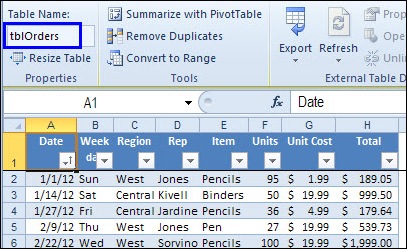
In this example, the database contains order information, and is in a table named tblOrders.
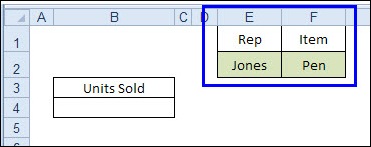
On another sheet, I’ll set up a criteria range, using headings that exactly match headings in the database. In the cells directly below the headings, I’ll type a sales rep’s name, and an item that was sold.
The address of the criteria range is E1:F2
Create the DSUM Formula
Next, I’ll create a DSUM formula that calculates the total units sold, by summing the Units column in the database, where the Rep name is Jones, and the Item is Pen.
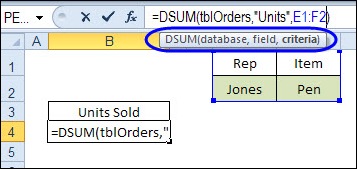
The arguments for the DSUM function are database, field and criteria.
My database is the table named tblOrders, I want to sum the Units field, and my criteria range is E1:F2
=DSUM(tblOrders,”Units”,E1:F2)
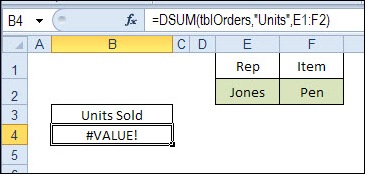
Unfortunately, that formula returns a #VALUE! error, because DSUM doesn’t recognize the named table. Apparently the database functions weren’t updated when named tables were added in Excel 2007.
Create a Named Range for the Database
The DSUM doesn’t recognize the named table, so I’ll create a named range – dbOrders – based on the table.
- On the Excel Ribbon, click the Formulas tab, and click Define Name.
- In the New Name dialog box, type a name for the range – dbOrders
- Click in the Refers To box, and on the worksheet, click on the upper left corner of the orders table, to select the entire table. The table name will appear in the Refers To box.
=tblOrders
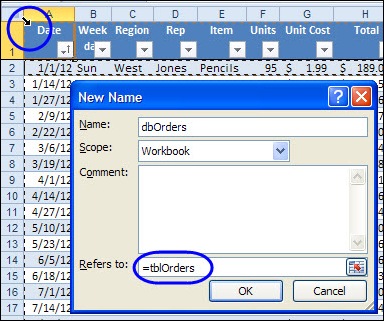
- Click on the upper left cell again, to include the heading cells in the selection. The Refers to box will change to:
=tblOrders[#All]
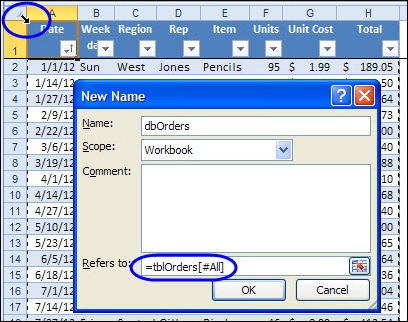
- Click OK, to complete the name.
Change the DSUM Formula
Finally, I’ll change the DSUM formula, so it uses the named range, dbOrders, instead of the named table.
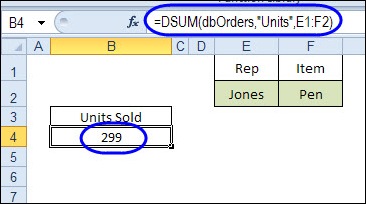
=DSUM(dbOrders,”Units”,E1:F2)
With that change, the DSUM function happily calculates the number of pens that Jones sold.
Creating Exact Criteria
In the example shown above, the DSUM function treats the text criteria as “begins with”, rather than “equal to”.
So, the total units sold would include any pen, pen sets, and pencils that were sold by Jones, because those items all begin with “Pen”
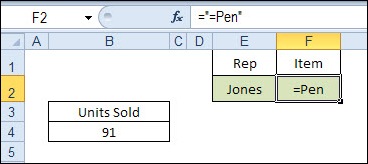
If you want to find only the items that are equal to “Pen”, change the criterion to:
=”=Pen”
With this criterion in cell F2, the total units is 91, which only includes the Pen sales, not pencils, or pen sets.
For more information and examples for setting up the criteria range, please see criteria range setup section on the Advanced Filter page – it uses the same type of setup.
Add More Criteria Rows
You’re not just limited to one row in the criteria area. For example, you could add more rep names and items, and expand the Criteria Range in the DSUM formula.
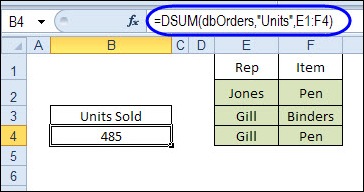
In the example shown below, the criteria range is now E1:F4
=DSUM(dbOrders,”Units”,E1:F4)
DSUM calculates the total units for orders where:
- Jones is the rep, AND the item name begins with Pen
- OR
- Gill is the rep, AND the item name begins with Binders
- OR
- Gill is the rep, AND the item name begins with Pen
Use Formulas in Criteria Cells
If you want to use more than a few criteria rows, it can be confusing and cumbersome to create a large criteria range. Instead, you can use formulas in the criteria cells, similar to the criteria formulas that you can use for an Advanced Filter.
If you’re using formulas in the criteria range, leave the heading cell blank, or use a heading that is NOT used in the database.
In the example shown below, the criteria headings have been changed to RepCount and ItemCount. At the right are named tables – tblRepSel and tblItemSel – where I have entered the reps and items that I want to include in the DSUM total.
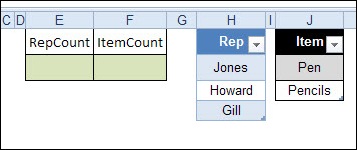
Enter the Criteria Formulas
In cells E2 and F2, we’ll use COUNTIF formulas, to check if:
- the rep name from the database is in the tblRepSel table,
- the item name from the database is in the tblItemSel table.
In the criteria formula, we’ll refer to a cell in the first row of data in the database, using a relative reference. We can use a named table reference for the range argument in the COUNTIF function, but must use a normal cell reference for the criteria argument.
The formula in E2 is:
=COUNTIF(tblRepSel[Rep],Orders!D2)
The formula in F2 is:
=COUNTIF(tblItemSel[Item],Orders!E2)
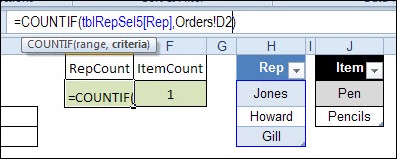
The criteria cells show the results for the first row in the database, and that row has “Jones” and “Pencil”.
Check the DSUM Formula
The DSUM formula is the same as in the previous example:
=DSUM(dbOrders,”Units”,E1:F2)
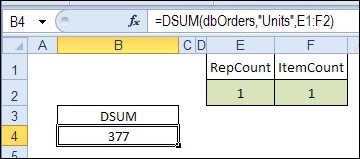
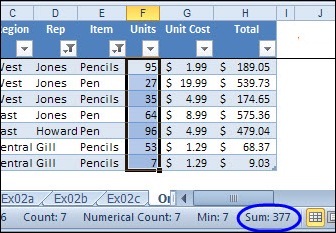
The DSUM result is 377, and we can check that by filtering the database to show the same items.
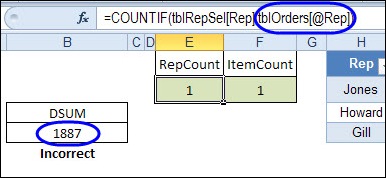
If we had used a table reference in our COUNTIF formulas, for the Criteria argument, the DSUM would have been incorrect – it adds up all the rows!
Download the DSUM Sample File
To download the sample file, you can go to the Excel Examples page on my Contextures website.
In the Functions section, look for FN0024 – DSUM With Excel Tables.
__________________
i want to know that from excel sheet, how can i get the data of any specific date.
Suppose if we have data base on monthly basis in excel sheet of last six months and by applying the command of DGET and DSUM we can extract the data but with these command how can i get the data date wise like any specific month or any week etc.
I know that in MS Access you can write the criteria for the DSUM function like: “[field]=’criteria’ AND [field2]=’criteria2′”
Does anyone know a way if this is also possible within the Excel DSUM function instead of using a criteria range?
This page and the linked pages are truly excellent, Debra. There are many naysayers when it comes to the Database functions and your coverage of DSUM here is solid gold.
I appreciate the page is originally from 2012 or so but that you have been updating it much more recently.
Thank you, Duncan!
“At the left are named tables –” should be “To the right…”?
Using table structured references is possible in Excel 2013
=DSUM(dbOrders,”Units”,E1:F4)
becomes
=DSUM(T_ord[#All],T_ord[[#Headers],[Units]],r_criteriaOrd)
T_orders = T_ord (shortened orders to ord)
“Units” = T_ord[[#Headers],[Units]] (can still use “Units”)
E1:F2 = r_criteriaOrd (Just named the range)
On the
Thanks, Dy, and I’ve fixed that left/right error in the description.
Hi ms.Debra,
what is the right formula if i will get the total sum of each sheet with the same criteria per person?
fro every sheet(day) i decalred “L” for late,
then on the last sheet is the summary per employee so i make table for lates ,absences.
to summarize the decalred attendace per sheet of each employee