
Recently, I enrolled in an online Infographics and data visualization course, and the classes started last week. In one of my homework assignments, I used this trick to link pivot chart title to report filter.
Data Viz Instructor
 The instructor is Alberto Cairo, who wrote The Functional Art: An Introduction to Information Graphics and Visualization.
He uploaded the first two chapters of his book for us to read during week one, and I really enjoyed it. There was some history, some theory, and plenty of graphics, to illustrate the text.
Improve the Infographic
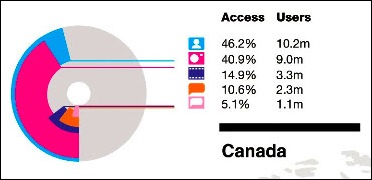
One of the assignments this week was to suggest improvements to an infographic on Social Web Involvement. There are 16 countries in the infographic, overlaid on a world map, and it’s difficult to read or understand the data.
Here is a small section of the graphic, showing data for Canada. Do you have a headache yet, just from looking at that tiny section?
Create a Pivot Table
To experiment with the data, and see how I could improve on the presentation, I put data for a few of the countries into a table in Excel.
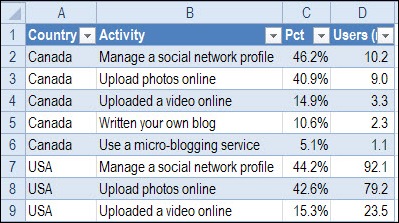
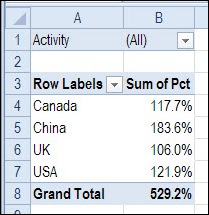
Next, I created a pivot table from the Excel table, with:
- Country as a Row label
- Activity as a Report Filter
- Percentage in the Values area (formatted as Percentage, with 1 decimal).
Create a Pivot Chart
Based on the pivot table, I created a bar chart, that shows the total percentages for each country.
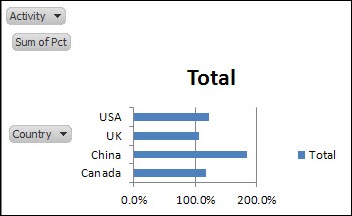
To improve its appearance, I made the following changes:
- Click the Ribbon’s Layout tab, click Legend, and click None
- On the Ribbon’s Analyze tab, click Field Buttons, and turn off the Axis and Value buttons – leave the Report Filter button on
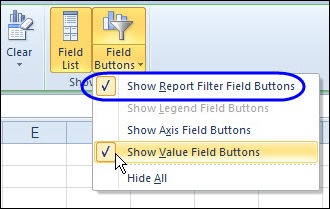
Then, instead of showing all the activities lumped together, I could select a specific activity from the drop down list.
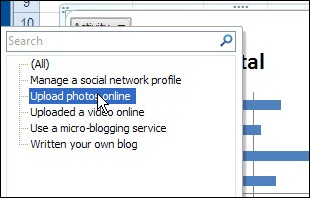
However, the chart doesn’t show which activity has been selected – the chart title just says “Total”.
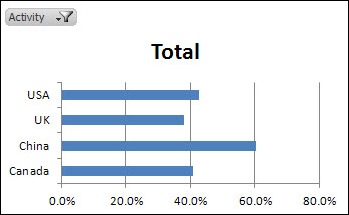
Update the Chart Title
Instead of showing “Total”, I’d like the chart title to change when I select one of the activities. To fix that, I’ll link the chart title to the Report Filter cell.
-
- Click on the chart title, to select it
- Click in the Formula bar, and type an =
- Click on the Report Filter cell – B1 in this example
- Press Enter, to complete the formula
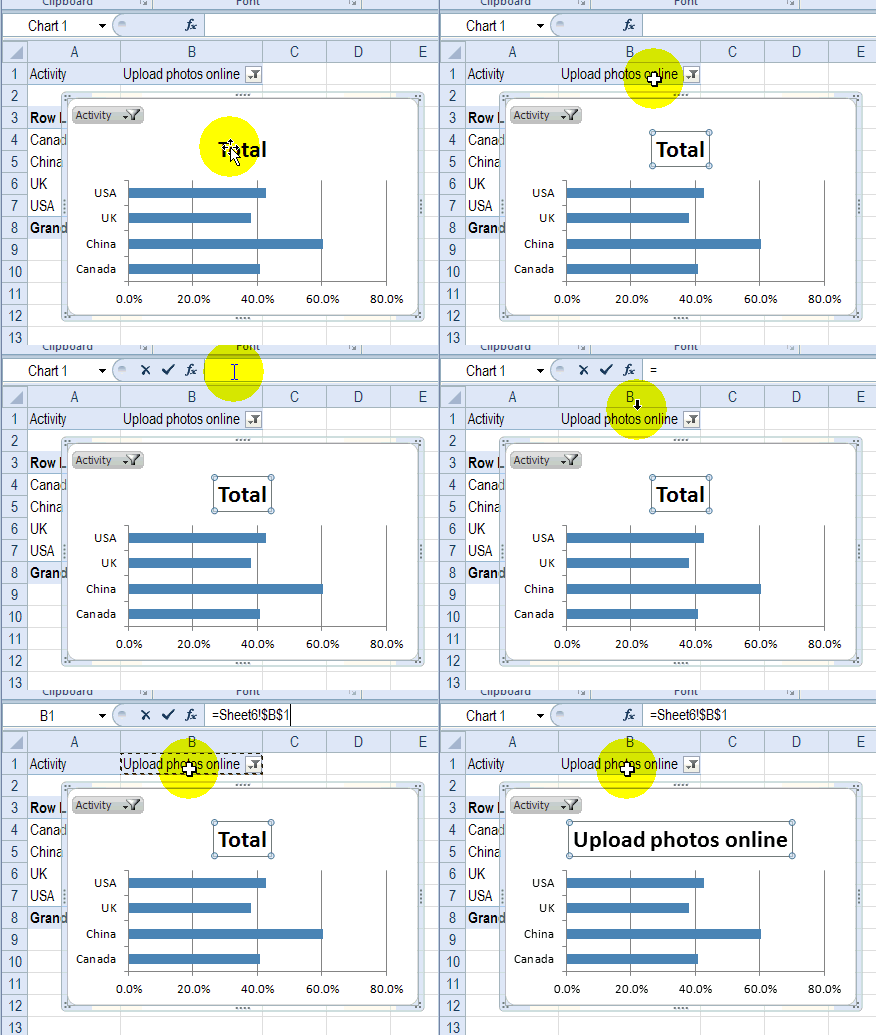
Chart Title Updates Automatically
Now, if I select an activity in either the pivot table or the pivot chart, the chart title updates automatically, to show which activity has been selected.
If you’d like to show a special heading if (All) or (Multiple Items) is shown in the Report Filter cell, you can create a formula, and link the chart title to that cell.
In the screen shot below, the following formula is in cell E1, and the chart title is linked to E1.
=IF(B1=”(All)”,”All Activities”,IF(B1=”(Multiple Items)”,”Multiple Activities”,B1))
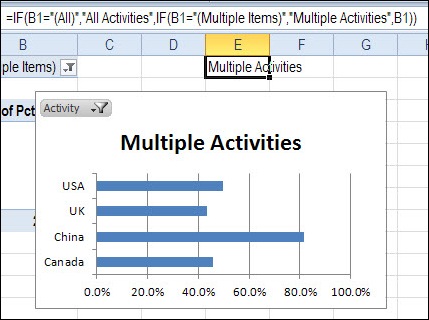
And now I’d better get back to my homework!
________________
I just tried this technique on a Pivot Chart in Excel 2013 and I got “That function isn’t valid.” I reduced it to “=if(true,”A”,”B”)” and got the same result. Has Microsoft done something to make this not work on pivot chart titles in 2013? Does anybody have any ideas/workarounds? Thanks in advance.
I don’t know if this will help, but I used a separate cell on another worksheet to calculate the required title text, then set the formula for the pivot chart title to equal the value of that cell. That enabled me to use more complex formulas that didn’t work when I entered them directly on the pivot chart.
Thanks Alastair – that has solved the problem! The Chart Title didn’t seem to like the code.
And thanks Debra for the original instructions. Exactly what I was looking for 🙂
I can’t see in Ribbon’s Analyze tab, the splitted icon “Field Buttons”…just “Field List” and “PivotChart Filter”.
I have filters only in “PivotChart Filter Pane” but I want to see the fields and filters in ChartArea like in Excel 2003. Now I have Excel 2007.
Thank you.
Thanks a lot, I was looking for Update the Chart Title automatically & found it here with perfect illustration. 🙂
Debra – This worked great for me on one spreadsheet but no longer works. Both were Excel 2013. Now I follow your very concise 🙂 instructions but the Formula bar just doesn’t react by putting the text in the title. On my other sheet, I even have it putting the dynamic text in Axis titles (cool!). What could I be missing?
Doug, I’m not sure why it would stop working. Does it work if you try the same technique with a Text Box?
No, text boxes didn’t work at all. I was trying to use them to put some disclaimer text in the chart — to no avail. I guess I’ll try to start over with a new Excel file. This one may be haunted.
Thank you… was trying for a long time