
Recently, I enrolled in an online Infographics and data visualization course, and the classes started last week. In one of my homework assignments, I used this trick to link pivot chart title to report filter.
Data Viz Instructor
 The instructor is Alberto Cairo, who wrote The Functional Art: An Introduction to Information Graphics and Visualization.
He uploaded the first two chapters of his book for us to read during week one, and I really enjoyed it. There was some history, some theory, and plenty of graphics, to illustrate the text.
Improve the Infographic
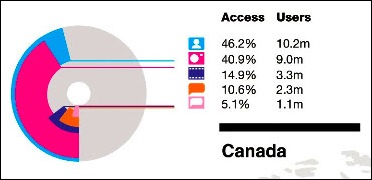
One of the assignments this week was to suggest improvements to an infographic on Social Web Involvement. There are 16 countries in the infographic, overlaid on a world map, and it’s difficult to read or understand the data.
Here is a small section of the graphic, showing data for Canada. Do you have a headache yet, just from looking at that tiny section?
Create a Pivot Table
To experiment with the data, and see how I could improve on the presentation, I put data for a few of the countries into a table in Excel.
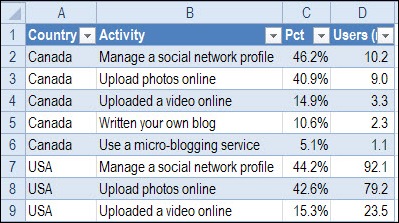
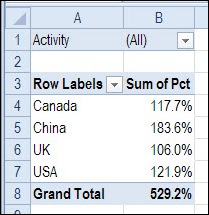
Next, I created a pivot table from the Excel table, with:
- Country as a Row label
- Activity as a Report Filter
- Percentage in the Values area (formatted as Percentage, with 1 decimal).
Create a Pivot Chart
Based on the pivot table, I created a bar chart, that shows the total percentages for each country.
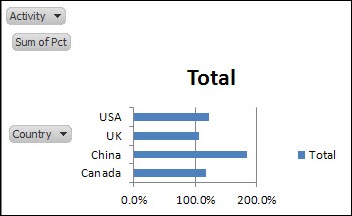
To improve its appearance, I made the following changes:
- Click the Ribbon’s Layout tab, click Legend, and click None
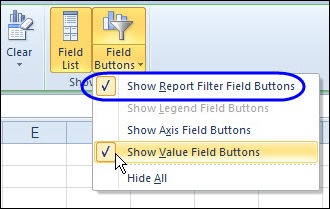
- On the Ribbon’s Analyze tab, click Field Buttons, and turn off the Axis and Value buttons – leave the Report Filter button on
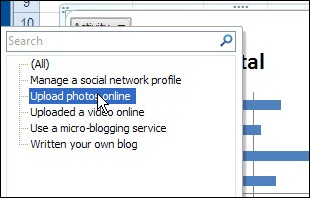
Then, instead of showing all the activities lumped together, I could select a specific activity from the drop down list.
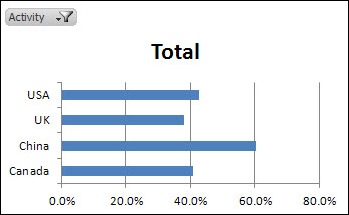
However, the chart doesn’t show which activity has been selected – the chart title just says “Total”.
Update the Chart Title
Instead of showing “Total”, I’d like the chart title to change when I select one of the activities. To fix that, I’ll link the chart title to the Report Filter cell.
-
- Click on the chart title, to select it
- Click in the Formula bar, and type an =
- Click on the Report Filter cell – B1 in this example
- Press Enter, to complete the formula
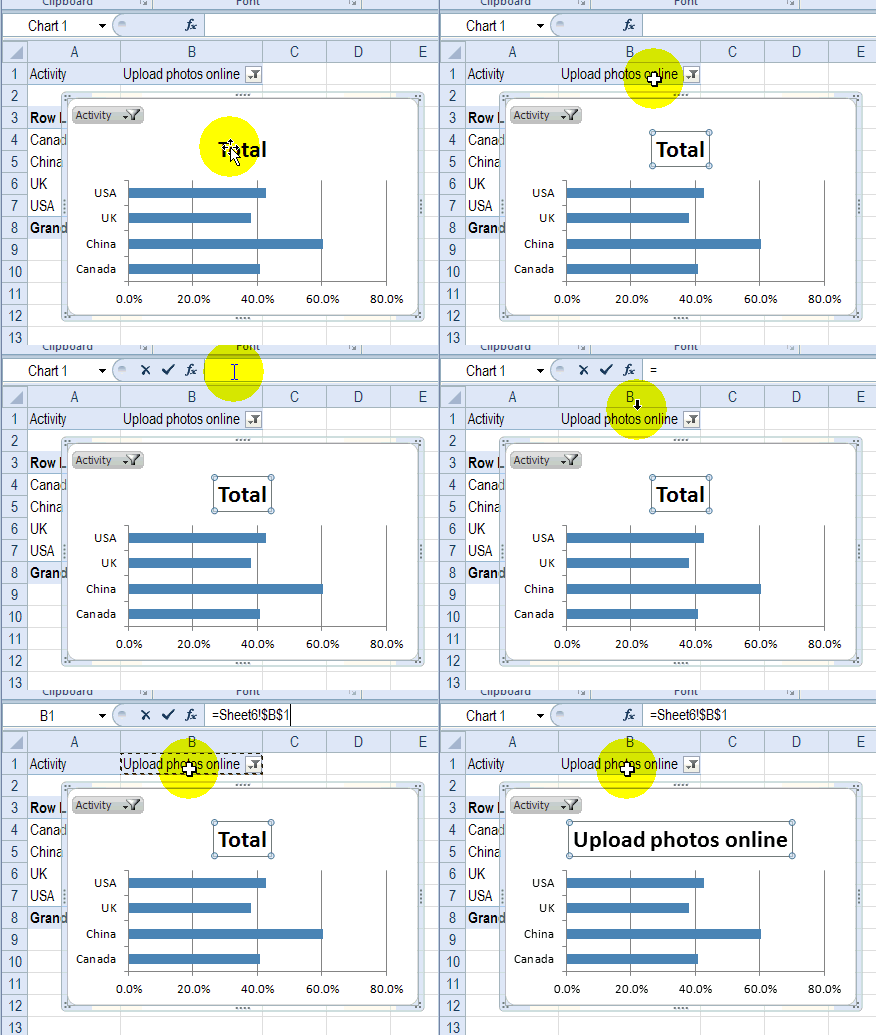
Chart Title Updates Automatically
Now, if I select an activity in either the pivot table or the pivot chart, the chart title updates automatically, to show which activity has been selected.
If you’d like to show a special heading if (All) or (Multiple Items) is shown in the Report Filter cell, you can create a formula, and link the chart title to that cell.
In the screen shot below, the following formula is in cell E1, and the chart title is linked to E1.
=IF(B1=”(All)”,”All Activities”,IF(B1=”(Multiple Items)”,”Multiple Activities”,B1))
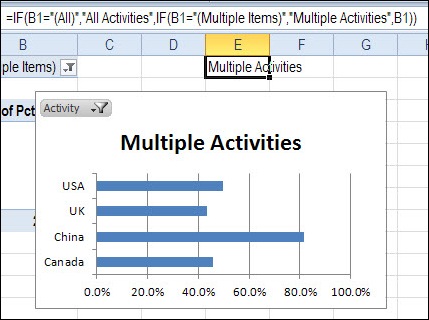
And now I’d better get back to my homework!
________________
Nice post. I was doing something similar with the title of a Pivot Chart that lived in a chart sheet. You can link the title to a cell on another sheet as long as the target cell does not have a range name associated with it – Excel complains with an error. Strange. I thought maybe it had something to do with the scope of the range name but it had Workbook scope. Once I removed the range name from my cell containing the string formula for my chart title, I could link the chart title to that cell.
Thanks a lot, it saved my time and helped me in implementing my dashboard in more elegant way!
Thanks so much. Exactly what I was looking for!
Was this done in Excel 2013? I’m using 2007 and I can’t figure out how to get the report filters ON the pivot chart. My Analyze ribbon looks slightly different than yours.
I have everything working for linking the chart title for automatic updating (nice IF function, BTW) but how can I add text to the title along with the cell reference? I did this a long time ago on an old file but when I look at the chart title, I can’t figure out how I did it as only the cell reference is visible. I can’t seem to get the syntax right.
It should be something like =”Current vs. Previous Month for “&Sheet2!$D$1
Thanks, so clear and precise, just what I was looking for. I tend to do the 5 second scan through instructions once and hope for the best, and yours worked for me first time – the visuals were great. I thought I would use the time saved to send you a thanks 🙂
@Claire, thanks, and I’m glad the instructions helped you.
Hi,
great work however I want to add some static text at the end of the dynamic value within the chart title
example “October Stats” or “November Stats” where the month is the dynamic value in the chart title and the word stats is the static value
Claudia, if you put if your month cell reference is in cell B7, your formula would be =B7 &” Stats”. I used a space at the beginning of Stats so it puts the space between the month and Stats. It should read October Stats now.
Excel still complains…I have =Sheet1!$B$3 &”CICS Name” and it doesn’t work. I’ve tried playing with it and it keeps coming up with the usual error message.
Doug, that formula should be in a worksheet cell, and then the chart title links to the cell with the formula. Is that how you have it set up?