
To make data entry easier, add a drop down list on an Excel worksheet. That way, people can choose from the list, instead of typing a product name. If you want to allow other entries with Excel drop down list, follow the steps below, to enable that option.
Drop Down List on Excel Worksheet
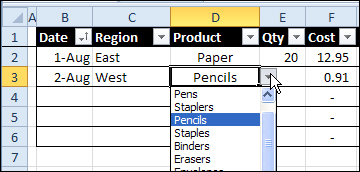
In most cases, you want people to select an item from the list, to prevent typos and invalid entries.
If they try to type something that’s not in the list, they’ll see an error message, and will have to try again.
Video: Make a Drop Down List
To see how to make a drop down list in a cell, watch the steps in this short video, and the written instructions are on the Excel Drop Down List page on my Contextures site.
Allow Non-List Entries
In some workbooks though, you might need to allow other entries in those data entry cells — not just the items in the drop down list.
For example, people might need to add a new product name, or add a new employee’s name to a data entry cell.
To allow other entries, you can turn off the Error Alerts in the data validation cells. Here are the steps to change that setting.
To turn off Error Alerts:
- Select all the data validation cells where you want to allow invalid entries
- On the Excel Ribbon, click the Data tab, and click Data Validation
- Click the Error Alert tab
- Remove the check mark from “Show error alert after invalid data is entered”
- Click OK to close the Data Validation box.
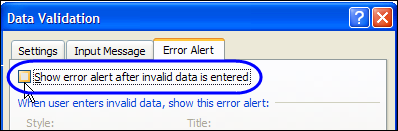
With error alerts turned off, you will be able to select an item in the drop down list, or you can type any value in the cell, whether the item is valid or invalid.
Data Validation Tips
For more data validation tips, please visit my Contextures website, where I’ve recently updated the Data Validation Intro page.
The page includes the steps for inserting a named table, and using that table as a dynamic source list for the drop down list items.
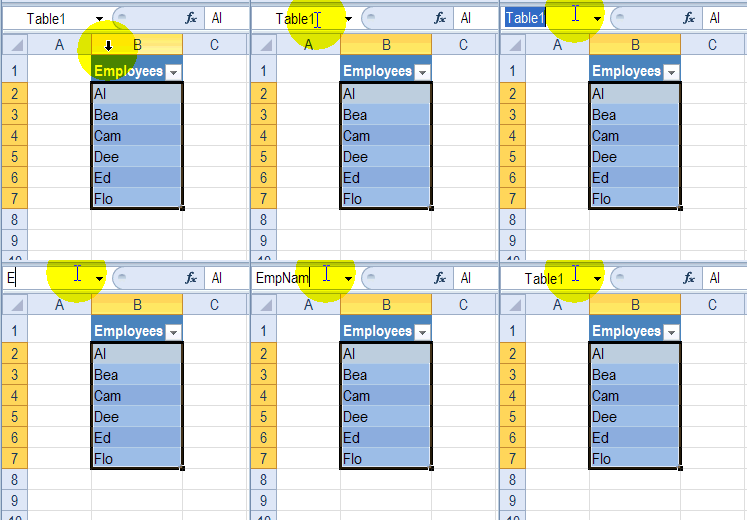
This animated screen shot shows how to type a one-word name in the Name Box, to name the items in the Employees table.
______________
Can we have a couple of dynamic dependent drop down lists which we can add items too like your standalone sample?
I’m having the trouble of trying to enter free text into the cell after an item from the drop-down menu is selected. the result is the drop-down menu item repeats itself. For example, if my drop-item is “Other” and I select that, and then attempt to free text immediately after, when I hit enter it repeats the word other. Any clue as to why this is happening and how I can fix it? Thanks much!
I’m having the trouble of trying to enter free text into the cell after an item from the drop-down menu is selected. the result is the drop-down menu item repeats itself. For example, if my drop-item is “Other” and I select that, and then attempt to free text immediately after, when I hit enter it repeats the word other. Any clue as to why this is happening and how I can fix it? Thanks much!
http://metodoexcel.com.br/pincel-de-formatacao/
Did you find a way to do this ?
I’m having the opposite issue where I cannot restrict free text in a dropdown list. I have checked the error message box is selected and it is in ‘Stop’. I have 4 dropdowns in my report, all of them restrict free entry apart from 1. I have tried copying the first cell from another list to the first cell of the problem list and then relinking it to the correct list, but this reverts back to allowing free text. Can’t understand why! It is the longest list, with 41 possibilities (is there a maximum?)
@Chris, if the list source is a named range, and there are blanks in that range, you’ll have to check the “Ignore Blanks” box.
Read about that problem here: Invalid Entries Allowed in Data Validation
is it possible to set a condition such that if a definite value appears in a specified cell, then a dropdown is enabled for the current cell, but if any other value is present, then text is acceptable?
Example:
Cell A2 can have values [Manual, Test, Dummy]
I want to set B2 such that if A2 has value Dummy, then B2 is a dropdown with values like [DummyA, DummyB], else user can enter any value in B2
@Arpan, create a list of items for the Dummy selection, e.g. DummyList. Then, select a blank cell, and name it as NoList.
In cell B2, use this formula for the data validation:
=IF(A2=”Dummy”,DummyList,NoList)
Because the NoList range contains a blank cell, any entry will be allowed in cell B2 (it will show a blank item in the drop down list)
Thanks. This helped a lot