
To make data entry easier, add a drop down list on an Excel worksheet. That way, people can choose from the list, instead of typing a product name. If you want to allow other entries with Excel drop down list, follow the steps below, to enable that option.
Drop Down List on Excel Worksheet
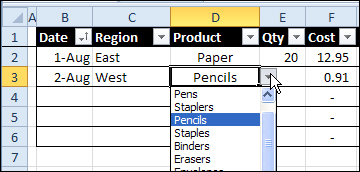
In most cases, you want people to select an item from the list, to prevent typos and invalid entries.
If they try to type something that’s not in the list, they’ll see an error message, and will have to try again.
Video: Make a Drop Down List
To see how to make a drop down list in a cell, watch the steps in this short video, and the written instructions are on the Excel Drop Down List page on my Contextures site.
Allow Non-List Entries
In some workbooks though, you might need to allow other entries in those data entry cells — not just the items in the drop down list.
For example, people might need to add a new product name, or add a new employee’s name to a data entry cell.
To allow other entries, you can turn off the Error Alerts in the data validation cells. Here are the steps to change that setting.
To turn off Error Alerts:
- Select all the data validation cells where you want to allow invalid entries
- On the Excel Ribbon, click the Data tab, and click Data Validation
- Click the Error Alert tab
- Remove the check mark from “Show error alert after invalid data is entered”
- Click OK to close the Data Validation box.
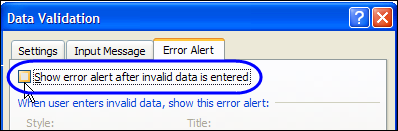
With error alerts turned off, you will be able to select an item in the drop down list, or you can type any value in the cell, whether the item is valid or invalid.
Data Validation Tips
For more data validation tips, please visit my Contextures website, where I’ve recently updated the Data Validation Intro page.
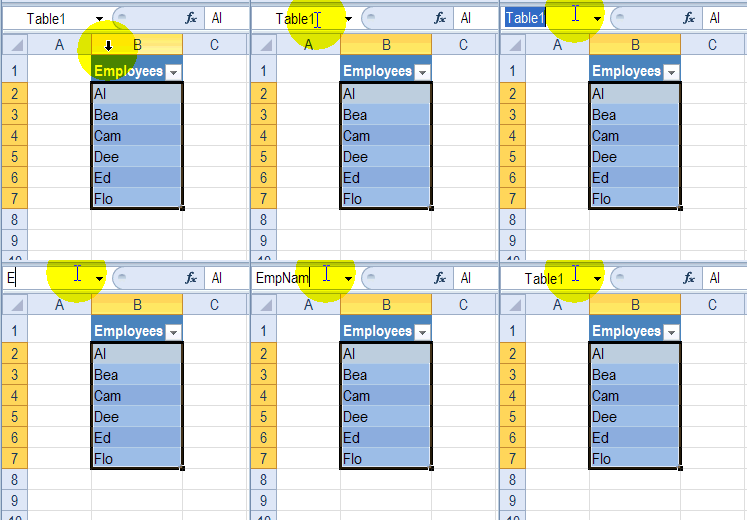
The page includes the steps for inserting a named table, and using that table as a dynamic source list for the drop down list items.
This animated screen shot shows how to type a one-word name in the Name Box, to name the items in the Employees table.
______________
That [F3] tip on the website to insert a named range is a great reminder.
Thanks AlexJ! It’s easier than trying to remember all the range names that you created.
Hi Debra,
If a user is allowed to disregard the list and enter their own item, then sometimes the next logical step is to add that user’s entry to the original data validation list. I assume you have encountered this before and developed a solution but I couldn’t find it on your website. For my own amusement I created a solution with formulas only…it was easier than I thought. A VBA solution may be better suited.
Hi Jason,
Any chance you can share the formulas you generated to add the entries to the data list?
Thanks Jason, your formula solution sounds interesting. I’ve got a VBA solution on my Contextures site:
.
http://www.contextures.com/excel-data-validation-add.html
It automatically adds new items, and sorts the source list
Very nice! Yes, the one drawback of the formula solution is that the list does not-resort. It simply appends the new entry to the list. If users add lots of new entries, then you have an partially sorted list and this can slow the user down.
Can a drop-down list be extended to DISPLAY more than 8
records from the source data without scrolling down ? This is very inconvenient for (say) the 12 months of the year or
any longer list of data.
Is there a way to edit a drop down menu to include more cells after it has been created? I can’t seem to add to it, or delete it.