
If you’re working on a complicated Excel file, or taking over a file that someone else built, it can be difficult to understand how it all fits together. To help understand the file setup, use the following macros to list all formulas in workbook.
Excel has formula arrow, to show dependent cells, but that can get confusing, if there are lots of formula cells.
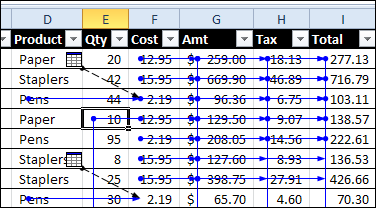
To get started, you can see where the formulas and constants are located, and colour code those cells.
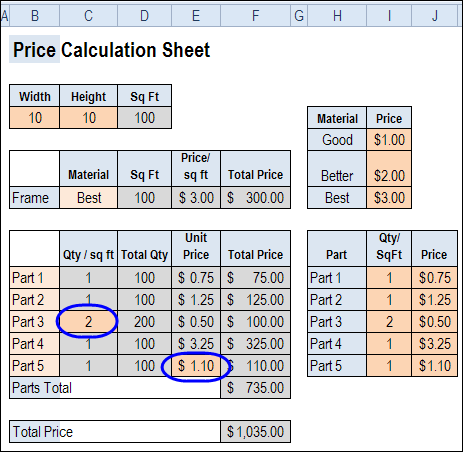
View Formulas on the Worksheet
You can also view the formulas on a worksheet, by using the Ctrl + ` shortcut. And if you open another window in the workbook, you can view formulas and results at the same time.
Code to List Formulas
For more details on how the calculations work, you can use programming to create a list of all the formulas on each worksheet.
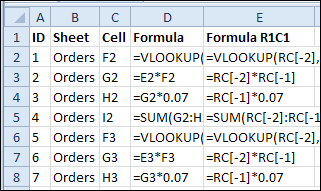
In the following sample code, a new sheet is created for each worksheet that contains formulas. The new sheet is named for the original sheet, with the prefix “F_”.
In the formula list sheet, there is an ID column, that you can use to restore the list to its original order, after you’ve sorted by another column.
There are also columns with the worksheet name, the formula’s cell, the formula and the formula in R1C1 format.
Copy the following code to a regular module in your workbook.
Sub ListAllFormulas()
'print the formulas in the active workbook
Dim lRow As Long
Dim wb As Workbook
Dim ws As Worksheet
Dim wsNew As Worksheet
Dim c As Range
Dim rngF As Range
Dim strNew As String
Dim strSh As String
On Error Resume Next
Application.DisplayAlerts = False
Set wb = ActiveWorkbook
strSh = "F_"
For Each ws In wb.Worksheets
  lRow = 2
  If Left(ws.Name, Len(strSh)) <> strSh Then
    Set rngF = Nothing
    On Error Resume Next
    Set rngF = ws.Cells.SpecialCells(xlCellTypeFormulas, 23)
    If Not rngF Is Nothing Then
      strNew = Left(strSh & ws.Name, 30)
      Worksheets(strNew).Delete
      Set wsNew = Worksheets.Add
      With wsNew
        .Name = strNew
        .Columns("A:E").NumberFormat = "@" 'text format
        .Range(.Cells(1, 1), .Cells(1, 5)).Value _
            = Array("ID", "Sheet", "Cell", "Formula", "Formula R1C1")
        For Each c In rngF
          .Range(.Cells(lRow, 1), .Cells(lRow, 5)).Value _
            = Array(lRow - 1, ws.Name, c.Address(0, 0), _
              c.Formula, c.FormulaR1C1)
          lRow = lRow + 1
        Next c
        .Rows(1).Font.Bold = True
        .Columns("A:E").EntireColumn.AutoFit
      End With 'wsNew
      Set wsNew = Nothing
    End If
  End If
Next ws
Application.DisplayAlerts = True
End Sub
Code to Remove Formula Sheets
In the List Formulas code, formula sheets are deleted, before creating a new formula sheet. However, if you want to delete the formula sheets without creating a new set, you can run the following code.
Sub ClearFormulaSheets()
'remove formula sheets created by
'ShowFormulas macro
Dim wb As Workbook
Dim ws As Worksheet
Dim strSh As String
On Error Resume Next
Application.DisplayAlerts = False
Set wb = ActiveWorkbook
strSh = "F_"
Set wb = ActiveWorkbook
  For Each ws In wb.Worksheets
    If Left(ws.Name, Len(strSh)) = strSh Then
      ws.Delete
    End If
  Next ws
Application.DisplayAlerts = True
End Sub
Download the Sample File
To download the sample file, please visit the Sample Files page on the Contextures website. In the UserForms, VBA, Add-Ins section, look for UF0019 – Formula Info List.
The file is zipped, and in Excel 2007 / 2010 format. Enable macros if you want to test the code.
_______________
Hi,
This could be handy. I’ve done a similar thing manually by copying the sheet and doing a find and replace – find “=”, replace with ” =”. Then if you want to restore the formula for any reason you can remove the space and it’s done. The first time I tried it I replaced with “‘=”, but you can’t search for a ‘ (as far as I know), so space was the answer. BTW, the reason I wanted to do this was so I could print the formulas with grid lines showing, or remove rows and columns and preserve the references. Not something that comes up all the time.
But your code is nice. Thank you.
Thanks Terry, and your solution of replacing the equal signs is a good workaround too. That solution also works when you want to copy formulas to a different location, without adjusting the references.
i.e:
17 18 19 20 21 22
Yes Yes
Yes No
if 19 and 21 row contains Yes, then which formula can return Column Name(i.e 19,21) in 22.
Please help, highly appreciated.
I don’t know it’s possible, but it would be amazing if you could do this in reverse!!!
I have a budget excel file I use to keep score on my finances. The 1st worksheet “Monthly Budget” is a summary of all my different expenses, so it has cells that refer to other worksheets like “Groceries”, “Gas” & “Entertainment” taking the sum of each page, but I don’t want to loose track of previous months, so each month I start new columns in each category. So from the main “Monthly Budget” sheet I have to go in and modify each cell value to reflect the current month.
I’ve been trying to find some function that says something like (if the current date month is = 10 then =Groceries!B31 elseif current date month – 11 then =Groceries!E31, etc. (or case 10 do X, case 11 do Y
But if there was a way to reverse what you’ve done, that would be just as good 😉
Thanks 4 sharing,
Gary
I know you posted this some time ago, but in case you and/or others are looking for a solution wouldn’t the following simple type of formula work for you? It isn’t super elegant but if it works… 🙂
=IF(month(January),Groceries!B31,IF(month(February),Groceries!B32, etc))
Is there any formula to convert numeric data in text format.
please give me excel formulas………..