
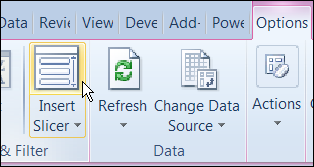
In Excel 2010, you can use Slicers to change multiple pivot tables. However, you might be working in an earlier version of Excel, or you don’t have room for Slicers on your worksheets.
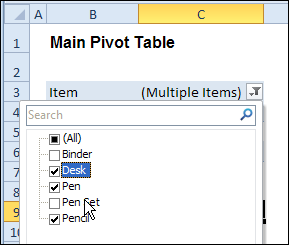
Instead of Slicers, you can use programming to update multiple pivot tables automatically. In previous posts, I’ve shown how you can select items in one pivot table’s Report Filter fields, and the Report Filter fields for pivot tables on the other worksheets will change to the same selections.
Specific Sheet and Pivot Tables
Jeff Weir has written an updated version of the code, which runs much faster than the previous version. You’ll notice the speed difference especially if you’re working with larger pivot tables.
Also, in this version of the code, you can specify:
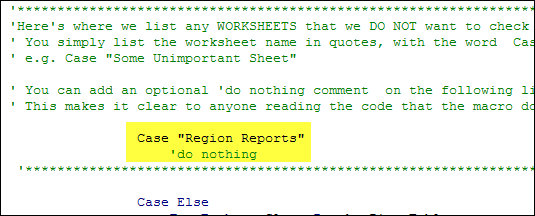
- any sheets you DON’T want the macro to check
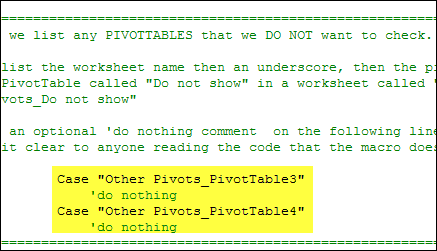
- any specific pivot tables that you DON’T want the macro to synchronize.
For example, only update the pivot tables on Sheet1 and Sheet2, and ignore PivotTable2 on Sheet1.
[Update: Sept 20, 2012] Jeff has made the following changes to the code:
- you can now exclude particular PivotFields, plus if you change a pagefield in any pivot, the code will not only update pagefields to the same settings in other pivots but also change rowfields too.
- added basic error handling so that ScreenUpdating and EnableEvents are restored to TRUE if anything goes wrong.
Jeff is also working on a version of the code for Excel 2010, that promises to be even faster — so stay tuned for that!
[Update: June 16, 2013] Jeff has revised the code, so it uses Slicers if the version is Excel 2010 or later.
Making Code Run Faster
In the previous version of the code, it looped through each master pivot field multiple times, to determine if each pivot item is visible or hidden. The corresponding pivot item in each secondary pivot table was then set to the same setting. The code worked, but it was very slow in larger pivot tables.
The main reason that Jeff’s code is faster is that it iterates through each master pivot field just once, so it can record only the visible items into a dictionary.
Then, for each pivot field in each secondary pivot table:
- All the pivot items are made visible
- Items that are not in the dictionary’s list are hidden.
Also, speed in Jeff’s code is increased because it:
- checks to see if.AllItemsVisible = true. If it is, no need to iterate through either the master or the secondary pivot…it just makes all pivot items in the corresponding secondary pivot fields visible. The old code looped through each pivot item
- doesn’t add items to the dictionary for checking if it has already found all the visible pivot items in the master list.
Modify the Code
If you download the sample file (see instructions below), you can copy the code to your own workbooks.
- To see the code in the sample file, go to the Sales Pivot worksheet, right-click the sheet tab, and click View Code.
- Then, to see the full code, right-click on the procedure name – SyncPivotFields – and click Definition
Here is where you’ll change the sheet names in the SyncPivotFields code:
Here is the section where you’ll change the pivot table names:
Download the Sample File
To download this version of the sample file, with Jeff’s code, please visit the Sample Files page on the Contextures website.
Note: Jeff’s sample file was updated on Sept. 20, 2012, so please download the new version if you have an older copy of the file.
In the Pivot Tables section, look for: PT0029 – Change Pivot Table Fields on Specific Sheets
The file is in Excel xlsm format, zipped, and contains macros. Enable the macros when opening the file, if you want to test the code.
__________________
@Rick – try the new code at http://blog.contextures.com/archives/2013/06/18/update-multiple-pivot-tables-20130618/ that as discussed above uses slicers for any pivots that share the same cache, and the old code for any that don’t (or if the user doesn’t have Excel 2010)
@All – be sure to update your code too…you should notice a substantial speed improvement.
A somewhat related question, I downloaded file PT0031 – Change All Pivot Charts With One Filter from you site. On the Display tab there is a Report-field-only pivot, filter. The Instructions tab says to “Create the Report-field-only pivot (pvt.Select) as a selector (from the same Pivot Cache).”
How do you create the Report-field-only pivot? I want to place the filter on a different tab, I know I can do this with a slicer, but I want the look of the filter drop down.
Thank you
I used the code and it works great…awesome job, but i have a question, as much as i want to update all the pivot tables based on the one filter in this case the Region, i will like for the user to be able to select other filters such as Date, Item or Employee on each worksheet without updating every other pivot table. in other words, i only want the filter Region to update all pivot tables in in the workbook when selected, but if another filter is selected in any pivot table, it should be specific to that pivot table….
I know this post has been dormant for a while, but this still seems to be the best solution out there… My file has 50+ worksheets but I want to limit it to only two of them… how would I change it from from exclude-these to include-these?
I get run-time errors “Invalid procedure call or argument” with this code on the line
bFiltered = Not pf_Master.AllItemsVisible
Is this an Excel version compatibilty issue?
@Charles – I have also just tried to use this for the first time and was met with the same error message when trying to create any new pivot tables Unfortunately a bit out of my capability to understand why