
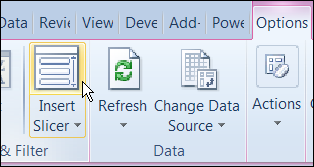
In Excel 2010, you can use Slicers to change multiple pivot tables. However, you might be working in an earlier version of Excel, or you don’t have room for Slicers on your worksheets.
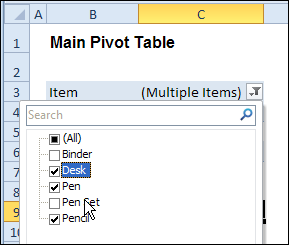
Instead of Slicers, you can use programming to update multiple pivot tables automatically. In previous posts, I’ve shown how you can select items in one pivot table’s Report Filter fields, and the Report Filter fields for pivot tables on the other worksheets will change to the same selections.
Specific Sheet and Pivot Tables
Jeff Weir has written an updated version of the code, which runs much faster than the previous version. You’ll notice the speed difference especially if you’re working with larger pivot tables.
Also, in this version of the code, you can specify:
- any sheets you DON’T want the macro to check
- any specific pivot tables that you DON’T want the macro to synchronize.
For example, only update the pivot tables on Sheet1 and Sheet2, and ignore PivotTable2 on Sheet1.
[Update: Sept 20, 2012] Jeff has made the following changes to the code:
- you can now exclude particular PivotFields, plus if you change a pagefield in any pivot, the code will not only update pagefields to the same settings in other pivots but also change rowfields too.
- added basic error handling so that ScreenUpdating and EnableEvents are restored to TRUE if anything goes wrong.
Jeff is also working on a version of the code for Excel 2010, that promises to be even faster — so stay tuned for that!
[Update: June 16, 2013] Jeff has revised the code, so it uses Slicers if the version is Excel 2010 or later.
Making Code Run Faster
In the previous version of the code, it looped through each master pivot field multiple times, to determine if each pivot item is visible or hidden. The corresponding pivot item in each secondary pivot table was then set to the same setting. The code worked, but it was very slow in larger pivot tables.
The main reason that Jeff’s code is faster is that it iterates through each master pivot field just once, so it can record only the visible items into a dictionary.
Then, for each pivot field in each secondary pivot table:
- All the pivot items are made visible
- Items that are not in the dictionary’s list are hidden.
Also, speed in Jeff’s code is increased because it:
- checks to see if.AllItemsVisible = true. If it is, no need to iterate through either the master or the secondary pivot…it just makes all pivot items in the corresponding secondary pivot fields visible. The old code looped through each pivot item
- doesn’t add items to the dictionary for checking if it has already found all the visible pivot items in the master list.
Modify the Code
If you download the sample file (see instructions below), you can copy the code to your own workbooks.
- To see the code in the sample file, go to the Sales Pivot worksheet, right-click the sheet tab, and click View Code.
- Then, to see the full code, right-click on the procedure name – SyncPivotFields – and click Definition
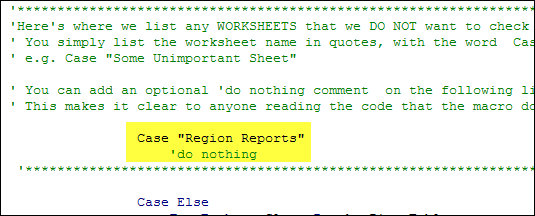
Here is where you’ll change the sheet names in the SyncPivotFields code:
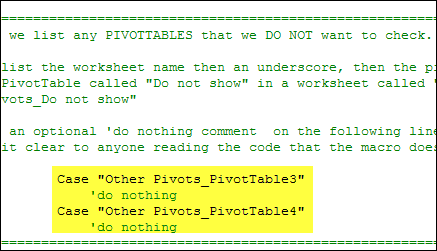
Here is the section where you’ll change the pivot table names:
Download the Sample File
To download this version of the sample file, with Jeff’s code, please visit the Sample Files page on the Contextures website.
Note: Jeff’s sample file was updated on Sept. 20, 2012, so please download the new version if you have an older copy of the file.
In the Pivot Tables section, look for: PT0029 – Change Pivot Table Fields on Specific Sheets
The file is in Excel xlsm format, zipped, and contains macros. Enable the macros when opening the file, if you want to test the code.
__________________
Thank you so much for sharing the good stuff with us. I have a question, is it possible to add an option in the code to specify the fields I need to automatically change (I’m asking because I don’t need all fields of each pivot table to be changed).
Thanks in advance.
Hiya Jeff, thanks for your response. This puppy has me very excited, I produce a lot of managemnt reports using PT’s and I can see this code saving my ooodles of time. I am a regular on EF dot Com and I feel some others would appreciate this code. Would you mind if I link this page so others may benefit?
If you have the time/inclination I have a couple of questions.
Should I not wish to exculde ANY PT’s do I just delete these four lines…
Case “Other Pivots_PivotTable3”
‘do nothing
Case “Other Pivots_PivotTable4”
‘do nothing
Also, may I ask if this code can be ammended to update the PT’s NOT from a master table BUT from a linked cell of a combo box?. If this question is beyond the relms of this Blog I totaly understand.
Awesome work dude.
@Victor….great suggestion.
After this line:
If pf_Master.Orientation = xlPageField Then…add this
Select Case pf_Master.Name

            '########################################################################################

            'Here's where we list any PivotFields in the master pivot that we want to ignore

            ' You simply list the pivotfield name in quotes, with the word  Case in front.

            ' e.g. Case "SomePivotfieldWeDontWantToChange"

            ' You can add an optional 'do nothing comment  on the following line if you like.

            ' This makes it clear to anyone reading the code that the macro does not proces this sheet

            Case "Item"

            'do nothing

            '########################################################################################

	Case Else
And after this line (near the bottom of the code):
Next wks…add this:
End Select 'Select Case pf_Master.NameThen change the word Item in the Case “Item” bit to the name of the field you want the code to ignore. Add more Case “SomePivotfield” lines for any other pivotfields that you want the code to ignore.
@Darren:
Yes, just delete those lines:
Case “Other Pivots_PivotTable3”
‘do nothing
Case “Other Pivots_PivotTable4”
‘do nothing
…although note that in your own workbook they won’t actually have any effect unless you happen to have a sheet called “OtherPivots” and happen to have pivottabes on those sheets called PivotTable3 and PivotTable4. But they should be tidied up otherwise someone looking at the code in future might be scratching their head.
I’ve got some better code for linking pivots to a range or combobox that needs a bit more tweaking, but will provide to Debra to put on her blog in the near future. But another way you could use my code to do the exact same thing might actually be easier than using combo boxes.
Say you’ve got a datasource with a column that has a list of fruit in it. E.g.
Fruit:
Apples
Oranges
Bananas
Pears
Peaches
…and obviously there are other columns in your data to do with sales, revenue etc.
If you wanted code to filter ALL pivots based on that list of fruit from a combobox, you can essentially do the same thing with the code as it is. Here’s howe: make up a tiny pivot that just points to the Fruit column of your data source (ignoring all the other columns with sales, revenue etc) and then put the Fruit field in the PageField part of your pivot layout (aka Report Filter in Excel 2007+) and then just hide the rest of the pivot. Users see just a dropdown box containing all the types of fruit in your data, but it’s actually a pivot that will sync all the other pivots.
If you don’t follow, let me know and I’ll post an example file.
Jeff, thanks for your response and the suggestion. I have implemented this method (fruit) for the time being and i look forward to seeing your tweaked version in the future. Combo box’ are good for this job when you have a long list as the auto complete function saves scrolling down half a mile!
I’ll be using this code A LOT in future, including the adapted version above (Victors post).
Thank you very much for all your time. You have made my week
@Darren…out of curiosity, are you selecting just one entry from the combo box or several?