
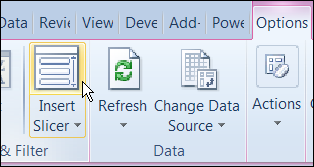
In Excel 2010, you can use Slicers to change multiple pivot tables. However, you might be working in an earlier version of Excel, or you don’t have room for Slicers on your worksheets.
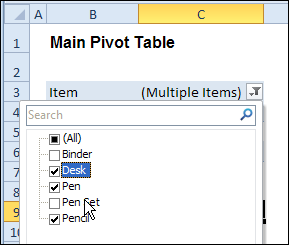
Instead of Slicers, you can use programming to update multiple pivot tables automatically. In previous posts, I’ve shown how you can select items in one pivot table’s Report Filter fields, and the Report Filter fields for pivot tables on the other worksheets will change to the same selections.
Specific Sheet and Pivot Tables
Jeff Weir has written an updated version of the code, which runs much faster than the previous version. You’ll notice the speed difference especially if you’re working with larger pivot tables.
Also, in this version of the code, you can specify:
- any sheets you DON’T want the macro to check
- any specific pivot tables that you DON’T want the macro to synchronize.
For example, only update the pivot tables on Sheet1 and Sheet2, and ignore PivotTable2 on Sheet1.
[Update: Sept 20, 2012] Jeff has made the following changes to the code:
- you can now exclude particular PivotFields, plus if you change a pagefield in any pivot, the code will not only update pagefields to the same settings in other pivots but also change rowfields too.
- added basic error handling so that ScreenUpdating and EnableEvents are restored to TRUE if anything goes wrong.
Jeff is also working on a version of the code for Excel 2010, that promises to be even faster — so stay tuned for that!
[Update: June 16, 2013] Jeff has revised the code, so it uses Slicers if the version is Excel 2010 or later.
Making Code Run Faster
In the previous version of the code, it looped through each master pivot field multiple times, to determine if each pivot item is visible or hidden. The corresponding pivot item in each secondary pivot table was then set to the same setting. The code worked, but it was very slow in larger pivot tables.
The main reason that Jeff’s code is faster is that it iterates through each master pivot field just once, so it can record only the visible items into a dictionary.
Then, for each pivot field in each secondary pivot table:
- All the pivot items are made visible
- Items that are not in the dictionary’s list are hidden.
Also, speed in Jeff’s code is increased because it:
- checks to see if.AllItemsVisible = true. If it is, no need to iterate through either the master or the secondary pivot…it just makes all pivot items in the corresponding secondary pivot fields visible. The old code looped through each pivot item
- doesn’t add items to the dictionary for checking if it has already found all the visible pivot items in the master list.
Modify the Code
If you download the sample file (see instructions below), you can copy the code to your own workbooks.
- To see the code in the sample file, go to the Sales Pivot worksheet, right-click the sheet tab, and click View Code.
- Then, to see the full code, right-click on the procedure name – SyncPivotFields – and click Definition
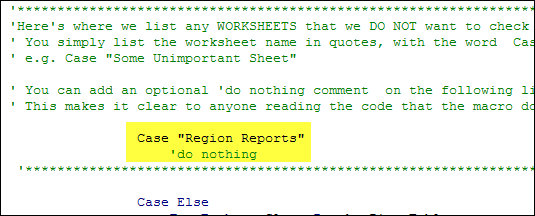
Here is where you’ll change the sheet names in the SyncPivotFields code:
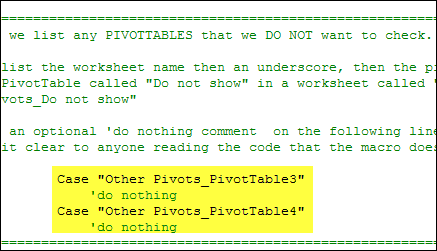
Here is the section where you’ll change the pivot table names:
Download the Sample File
To download this version of the sample file, with Jeff’s code, please visit the Sample Files page on the Contextures website.
Note: Jeff’s sample file was updated on Sept. 20, 2012, so please download the new version if you have an older copy of the file.
In the Pivot Tables section, look for: PT0029 – Change Pivot Table Fields on Specific Sheets
The file is in Excel xlsm format, zipped, and contains macros. Enable the macros when opening the file, if you want to test the code.
__________________
I’ve neve used dictionaries. Are they faster than simple VBA arrays?
Sometimes. See http://fastexcel.wordpress.com/2012/07/10/comparing-two-lists-vba-udf-shootout-between-linear-search-binary-search-collection-and-dictionary/
Jon…note that the reason my code is faster than Debra’s previous code is because it iterates through each master pivot field just once, and records which fields are visible somewhere where that list can be reused again and again to sync other pivot fields. I happen to record that list in a dictionary, because a dictionary is perfect for checking if something is already in it. (You can either try to add the thing to it, and catch the error if that thing already exists, or (faster) you can test if the thing exists with IF dic.exists(“Item to check) …
So I don’t use a dictionary because of speed, and could have used an array (although I think that programming for the array approach would be more complicated).
Forgot to mention two very good links on dictionaries vs collections:
http://www.experts-exchange.com/Software/Office_Productivity/Office_Suites/MS_Office/A_3391-Using-the-Dictionary-Class-in-VBA.html
http://excelicious.wordpress.com/2010/01/07/dictionary-vs-collection/
Arrays need a little extra programming, but it’s not really complicated, and I don’t think it takes very long. You have to loop through the array until you find (or don’t find) the item you’re looking for.
I should try these dictionaries.
I do have an array approach in mind that I’m coding up. I’ll see if it makes any speed difference.
Here’s another use for Dictionaries: as a substitute to a jagged array (i.e. a hierarchical data structure with uneven substructers). And here’s an example of a potential use of such a beast… implementing a robust “Custom View” functionality.
As you know, the “Custom View” functionality built into Excel allows you to (among other things) save all your filter settings for a filtered list, and restore them later at will…PROVIDED you don’t have Excel Table (2007 or later version) in your workbook. That’s a major bummer, because Custom View was handy, but now is too risky to implement.
Using a hierarchy of Dictionaries you could create a similar Custom View function that hold all the different settings of a Table – or even a PivotTable – so that you could recall those settings in future purely by iterating through that dictionary and restoring them.
You could also use a variant holding a bunch of arrays to do the same, which might be simpler to implement. But I hypothesize you won’t pull as many chicks/dudes if using a variant compared with a custom dictionary.
Darren asked me a question regarding this elsewhere that bears repeating.
His question:
In my case ALL of my PT’s are on the same worksheet and All have different data sources how should I adjust the code and set a new Mater table.
My answer:
You don’t need to set a ‘Master’ table…what happens is whenever you change any pivot page field on any pivot, that particular pivot becomes the Master, and all the other pivots (apart from any you specifically told the code to ignore) become ‘Slaves’. The code doesn’t care whether the pivots have different data sources or not.