
Use INDEX and MATCH together, for a powerful lookup formula. It’s similar to a VLOOKUP formula, but more flexible — the item that you’re looking for doesn’t have to be in the first column at the left. Watch the video to see how it works (there are written instructions too), and download the sample workbook to follow along.
Excel Lookup With Two Criteria
Watch this video to see how INDEX and MATCH work together — first with one criterion, and then with multiple criteria. Download the sample workbook to follow along, and the written instructions are below the video.
- 0:00 Introduction
- 0:26 Lookup with One Criterion
- 1:52 Test Each Criterion
- 2:22 Test With a Formula
- 3:26 Multiply the Results
- 4:03 INDEX / MATCH Formula
- 5:20 Check the Formula
- 5:57 Get the Sample File
Get Item Price with INDEX and MATCH
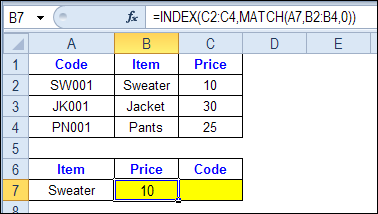
To see how INDEX and MATCH work together, we’ll start with an example that has only 1 criterion. Our price list has item names in column B, and we want to get the matching price from column C.
In the screen shot below, cell A7 has the name of the item that we need a price for – Sweater.
We can enter an INDEX and MATCH formula in cell C7, to get the price for that item:
=INDEX($C$2:$C$4,MATCH(A7,$B$2:$B$4,0))
How the INDEX and MATCH Formula Works
Here’s how the two functions work together:
- MATCH function gets the location of an item in a list
- INDEX function returns a value from a specific location in a list.
So, in our formula:
- the MATCH function looks for “Sweater” in the range B2:B4.
- The result is 1, because “Sweater” is item number 1, in that range of cells.
- the INDEX function looks in the range C2:C4
- The result is 10, from row 1 in that range
So, by combining INDEX and MATCH, you can find the row with “Sweater” and return the price from that row.
Find a Match for Multiple Criteria
In the first example, there was only one criterion, and the match was based on the Item name – Sweater. However, sometimes life, and Excel workbooks, are more complicated.
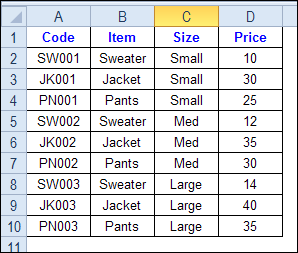
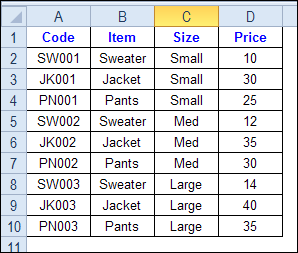
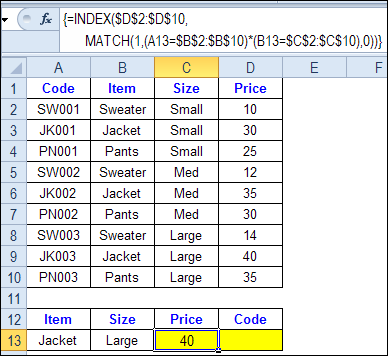
In the screen shot below, each item is listed 3 times in the pricing lookup table. We want to find the price for a large jacket.
To get the right price, you’ll need to use 2 criteria:
- the item name
- the size
Does it MATCH? True or False
Instead of a simple MATCH formula, we’ll use one that checks both the Item and Size columns.
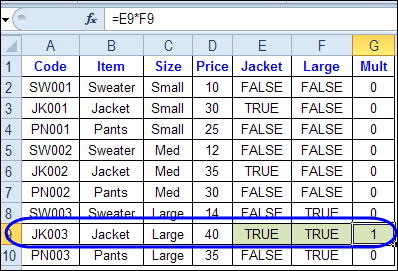
To see how this formula will work, I’ll temporarily add columns to check the item and Size of each item — is the item a Jacket, and is the Size a Large?
Enter this formula in E2, and copy down to E10: =C2=$C$13
Enter this formula in F2, and copy down to F10: =D2=$D$13
- If the Item in column B is a Jacket, the result in column E is TRUE. If not, the result is FALSE
- If the Size in column C is Large, the result in column F is TRUE. If not, the result is FALSE
To see if both results are TRUE in each row, enter this formula in G2, and copy down to G10: =F2*G2
When you multiply the TRUE/FALSE values,
- If either value is FALSE (0), the result is zero
- If both values are TRUE, the result is 1
Only the 8th row in our list of items has a 1, because both values are TRUE in that row.
We can tell the MATCH function to look for a 1, and that will return the information that we need.
Use MATCH With Multiple Criteria
Instead of adding extra columns to the worksheet, we can use an array-entered INDEX and MATCH formula to do all the work.
Here is the formula that we’ll use to get the correct price, and the explanation is below:
=INDEX($D$2:$D$10,
MATCH(1,(A13=$B$2:$B$10) * (B13=$C$2:$C$10),0))
NOTE: This is an array-entered formula, so press Ctrl + Shift + Enter, instead of just pressing the Enter key.
How the Formula Works
In this INDEX and MATCH example,
- prices are in cells D2:D10, so that is the range that the INDEX function will use
- the item name is in cell A13
- the size is in cell B13.
The formula checks for the selected items in $B$2:$B$10, and sizes in $C$2:$C$10. The results are multiplied.
- (A13=$B$2:$B$10)*(B13=$C$2:$C$10)
The MATCH function looks for the 1 in the array of results.
- MATCH(1,(A13=$B$2:$B$10)*(B13=$C$2:$C$10),0)
If you select that part of the formula and press the F9 key, you can see the calculated results. In the screen shot below there are 9 results, and all are zero, except the 8th result, which is 1.

So, the INDEX function returns the price – 40 – from the 8th data row in column D (cell D9).
Get the Product Code
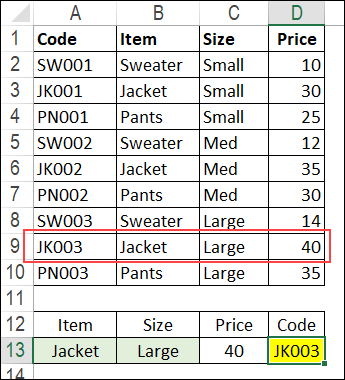
To find the product code for the selected item and size, you would change the formula to look in cells A2:A10, instead of the price column.
Put this formula in cell D13, and remember, this is an array-entered formula, so press Ctrl + Shift + Enter.
=INDEX($A$2:$A$10,
MATCH(1,(A13=$B$2:$B$10) * (B13=$C$2:$C$10),0))
In this example, the product code would be JK003, from cell A9.
Get the Workbook
To get the sample file with the Lookup Multiple Criteria examples, go to the Excel Lookup Multiple Criteria page on my Contextures site.
For more INDEX and MATCH tips and examples, visit the INDEX function and MATCH function page on the Contextures website. This is Example 4 in the sample file section of that page.
_____________
Hi, your posts on index match saved me! One strange issue arises, however, with a three-criteria index match. The first two criteria are a date and a ticker symbol. The third criteria is a text string written as “Buy”. When I use the evaluate formula tool, it matches both the date and symbol as a string (ie. “41200Aud.Usd”), then attaches “Buy” at the end, gives the coordinates in the table referenced, then returns a value. In the table, however, no “41200Aud.UsdBuy” exists! The formula seems to be making it up! There is a “41200Aud.UsdCover”, but with the match formula set to 0, this value should be ignored.
Here is the formula:
{=IFERROR(INDEX(‘AC – Financials.xlsm’!AF_I_Ledger[#All],MATCH(1,(‘AC – Financials.xlsm’!AF_I_Ledger[[#All],[Date]]=$B8)*(‘AC – Financials.xlsm’!AF_I_Ledger[[#All],[Ticker]]=$C$3)*(‘AC – Financials.xlsm’!AF_I_Ledger[Transaction]=”Buy”),0),6),””)}
Dates are in column B, symbol cell C3.
The ‘AC – Financials.xlsm’AF_I_Ledger[#All]’ is a data table in another workbook. The formula fails to apply the exact match condition to the third criteria “(‘AC – Financials.xlsm’!AF_I_Ledger[Transaction]=”Buy”)”
If you could tell me where went wrong it would be wonderful!
Thank you!
Ross
Ross
I notice the third criteria does not have the [#all] as part of the reference. Could be the reason it is failing.
TextBox3.Value = (TextBox2.Value * WorksheetFunction.Index(Worksheets(“TABELAS”).Range(“C4:ALO40”), WorksheetFunction.Match(TextBox2.Value, Worksheets(“TABELAS”).Range(“B4:B40”), -1), WorksheetFunction.Match(TextBox1.Value, Worksheets(“TABELAS”).Range(“C3:ALO3”), 0), 1))
or
Label6 = “=(TextBox2*INDEX(TABELAS!R4C3:R40C1003,MATCH(TextBox2,TABELAS!R4C2:R40C2,-1),MATCH(TextBox1,TABELAS!R3C3:R3C1003,0),1))”
please helpme
So not an excel pro! Im trying to understand this for matching purposes… my use for this would be to compare 2 worksheets to find matching items. is there a way for the worksheet to highlight matches found- or something to identify that they match? I work in accounts payable and the way of printing and checking off is so old fashion and time consuming! anything to help me here?
to try to explain it better…
i have our info and our contractors invoice – i need to compare our PO# and price with their invoice (which also has a PO# and price) but i need to make sure i identify it correctly and mark off the match so i can see it….
Help make this quicker for me!!! thanks!
I want to do this except Sweater appears on one tab, and sweater and price appear on another worksheet. On worksheet #2 sweater is not the first field (so VLOOKUP won’t work). Thoughts?
Worksheet #1
Column A-D have stuff with Column E the word “Sweater”
Worksheet #2
Columns A,B,C contain stuff, Column D contains “Sweater”, and column E “Price”
Further complicating matters “Sweater” and “Price” could be in any columns on any one of a dozen worksheets. Any way to search for something across worksheets and return a value from the row where it’s found?
Pls help me wit this
i want a formula to match different criteria(=,=) in different sheet has a reference
Hi
=INDEX(L$42:L$107,MATCH(1,($K$42:$K$107=$J8)*($J$42:$J$107=$I8),0))
how to avoid pressing ctrl+shift+enter
-i am using excel with solidworks , and i use something they call it configure publisher
regards
Ashraf