
[Updated June 2018] I’m a big fan of Excel’s conditional formatting, and often use it to highlight cells on a worksheet. But this week I ran into a conditional formatting nightmare, and had to start from scratch. Fortunately, the fix didn’t take too long, but with complex formatting, things could have been much worse.
Separate the Dates in a List
There are lots of ways to use Excel conditional formatting. It’s useful for alerting people to problems, hiding duplicate values in a column, or even hiding cells’ contents, until related cells are filled correctly.
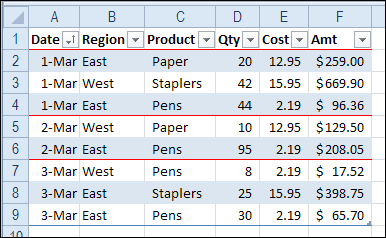
Earlier this year, I posted a tip for separating dates in a list, by using a red border at the start of a date change.
Easier to Read
It’s a technique that I use in one of my own workbooks, which I update every morning. The red border really makes the list easier to read, especially if I’m looking at it before my morning coffee!
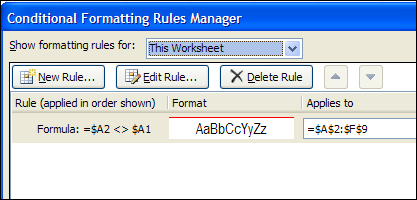
The conditional formatting was set for cells A2:F9, and uses a simple formula to see if the date is equal to the date in the row above.
Quick Copy and Paste
In the workbook, I track some daily statistics for my website, and use the same headings every day. So, to save typing time, I copy and paste the headings from the day before.
For example, in the screen shot above, I could copy the regions and products headings from B2:C4, and paste them into cell B10:C12, for the latest day’s data.
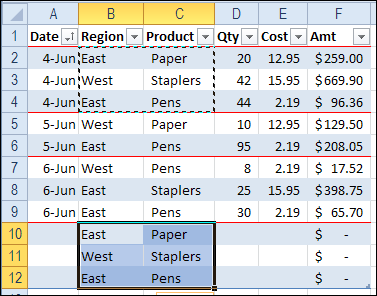
The Excel table automatically expands to include the new rows, and fills in the formulas in column F. Awesome!
And that copy and paste trick is what I’ve been doing every day, for months on end.
Trouble With the Lines
Suddenly, this week, I started having trouble with the red border between dates – it wasn’t going across the full table.
So, I went into the Conditional Formatting Manager, to fix the problem. But, instead of one simple rule, there were hundreds of rules!
You can see the tiny scroll box at the bottom right in the screen shot below. That should give you some idea of how long that list was.
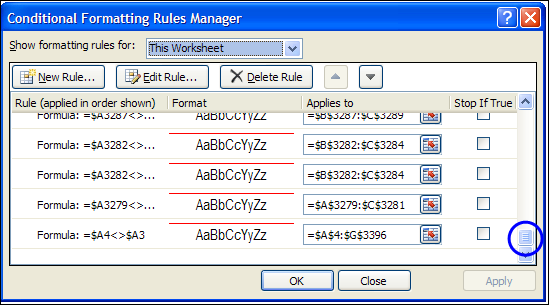
Every time that I copied and pasted within the conditional formatting range, it created another rule for the worksheet. Yikes!
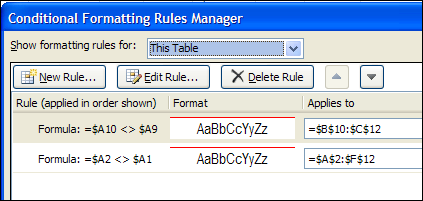
Let’s take a look at the smaller example, where I just copied and pasted the Region and Product headings. Now, it has two rules, instead of one, after one copy and paste within the table.
Cleaning Up the Mess – UPDATED
UPDATE – March 2017: I’ve found a quicker way to fix the problem, as you can see in this video. Get the detailed steps on my Conditional Formatting page.
There is a full transcript of the tutorial following the video.
TRANSCRIPT FOR THE VIDEO
Conditional Formatting
In this workbook, I’ve got a couple conditional formatting rules, and I’m going to show you how those can get duplicated, so you end up with lots more rules than you started out with, and then how you can fix the problem.
So in this table I have two rules.
–One puts a line at the top of a date, if it’s different from the date above.
–The other rule changes the price to green, if it’s greater than $500 dollars.
We’ll take a look at those rules. In the Home tab, go to Conditional Formatting, Manage Rules.
And there you can see the two rules. They’re each applied from row 3 to 19 in this table.
–Now this one is just a cell value greater than 500.
–And this one is referring to a couple of cells. So if A2 is different from A3, we’re going to put a blue line, at the top of the cell.
How Problems Happen
And now, I’m going to insert a row, because I forgot to put in one of the records here. So I’ll click, Insert. And then just put some data in this row.
So that was a simple change to the table. And now I’m going to go back and look at my conditional formatting rules again. And suddenly I have a new rule, just for the row that I inserted.
So row 11 has its own rule, and the previous rule is still there, going from A3 to E10, and then A12 to E20. So it’s skipping this row, because that row has a separate rule.
And if you insert lots of rows, you can end up with hundreds of these rules set up, without even knowing it.
The Solution
And what I do to fix it is select all the rows, except for the first one. Then go to Conditional Formatting, Clear Rules, From Selected Cells.
Now if I go back in, and Manage Rules…I’ll go back to This Worksheet, just so we can see everything. So we’re back to those two original rules.
Then, I select the first row. I’ll select the first row in the table, this time, instead of the whole worksheet.
And go to the Format Painter, and make sure you’re selecting this first row as well, and apply that formatting to all the rows again.
And when we go back to Manage Rules, we still just have those two original rules.
If you need to do this frequently, go to my website to get a macro that removes the duplicate rules. It’s designed for data in in an Excel named table.
End Of Transcript
The previous solution is listed below, in case you’d rather try that.
Cleaning Up the Mess – ORIGINAL SOLUTION
I scrolled through the list, and deleted a few of the rules, but quickly realized that it would take far too long to delete all of them. So, to clean up the mess, I cleared the conditional formatting from the worksheet, and set it up again.
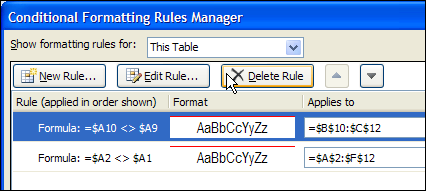
With all the extra rules gone, the conditional formatting borders were working correctly again.
Avoid Conditional Formatting Nightmare
Now, when I want to save some typing time in the daily list, I copy the previous headings, and use the Paste Values button to create the new records. I’ve got a copy of that button on Excel’s Quick Access Toolbar, so it’s easy to click.

That adds the text, and the table expands, including the formulas – but the conditional formatting doesn’t create a new rule.
Be careful out there — don’t let this conditional formatting nightmare happen to you!
Another Solution
Update: Thanks to Khushnood, who suggested leaving 3 blank rows at the bottom of the table, and inserting new rows above that, when adding new data.
Copy and pasting within the table doesn’t seem to produce the duplicate conditional formatting.
It’s still an extra step though, instead of a simple copy and paste.
________________
Excel’s Conditional Formatting does not highlight the text I typed and copied into the next cell to valid it actually works?
I found this site because a data file I have was starting to bog down and I began to suspect CF, having had to struggle with not enough of them in Excel 2003. When I bought Excel 2010 they seemed unlimited and I went mad with them. 🙂
I have a large table (20 Columns x 50 Rows by 7 CF’s) on my first page which reflects what is happening elsewhere in my workbook. It updates randomly throughout every weekday.
Imagine my horror when I read right through this blog and checked my table. The 7 CF’s were multiplying 20 x 50, or 1,000 times whenever this table updated. No wonder the data file was bogging down.
I discovered that there is a feature in the CF part of the ribbon that removes all of the formatting in cells (Clear Rules), either a block of cells (my table), or the whole file.
My solution was to create a row at the top of the table without the “=” at the beginning of the formulae for each column, but with the CF’s installed. Thus my macro now uses the Clear Rules command for the table block proper at its beginning, and towards the end it copies this inactive top line down into the first row of the table and adds the “=” to it for each column, then does a Fill Down.
Also at the beginning is the command “Application.ScreenUpdating = False” and at the end, “Application.ScreenUpdating = True”. It now works quickly and perfectly.
I just hope that this little discovery can help someone else out there.
Condition format for duplication is not working in MS office 2010 and Ms office 2013 when you insert the copied row, but It was nicely working in Ms office 2007! any solution do you have guys?
This is indeed an annoyance. Unfortunately, the Format Painter method on your referred-to webpage does too much: if you have other (ordinary) formatting in the target rows, that will be lost, superseded by the formatting of the source row. (I’m using Office Professional Plus 2013.)
Yes, if you have ordinary formatting in some rows, that will be lost.
You could follow the step to clear the formatting in all rows except the first row.
Then, go into the Conditional Formatting Manage Rules window, and select the correct range for each rule.
Debra’s method for cleaning up the CF rules is very efficient … much better than repairing everything via the CF Rules Manager.
I love Darin’s tip of adding the Paste Values command in the Quick Access Toolbar. I’d recommend adding the “Paste Formulas ” and the “Paste and Merge Conditional Formatting” commands as well.
Here are a few ways I’ve found to copy/paste to avoid fracturing CF rules (some of these may have been mentioned in other people’s comments):
1) Instead of using Insert Copied Cells, first use Insert Row (which automatically copies formatting from the row above) then Copy the row you want and use Paste Formulas.
2) Copy only ONE cell at a time (works for format painter as well). The CF rule fracturing seems to only happen when copying multiple cells
3) Copy using the drag handle (single or multiple cells).
4) Use CTRL+d to copy the cell(s) or row immediately above the selected cells(s) or row
5) Use the “Paste and Merge Conditional Formatting” command (or the equivalent option via Paste Special). You can do this with multiple cells or rows.
Here are a few suggestions from excel.uservoice.com that you can vote on if you are interested in getting Microsoft to do something about this:
https://excel.uservoice.com/forums/304921-excel-for-windows-desktop-application/suggestions/11570862-improve-merging-of-conditional-formatting
https://excel.uservoice.com/forums/304921-excel-for-windows-desktop-application/suggestions/8778211-improve-the-conditional-formatting-manager
https://excel.uservoice.com/forums/304921-excel-for-windows-desktop-application/suggestions/17706094-conditional-format-cut-and-paste
https://excel.uservoice.com/forums/304921-excel-for-windows-desktop-application/suggestions/19676413-make-paste-and-merge-conditional-formatting-the
Thanks for the tips for preventing this problem, Jon! And thanks for the UserVoice links too.