
[Updated June 2018] I’m a big fan of Excel’s conditional formatting, and often use it to highlight cells on a worksheet. But this week I ran into a conditional formatting nightmare, and had to start from scratch. Fortunately, the fix didn’t take too long, but with complex formatting, things could have been much worse.
Separate the Dates in a List
There are lots of ways to use Excel conditional formatting. It’s useful for alerting people to problems, hiding duplicate values in a column, or even hiding cells’ contents, until related cells are filled correctly.
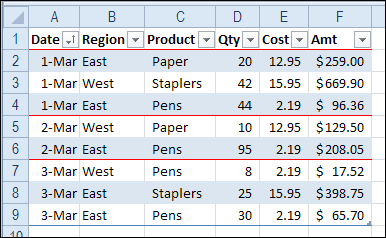
Earlier this year, I posted a tip for separating dates in a list, by using a red border at the start of a date change.
Easier to Read
It’s a technique that I use in one of my own workbooks, which I update every morning. The red border really makes the list easier to read, especially if I’m looking at it before my morning coffee!
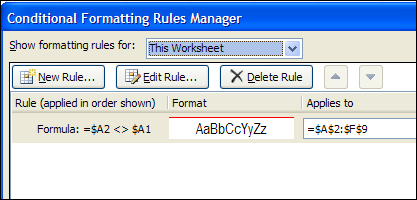
The conditional formatting was set for cells A2:F9, and uses a simple formula to see if the date is equal to the date in the row above.
Quick Copy and Paste
In the workbook, I track some daily statistics for my website, and use the same headings every day. So, to save typing time, I copy and paste the headings from the day before.
For example, in the screen shot above, I could copy the regions and products headings from B2:C4, and paste them into cell B10:C12, for the latest day’s data.
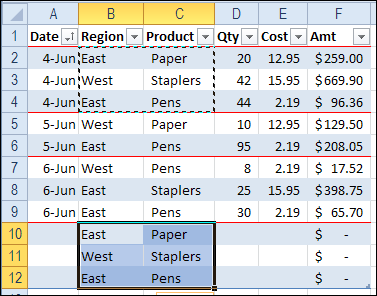
The Excel table automatically expands to include the new rows, and fills in the formulas in column F. Awesome!
And that copy and paste trick is what I’ve been doing every day, for months on end.
Trouble With the Lines
Suddenly, this week, I started having trouble with the red border between dates – it wasn’t going across the full table.
So, I went into the Conditional Formatting Manager, to fix the problem. But, instead of one simple rule, there were hundreds of rules!
You can see the tiny scroll box at the bottom right in the screen shot below. That should give you some idea of how long that list was.
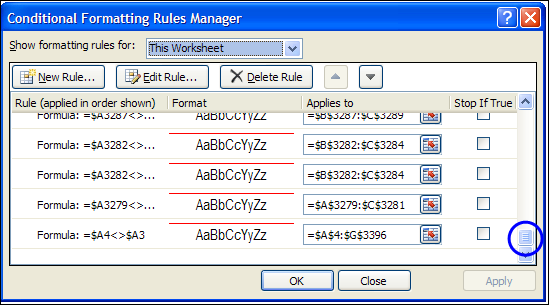
Every time that I copied and pasted within the conditional formatting range, it created another rule for the worksheet. Yikes!
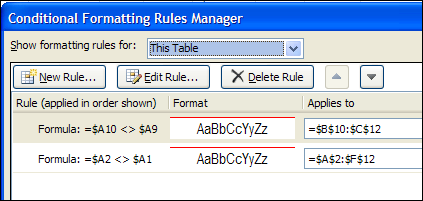
Let’s take a look at the smaller example, where I just copied and pasted the Region and Product headings. Now, it has two rules, instead of one, after one copy and paste within the table.
Cleaning Up the Mess – UPDATED
UPDATE – March 2017: I’ve found a quicker way to fix the problem, as you can see in this video. Get the detailed steps on my Conditional Formatting page.
There is a full transcript of the tutorial following the video.
TRANSCRIPT FOR THE VIDEO
Conditional Formatting
In this workbook, I’ve got a couple conditional formatting rules, and I’m going to show you how those can get duplicated, so you end up with lots more rules than you started out with, and then how you can fix the problem.
So in this table I have two rules.
–One puts a line at the top of a date, if it’s different from the date above.
–The other rule changes the price to green, if it’s greater than $500 dollars.
We’ll take a look at those rules. In the Home tab, go to Conditional Formatting, Manage Rules.
And there you can see the two rules. They’re each applied from row 3 to 19 in this table.
–Now this one is just a cell value greater than 500.
–And this one is referring to a couple of cells. So if A2 is different from A3, we’re going to put a blue line, at the top of the cell.
How Problems Happen
And now, I’m going to insert a row, because I forgot to put in one of the records here. So I’ll click, Insert. And then just put some data in this row.
So that was a simple change to the table. And now I’m going to go back and look at my conditional formatting rules again. And suddenly I have a new rule, just for the row that I inserted.
So row 11 has its own rule, and the previous rule is still there, going from A3 to E10, and then A12 to E20. So it’s skipping this row, because that row has a separate rule.
And if you insert lots of rows, you can end up with hundreds of these rules set up, without even knowing it.
The Solution
And what I do to fix it is select all the rows, except for the first one. Then go to Conditional Formatting, Clear Rules, From Selected Cells.
Now if I go back in, and Manage Rules…I’ll go back to This Worksheet, just so we can see everything. So we’re back to those two original rules.
Then, I select the first row. I’ll select the first row in the table, this time, instead of the whole worksheet.
And go to the Format Painter, and make sure you’re selecting this first row as well, and apply that formatting to all the rows again.
And when we go back to Manage Rules, we still just have those two original rules.
If you need to do this frequently, go to my website to get a macro that removes the duplicate rules. It’s designed for data in in an Excel named table.
End Of Transcript
The previous solution is listed below, in case you’d rather try that.
Cleaning Up the Mess – ORIGINAL SOLUTION
I scrolled through the list, and deleted a few of the rules, but quickly realized that it would take far too long to delete all of them. So, to clean up the mess, I cleared the conditional formatting from the worksheet, and set it up again.
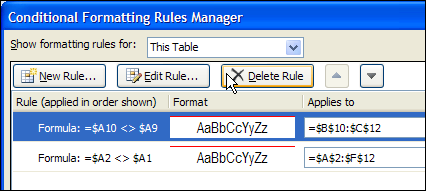
With all the extra rules gone, the conditional formatting borders were working correctly again.
Avoid Conditional Formatting Nightmare
Now, when I want to save some typing time in the daily list, I copy the previous headings, and use the Paste Values button to create the new records. I’ve got a copy of that button on Excel’s Quick Access Toolbar, so it’s easy to click.

That adds the text, and the table expands, including the formulas – but the conditional formatting doesn’t create a new rule.
Be careful out there — don’t let this conditional formatting nightmare happen to you!
Another Solution
Update: Thanks to Khushnood, who suggested leaving 3 blank rows at the bottom of the table, and inserting new rows above that, when adding new data.
Copy and pasting within the table doesn’t seem to produce the duplicate conditional formatting.
It’s still an extra step though, instead of a simple copy and paste.
________________
Well I have a sheet with 150 lines, where different columns and ranges use total of 17 conditional formatting conditions. If had to start all over again every time, I’d go mad. There must be a better solution!
I think I solved the problem for myself: thanks of course to info here about pasting as values.
I have a sheet of users where some data are values/constants, other data are formulas.
I needed to duplicate a row and then erase all constants from it. Then manually entering the ID brought all other user data from related files.
My macro for adding new row used to copy a selected row, and insert paste one row above. Then it used Goto/Special/Constants in the selected newly pasted row and Clear content of selected constants.
New macro selects an entire row where the cursor is positioned, inserts a new blank row, then row above is selected, copied and pasted as formulas only to the row below. Then the constants are cleared the same way as before and that’s it.
The trick was in pasting as formulas: I was looking at first how could I paste the formulas only into the row pasted as values only – but MS Excel does not paste the non-contiguous ranges. But pasting as formulas pastes the constants as constants and formulas as formulas. 🙂
Thanks for the inspiration above, I have made it! 😀
Sub NewLine()
‘ NewLine Macro
ActiveCell.EntireRow.Select
Selection.Insert Shift:=xlDown, CopyOrigin:=xlFormatFromLeftOrAbove
ActiveCell.EntireRow.Offset(rowOffset:=-1, columnOffset:=0).Activate
Selection.Copy
ActiveCell.EntireRow.Offset(rowOffset:=1, columnOffset:=0).Activate
Selection.PasteSpecial Paste:=xlPasteFormulas, Operation:=xlNone, _
SkipBlanks:=False, Transpose:=False
Selection.SpecialCells(xlCellTypeConstants, 23).Select
Application.CutCopyMode = False
Selection.ClearContents
End Sub
Hi Alarix
Nearly neat. But if the row above is blank then the code bombs (error at Selection.SpecialCells(xlCellTypeConstants, 23).Select ).
Any idea how to fix this!
Thks
Rgds
KNZ
PS/ Also how can i do count of
Selection.SpecialCells(xlCellTypeConstants, 23)
Hello, I don’t know if this is the place for this question or not, but I’m new to Excel and it’s vast number of capabilities. I am working on a pivot table with Excel 2010 and i inserted some conditional formatting icons in some of the cells. Everything worked and looks great on my version, however, I sent the file to a co-worker who is operating on Excel 2007 and all that shows up are my numerical values i set to condition. Is there any way around this, where the conditionally formatted cells would maintain their rules within a pivot table from 2010 to 2007?
any help would be much appreciated!
If you use Excel 2011 for Mac, you might encounter similar issues. I was copy-and-pasting rows with a different background color fill. Changing the fill color removed the default cell borders. Unlike simply copying and pasting, then changing the background fill color to your spreadsheet default (e.g., white), using “Paste Values” preserves the default cell borders.
I’ve had this same problem, except it does it every time (no matter what I do) when trying to add something in the cells to the right of my conditionals. It changes every single rule to affect the entire row, very specific to that cell, too. So, when I attempt to add comments to the right, my rules get screwed up and their “Applies To” becomes unmanageable!
I’d like to use conditional formatting to flag the two cells in a list of increasing numbers that bracket a fixed value. For example:
Fixed value: 130.5
List of increasing numbers: 127 128 129 130 131 132 133
130 and 131 bracket 130.5, so 130 and 131 should have a different format (say, red background)from the rest of the list.
Any suggestions on how to do this? Thanks.