
You’ve most likely heard this warning — “Avoid merged cells in your Excel worksheets!”, and that is excellent advice. Merged cells can cause problems, especially when they’re in a table that you’ll be sorting and filtering. You’ll run into more problems if you try to autofit merged cell row height.
Forced to Merge
Occasionally though, you might have no choice but to use one or more merged cells on a worksheet. As long as you avoid merging table cells, and proceed with caution, things might be okay.
In the example shown below, there is an order form, and space for a note about the order. If the note will always be short, there’s no need to merge the cells – just let the text flow across the columns.
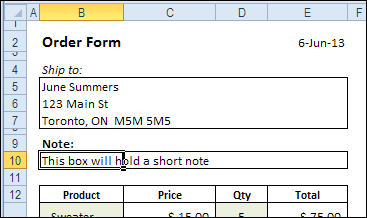
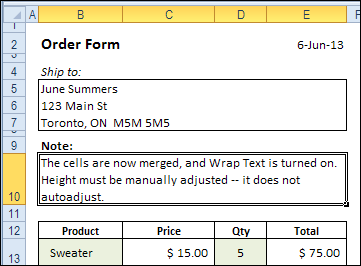
However, if the notes will be two or more lines, you’ll need to merge the cells, and turn on Wrap Text. Adjusting the column width would affect the product list that starts in row 12, so that’s not an option.
Merged Cell Row Height
Usually, if you add more text to a single cell, and Wrap Text is turned on, the row height automatically adjusts, to fit the text.
When the cells are merged in row 10, the row height has to be manually adjusted when the text changes. That works well, as long as you remember to do it, but it can be a nuisance, if the text changes frequently.
And if you forget to adjust the row height, you might print the order form, while key instructions are hidden.
AutoFit Merged Cell Row Height
To fix the worksheet, so the merged cells adjust automatically, you can add event code to the worksheet.
[Update: The original code is below, and there are several modified versions of the code in the comments. There is also an updated version of Smallman’s code in this December 2015 blog post.]
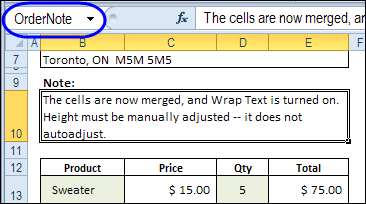
The merged cells are named OrderNote, and that name will be referenced in the event code.
Code to AutoFit Merged Cell Row Height
We want the row height to adjust if the OrderNote range is changed, so we’ll add code to the Worksheet_Change event.
The code that I use is based on an old Excel newsgroup example, that was posted by Excel MVP, Jim Rech.
Note: As Jeff Weir pointed out in the comments below, this code will wipe out the Undo stack, so you won’t be able to undo any steps you’ve previously taken. So, instead of using the Worksheet_Change event, you could use the workbook’s BeforePrint event, to reduce the Undo problem.
- Right-click on the sheet tab, and paste the following code on the worksheet module. Note: Only one Worksheet_Change event is allowed in each worksheet module.
- Change the range name from “OrderNote”, to the named range on your worksheet.
- If your worksheet is protected, you can add code to unprotect and protect the worksheet.
Private Sub Worksheet_Change(ByVal Target As Range)
Dim MergeWidth As Single
Dim cM As Range
Dim AutoFitRng As Range
Dim CWidth As Double
Dim NewRowHt As Double
Dim str01 As String
str01 = "OrderNote"
  If Not Intersect(Target, Range(str01)) Is Nothing Then
    Application.ScreenUpdating = False
    On Error Resume Next
    Set AutoFitRng = Range(Range(str01).MergeArea.Address)
    With AutoFitRng
      .MergeCells = False
      CWidth = .Cells(1).ColumnWidth
      MergeWidth = 0
      For Each cM In AutoFitRng
          cM.WrapText = True
          MergeWidth = cM.ColumnWidth + MergeWidth
      Next
      'small adjustment to temporary width
      MergeWidth = MergeWidth + AutoFitRng.Cells.Count * 0.66
      .Cells(1).ColumnWidth = MergeWidth
      .EntireRow.AutoFit
      NewRowHt = .RowHeight
      .Cells(1).ColumnWidth = CWidth
      .MergeCells = True
      .RowHeight = NewRowHt
    End With
    Application.ScreenUpdating = True
  End If
End Sub
How It Works
The event code checks to see if the changed cell is in the OrderNote range. If it is, the code runs, and does the following:
- Unmerge the cells
- Get the width of the first column in the OrderNote range
- Get the total width for all columns in the OrderNote range
- Add a little extra to the calculated width
- Set the first column to the calculated total width
- Autofit the row, based on the note next in the first column
- Get the new row height
- Change the first column to its original width
- Merge the cells
- Set the row height to the new height
Screen updating is turned off while the code runs, and it all happens in the blink of an eye.
Test the Event Code
To test the code, make a change to the text in the named merged cells, then press Enter. The row height should adjust automatically.
Is this code, to AutoFit merged cell row height, something that you’ll use in your workbooks? Please let me know in the comments.
__________________
Hi everyone,
I’m experiencing the same issue that Suzi had. The first code displayed works, but it locks the cell. I tried using the suggested codes in the responses to Suzi but I cannot get anything to work. Say the only cell that I want to autofit text is A55. It’s merged from A55-K55. What would I add to the initial code (pasted below) to unlock that cell? Thank you in advance!
Private Sub Worksheet_Change(ByVal Target As Range)
Dim MergeWidth As Single
Dim cM As Range
Dim AutoFitRng As Range
Dim CWidth As Double
Dim NewRowHt As Double
Dim str01 As String
str01 = “A55”
If Not Intersect(Target, Range(str01)) Is Nothing Then
Application.ScreenUpdating = False
On Error Resume Next
Set AutoFitRng = Range(Range(str01).MergeArea.Address)
With AutoFitRng
.MergeCells = False
CWidth = .Cells(1).ColumnWidth
MergeWidth = 0
For Each cM In AutoFitRng
cM.WrapText = True
MergeWidth = cM.ColumnWidth + MergeWidth
Next
‘small adjustment to temporary width
MergeWidth = MergeWidth + AutoFitRng.Cells.Count * 0.66
.Cells(1).ColumnWidth = MergeWidth
.EntireRow.AutoFit
NewRowHt = .RowHeight
.Cells(1).ColumnWidth = CWidth
.MergeCells = True
.RowHeight = NewRowHt
End With
Application.ScreenUpdating = True
End If
End Sub
Hi,
Like most posts here I am in the same position in firstly trying to lean the coding structure for a similar problem I would like to solve!
Having seen multiple posts here to solve a problem I believe that the one I have can be solved but at this stage in my understanding I am unable to solve it, hence the cry for help!
I have the folowing problem;
5 rows of information covered by two columns, each column has merged cells lets say for example
– each row contains 24 columns , 17 columns (merged) x 7 columns (merged) no spaces between the two column areas
– text entered in to each of the merged columns can be different length (data in the 7 column area maybe entered with small text entries seperated by ALT return in the cell, i.e. kind of a list)
– I would like to modify the code to check which of the two areas height is greatest and then resize the row based on this once change is made in any of the cloumn areas.
It would appear that I need a mixture of Smallman post (September 28, 2014 at 10:59 PM ) and juan sanchez post (February 26, 2015 at 12:51 PM)
Any suggestions on how this could be achieved? If further explaination is needed please let me know?
Thanks for this, very useful.
Just another minor point that maybe someone else has already noted.
I’ve adapted MergedAreaRowAutofit from https://www.thesmallman.com/autofit-merged-cells
The code assumes constant font, font size and font bold status. But if these differ they can all impact the height if they are not the same between the merge cell and the cell used to calc height.
To get around this… I’ve simply added:
Dim f As String, fs As Double, fb As Boolean
Then in the code:
Set rngMArea = .Cells(j, n).MergeArea
f = .Font.Name
fs = .Font.Size
fb = .Font.Bold
With rngMArea
And then…
With .Parent.Cells(.Row, SpareCol)
.Value = rngMArea.Value
.Font.Name = f
.Font.Size = fs
.Font.Bold = fb
.ColumnWidth = MW
Hoping this helps someone who may find the heights don’t always work 🙂
I also turned it into a function that gets called by a more complex reporting tool… saved me hours!
Thanks Again
Tim
Hi,
This is some good code and seems to work in most cases. However, it doesn’t seem to work for me when the text is changed through a worksheet macro. The function executes, but the calculated row height does not take into account the copied text.
Any thoughts?
All,
I wanted to post a solution that I came up with based on the work posted by Debra, Smallman and Juan Sanchez. While using Juan Sanchez’s macro, I noticed that after a certain string length in a given cell the macro “broke” and wouldn’t function as intended. Because of this, I went back to Smallman’s site and worked through some of the code there to come up with a work-around that would allow me to have longer string values in the merged cells and incorporate some of the formatting that I’ve got in my particular spreadsheet.
I’ve pasted the comment-documented code snippet below. To give a little background on the way the spreadsheet is set up, on the sheet that this macro runs in all of the longer merged cells start in column “B” and have a fixed length (I am ensured this by sheet protection and separate macro-driven block inserts). As a result of this, I have the fixed values for the unmerged column width and the merged block width incorporated as static variables. I left out the sheet unprotect/protect routine, because that is documented elsewhere in this comment thread and that code section should transfer without issue.
Option Explicit
Private Sub Worksheet_Change(ByVal Target As Range) ‘ “Target” is the changed cell range
Dim TotalWidth As Single ‘ target cell range overall width
Dim ColWidth As Single ‘ target cell range first column width
TotalWidth = 117.43 ‘ Original width of cell range is 117.43
ColWidth = 4.71 ‘ Original width of column “B” is 4.71
‘ ———-
If Target.WrapText = True Then
Application.ScreenUpdating = False ‘ turn off screen updates during process
With Target
.Select ‘ selects the target cell range
ActiveSheet.Columns(“B”).ColumnWidth = TotalWidth ‘ sets the first column width to that of the original range
.RowHeight = 20 ‘ sets row height to default value
.WrapText = True ‘ ensures cell WrapText property is set to TRUE
.UnMerge ‘ unmerges the cells in target selection
.EntireRow.AutoFit ‘ auto-fits the row height
Selection.Merge ‘ merges the target cell range
ActiveSheet.Columns(“B”).ColumnWidth = ColWidth ‘ restores the column width to its original value
.VerticalAlignment = xlCenter ‘ sets vertical text alignment of target cell range to centered
End With
Application.ScreenUpdating = True ‘ turns on screen updating
End If
End Sub
Regards,
Matthew Sosa
Good morning; I have been able to get your script running on my document, however, since my doc is password protected for other users it wont run the macro. Here is the script I managed to get working:
”
Option Explicit
Private Sub Worksheet_Change(ByVal Target As Range)
If Not Intersect(Target, Range(“B1,B17,B32,B34,B36”)) Is Nothing Then
FixMerged
End If
End Sub
Sub FixMerged()
Dim mw As Single
Dim cM As Range
Dim rng As Range
Dim cw As Double
Dim rwht As Double
Dim ar As Variant
Dim i As Integer
Application.ScreenUpdating = False
ar = Array(“B1”, “B17”, “B32”, “B34”, “B36″)
For i = 1 To UBound(ar)
On Error Resume Next
Set rng = Range(Range(ar(i)).MergeArea.Address)
With rng
.MergeCells = False
cw = .Cells(1).ColumnWidth
mw = 0
For Each cM In rng
cM.WrapText = True
mw = cM.ColumnWidth + mw
Next
mw = mw + rng.Cells.Count * 0.66
.Cells(1).ColumnWidth = mw
.EntireRow.AutoFit
rwht = .RowHeight
.Cells(1).ColumnWidth = cw
.MergeCells = True
.RowHeight = rwht
End With
Next i
Application.ScreenUpdating = True
End Sub
”
This script works as I want it: information is entered into the merged cell, and the formatting of the merged cell happens automatically without the user having to force the macro to run. Great! However, I have to have the form password protected. What can I add/change to the above script to account for a password protected document that does not allow changes to formatting? Help is much appreciated!!