
You’ve most likely heard this warning — “Avoid merged cells in your Excel worksheets!”, and that is excellent advice. Merged cells can cause problems, especially when they’re in a table that you’ll be sorting and filtering. You’ll run into more problems if you try to autofit merged cell row height.
Forced to Merge
Occasionally though, you might have no choice but to use one or more merged cells on a worksheet. As long as you avoid merging table cells, and proceed with caution, things might be okay.
In the example shown below, there is an order form, and space for a note about the order. If the note will always be short, there’s no need to merge the cells – just let the text flow across the columns.
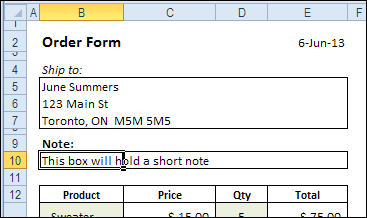
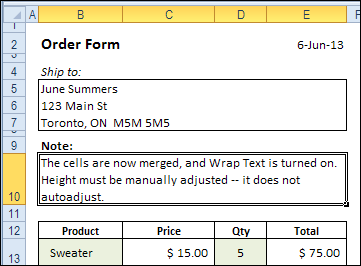
However, if the notes will be two or more lines, you’ll need to merge the cells, and turn on Wrap Text. Adjusting the column width would affect the product list that starts in row 12, so that’s not an option.
Merged Cell Row Height
Usually, if you add more text to a single cell, and Wrap Text is turned on, the row height automatically adjusts, to fit the text.
When the cells are merged in row 10, the row height has to be manually adjusted when the text changes. That works well, as long as you remember to do it, but it can be a nuisance, if the text changes frequently.
And if you forget to adjust the row height, you might print the order form, while key instructions are hidden.
AutoFit Merged Cell Row Height
To fix the worksheet, so the merged cells adjust automatically, you can add event code to the worksheet.
[Update: The original code is below, and there are several modified versions of the code in the comments. There is also an updated version of Smallman’s code in this December 2015 blog post.]
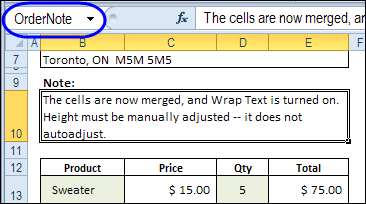
The merged cells are named OrderNote, and that name will be referenced in the event code.
Code to AutoFit Merged Cell Row Height
We want the row height to adjust if the OrderNote range is changed, so we’ll add code to the Worksheet_Change event.
The code that I use is based on an old Excel newsgroup example, that was posted by Excel MVP, Jim Rech.
Note: As Jeff Weir pointed out in the comments below, this code will wipe out the Undo stack, so you won’t be able to undo any steps you’ve previously taken. So, instead of using the Worksheet_Change event, you could use the workbook’s BeforePrint event, to reduce the Undo problem.
- Right-click on the sheet tab, and paste the following code on the worksheet module. Note: Only one Worksheet_Change event is allowed in each worksheet module.
- Change the range name from “OrderNote”, to the named range on your worksheet.
- If your worksheet is protected, you can add code to unprotect and protect the worksheet.
Private Sub Worksheet_Change(ByVal Target As Range)
Dim MergeWidth As Single
Dim cM As Range
Dim AutoFitRng As Range
Dim CWidth As Double
Dim NewRowHt As Double
Dim str01 As String
str01 = "OrderNote"
  If Not Intersect(Target, Range(str01)) Is Nothing Then
    Application.ScreenUpdating = False
    On Error Resume Next
    Set AutoFitRng = Range(Range(str01).MergeArea.Address)
    With AutoFitRng
      .MergeCells = False
      CWidth = .Cells(1).ColumnWidth
      MergeWidth = 0
      For Each cM In AutoFitRng
          cM.WrapText = True
          MergeWidth = cM.ColumnWidth + MergeWidth
      Next
      'small adjustment to temporary width
      MergeWidth = MergeWidth + AutoFitRng.Cells.Count * 0.66
      .Cells(1).ColumnWidth = MergeWidth
      .EntireRow.AutoFit
      NewRowHt = .RowHeight
      .Cells(1).ColumnWidth = CWidth
      .MergeCells = True
      .RowHeight = NewRowHt
    End With
    Application.ScreenUpdating = True
  End If
End Sub
How It Works
The event code checks to see if the changed cell is in the OrderNote range. If it is, the code runs, and does the following:
- Unmerge the cells
- Get the width of the first column in the OrderNote range
- Get the total width for all columns in the OrderNote range
- Add a little extra to the calculated width
- Set the first column to the calculated total width
- Autofit the row, based on the note next in the first column
- Get the new row height
- Change the first column to its original width
- Merge the cells
- Set the row height to the new height
Screen updating is turned off while the code runs, and it all happens in the blink of an eye.
Test the Event Code
To test the code, make a change to the text in the named merged cells, then press Enter. The row height should adjust automatically.
Is this code, to AutoFit merged cell row height, something that you’ll use in your workbooks? Please let me know in the comments.
__________________
Hi Smallman
Your solution for multiple merged cells in same line is perfect for my problem. However I am unable to figure out how to set the macro up for more than one block in a worksheet e.g. I want to fix merged cells in each row in block C10:O16, then A22:K30. My blocks are all fixed.
I would very much appreciate your help.
I’ve tried this code and have a problem expanding the merged cells. So as long as I stay within the allotted space it resizes, but when I type and the merged cell needs more space to fit all of the text, the code runs and Hides the rows! Please help!
Thanks Debra, Smallman and all the others that have contributed to this blog with solutions to this issue.
One thing I haven’t seen mentioned is what happens if one or more of the columns within the merged cells are (or get) hidden?
Would there need to be some code added before/after “mw = cM.ColumnWidth + mw” to prevent adding the column width(s) of the hidden columns?
Hi Gary,
Did you get an answer to this? I am struggling with apply this macro to multiple columns that exceed the height limit.
Hi
This forum is awesome thank you Debra and Smallman. It has given me a huge amount of information to improve the quality of forms I produce. However one thing I am struggling with is sheet and password protection.
Basically i want the whole sheet protecting apart from these cells: F9, F10, F11, F12, F13, F15, F17, F19, F21, F23, F26, F30, F33, F35, F36, F38, F40, F42, F45, F47, F51, F56, F63, F66, F68, F72. these cells either auto hide or auto expand with the below code.
this is my current code, i have tried various forms of vba protection and each time it breaks. any help with this would be greatly appreciated. I have ensure the above list of cells have been unlocked by right clicking, selecting protection and untick locked.
Thank you in advance
Option Explicit
Private Sub Worksheet_Change(ByVal Target As Range)
If Range(“F48”) = “Please Select” Then
Rows(“50:55”).EntireRow.Hidden = True
End If
If Range(“F48”) = “No” Then
Rows(“50:55”).EntireRow.Hidden = True
End If
If Range(“F48”) = “Yes” Then
Rows(“50:51”).EntireRow.Hidden = False
Rows(“52:53”).EntireRow.Hidden = True
Rows(“54:55”).EntireRow.Hidden = False
End If
If Range(“F50”) = “Yes” Then
Rows(“52:53”).EntireRow.Hidden = False
End If
If Range(“F50”) = “No” Then
Rows(“52:53”).EntireRow.Hidden = True
End If
If Range(“F57”) = “Please Select” Then
Rows(“59:65”).EntireRow.Hidden = True
End If
If Range(“F57”) = “Yes” Then
Rows(“59:65”).EntireRow.Hidden = True
End If
If Range(“F57”) = “No” Then
Rows(“59:63”).EntireRow.Hidden = False
Rows(“64:65”).EntireRow.Hidden = True
End If
If Range(“F62”) = “Please Select” Then
Rows(“64:65”).EntireRow.Hidden = True
End If
If Range(“F62”) = “Yes” Then
Rows(“64:65”).EntireRow.Hidden = False
End If
If Range(“F62”) = “No” Then
Rows(“64:65”).EntireRow.Hidden = True
End If
If Range(“F67”) = “Please Select” Then
Rows(“69:71”).EntireRow.Hidden = True
End If
If Range(“F67”) = “No” Then
Rows(“69:71”).EntireRow.Hidden = True
End If
If Range(“F67”) = “Yes” Then
Rows(“69:71”).EntireRow.Hidden = False
End If
If Not Intersect(Target, Range(“F17,F21,F23,F26,F30,F52,F64,F69,F73”)) Is Nothing Then
FixMerged
End If
End Sub
Sub FixMerged()
Dim mw As Single
Dim cM As Range
Dim rng As Range
Dim cw As Double
Dim rwht As Double
Dim ar As Variant
Dim i As Integer
Application.ScreenUpdating = False
‘Cell Ranges below, change to suit.
ar = Array(“F17”, “F21”, “F23”, “F26”, “F30”, “F52”, “F64”, “F69”, “F73”)
For i = 0 To UBound(ar)
On Error Resume Next
Set rng = Range(Range(ar(i)).MergeArea.Address)
With rng
.MergeCells = False
cw = .Cells(1).ColumnWidth
mw = 0
For Each cM In rng
cM.WrapText = True
mw = cM.ColumnWidth + mw
Next
mw = mw + rng.Cells.Count * 0.66
.Cells(1).ColumnWidth = mw
.EntireRow.AutoFit
rwht = .RowHeight
.Cells(1).ColumnWidth = cw
.MergeCells = True
.RowHeight = rwht
End With
Next i
Application.ScreenUpdating = True
End Sub
Thank you! This is a brilliant solution!
Thanks for the code I have a question though:
My row of data is greater than the 409 limit that Excel allows, that’s why I’m merging cells. The issue I’m having is the max this will create a cell is 409 divided by the total number of rows and it can never be more. My test data needs to be 1200 total so 400 each row (3 rows merged) but instead it is 136 each. Can you think of any work arounds?
I hope this makes sense. Please let me know if not!
Thanks!