
With Slicers in Excel 2010, you can easily filter several pivot tables with a single click. In the screen shot below, the Slicers are filtering the Severity and Priority fields in the pivot table.
However, there is a problem with Drill to Detail with Excel Slicer Filters, in some version.
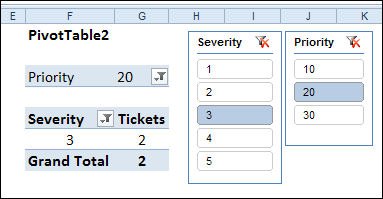
Unexpected Results With Drill to Detail
Thanks to a tip from AlexJ, I learned that Slicers, combined with a pivot table’s Drill to Detail feature, can produce unexpected results.
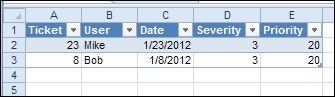
Double-click on a pivot table’s data cell, and a new sheet is inserted in the workbook, with a list of the records that are included in the cell that you double-clicked. For example, in the screen shot above, there are 2 records in the detail sheet, if you double-click on cell G6.
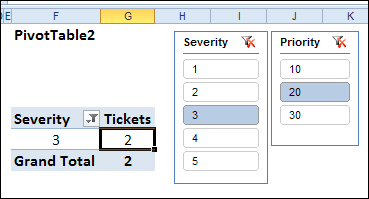
But what happens if you remove the Priority Report Filter from the pivot table, and filter with the Priority Slicer? The quantity in cell G6 is still 2.
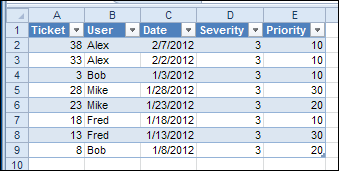
But, when you double-click on cell G6 now, with the Priority field removed from the layout, the detail sheet looks different. There are 8 records, instead of 2 – all of the Priority values are included, not just the “20” priorities.
Quirk or Feature?
Is this a quirk or a feature? I’m voting that it’s a quirk. When I double-click, only the records behind the visible number should be displayed in the detail list.
Keep this quirk in mind, if you’re using Excel Slicers to filter the data, and then you use the Drill to Details (Show Details) feature. Only the fields that are in the pivot table layout will be filtered in the detail results sheet.
If you’re using a macro to automate the drill to details feature, you might not notice that the results include non-filtered items. To prevent errors, you could add all the slicer fields to the pivot table layout, and that will ensure that the details list includes only the expected records.
Download the Sample File
To test the effect of Slicer filters on the pivot table drill to detail feature, you can download Alex’s sample file, PT0026 – Pivot Table Slicer Detail, from the Contextures website.
NOTE: Slicers are only available in Excel 2010, so you won’t see them in earlier versions.
Watch the Drill to Detail Video
To see the steps for connecting multiple pivot tables to a slicer, then drilling to the details, please watch the short tutorial video below.
_______________________
That looks like a bug to me, Deb. I think you should report it to Microsoft.
Thanks Ken, I’ve reported it.
Glad I found this. I thought I was crazy. Have you heard anything further about this issue?
@Brent, no, I haven’t heard any more about this. Until it’s fixed, make sure that all the slicer fields are in each pivot table.
Any update on this from MS? I haven’t seen anything posted, and even tried to look up the issue on TechNet and couldn’t find any resolutions.
Hi Debra.
I am grateful for this possibility to Drill in the source table when Iam using powerpivot, where the sources are from SQL Server.
But my problem is, i get only the first 1000 rows (EXCEL 2013).
Can you give me please a tip, how i can retrieve all my rows during pivot table’s Drill to Detail feature?
Thank you in advance.
Thanks for that, Debra. I had the same problem and did not know why the drilling was displaying all the data. I suspected to be an error somewhere in the setting up of the slicers. At the end, I solved it by adding same page fields corresponding to the slicers and then hiding them with a colored shape.