
It’s easy to select the current range in Excel – just press Ctrl + A. That shortcut selects all the cells in the block that surround the active cell. The selection stops at the first blank row and blank column. But how can you select actual used range in Excel sheet?
Select Current Range
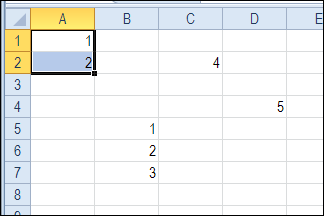
In this example, cell A1 was active, and range A1:A2 was selected with the keyboard shortcut.
Select All Cells
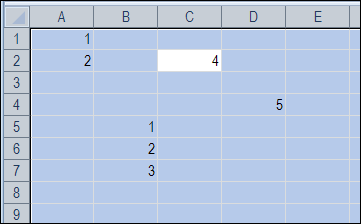
If you use the Ctrl + A shortcut while an isolated or empty cell is selected, then the entire worksheet is selected. In the screen shot below, cell E2 was active when the shortcut was used. The entire sheet was selected.
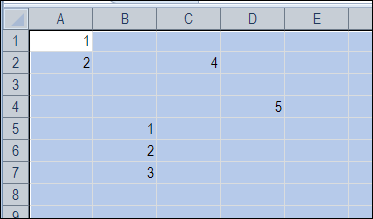
If the Ctrl + A shortcut selects a range, you can press Ctrl + A again, to select the entire sheet. In the screen shot below, cell A1 was active, and by pressing Ctrl + A twice, the entire worksheet is selected.
Select Filled Cells Only
To select only the filled cells on a worksheet, you can use the Find dialog box.
- On the Excel Ribbon’s Home tab, click Find & Select, then click Find (or use the keyboard shortcut — Ctrl+F)
- Type an asterisk (*) in the “Find what” field
- Click the “Find All” button
- Press Ctrl+A to select all the ranges in the list
- Click Close
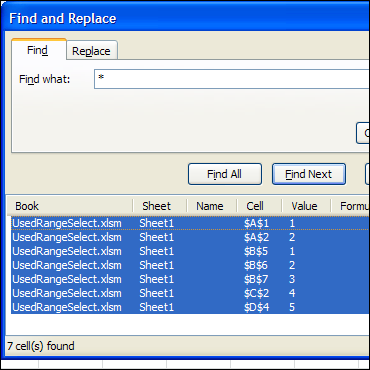
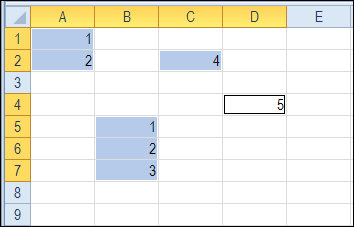
Only the filled cells on the worksheet are selected.
Select the Used Range
To select all the cells in the used range on a worksheet, you can use the following shortcut sequence:
- Press Ctrl + Home, to select cell A1
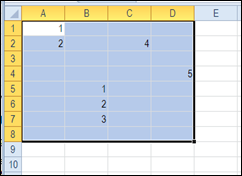
- Press Ctrl + Shift + End, to select all cells from A1 to the last used cell.
Select the Actual Used Range
As you can see in the screen shot above, there is nothing visible in cell D8, but it is included in the selected used range. Perhaps there was a value in that cell, and it was deleted, or the cell is formatted.
If you want to select only the cells in the actual used range, you can use this macro instead. The macro was written by Rick Rothstein, and looks for the last cell with a value, and ends the selection there.
Note: This code ignores cells with formulas that are displaying the empty string. If you need to identify formula cells that might be displaying the empty string, then change the xlValues argument to xlFormulas.
Sub PickedActualUsedRange()
  Range("A1").Resize(Cells.Find(What:="*", SearchOrder:=xlRows, _
      SearchDirection:=xlPrevious, LookIn:=xlValues).Row, _
      Cells.Find(What:="*", SearchOrder:=xlByColumns, _
      SearchDirection:=xlPrevious, LookIn:=xlValues).Column).Select
End Sub
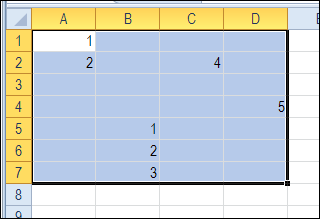
After running the PickedActualUsedRange macro, the selection ends at cell D7, instead of D8.
Select from First Cell With Data
[Thanks to Jelle-Jeroen Lamkamp for his comment that the first used cell might not be A1. Here is Rick’s code to deal with that situation.]
Usually, selecting from cell A1 won’t hurt anything, but if you really want the actual used range on the worksheet, then you would need to use a macro like this one…
Sub SelectActualUsedRange()
  Dim FirstCell As Range, LastCell As Range
  Set LastCell = Cells(Cells.Find(What:="*", SearchOrder:=xlRows, _
      SearchDirection:=xlPrevious, LookIn:=xlValues).Row, _
      Cells.Find(What:="*", SearchOrder:=xlByColumns, _
      SearchDirection:=xlPrevious, LookIn:=xlValues).Column)
  Set FirstCell = Cells(Cells.Find(What:="*", After:=LastCell, SearchOrder:=xlRows, _
      SearchDirection:=xlNext, LookIn:=xlValues).Row, _
      Cells.Find(What:="*", After:=LastCell, SearchOrder:=xlByColumns, _
      SearchDirection:=xlNext, LookIn:=xlValues).Column)
  Range(FirstCell, LastCell).Select
End Sub
More Worksheet Code Examples
You can find this sample code, and a other examples, on Rick Rothstein’s Excel VBA – Worksheet page, on the Contextures website.
________________
Success!
I still had to insert the Workbook -element into the code, so the following code worked:
objWorkbook.Worksheets(1).Activate
objWorkbook.ActiveSheet.UsedRange.Copy
Thank you so much TheoDeed for the help!
How do I use an assigned cell for the button. If a button is pressed then only the selected cell will show the item. and not the selected cell on the entire worksheet
How do you ride the range? In other words, how do you change the focal point of the anchor when you want to copy and paste within a range column(s) or row(s)? Or what are some of the best approaches for copy and paste inside a range?
I know this is a very old thread and I am using the code proposed by Ron for years but was still struggling with following:
– Ron’s method exludes filtered rows and is not limited to the selected range.
– The SpecialCells method includes the filtered rows but might show gaps, meaning the result is maybe not a continguous range.
Following should do this:
Function MyActualUsedRange(Optional strSheet As String, Optional R As Range) As Range
Dim rngFirstCell As Range, rngLastCell As Range
If strSheet = “” Then strSheet = ActiveSheet.Name
If R Is Nothing Then Set R = Sheets(strSheet).Cells
GetActualUsedRange:
With Sheets(strSheet)
Set rngLastCell = .Cells(R.Find(What:=”*”, SearchOrder:=xlRows, _
SearchDirection:=xlPrevious, LookIn:=xlValues).Row, _
R.Find(What:=”*”, SearchOrder:=xlByColumns, _
SearchDirection:=xlPrevious, LookIn:=xlValues).Column)
Set rngFirstCell = .Cells(R.Find(What:=”*”, After:=rngLastCell, SearchOrder:=xlRows, _
SearchDirection:=xlNext, LookIn:=xlValues).Row, _
R.Find(What:=”*”, After:=rngLastCell, SearchOrder:=xlByColumns, _
SearchDirection:=xlNext, LookIn:=xlValues).Column)
Set MyActualUsedRange = .Range(rngFirstCell.Address & “:” & rngLastCell.Address)
End With
Set rngFirstCell = Nothing
Set rngLastCell = Nothing
End Function
Of course a Union with SpecialCells is needed.