
It’s easy to select the current range in Excel – just press Ctrl + A. That shortcut selects all the cells in the block that surround the active cell. The selection stops at the first blank row and blank column. But how can you select actual used range in Excel sheet?
Select Current Range
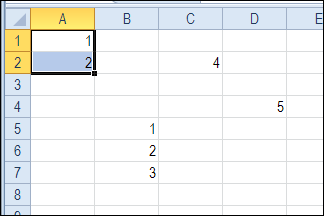
In this example, cell A1 was active, and range A1:A2 was selected with the keyboard shortcut.
Select All Cells
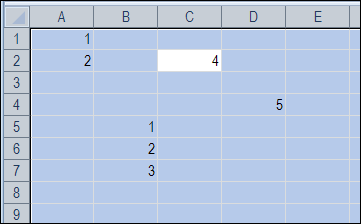
If you use the Ctrl + A shortcut while an isolated or empty cell is selected, then the entire worksheet is selected. In the screen shot below, cell E2 was active when the shortcut was used. The entire sheet was selected.
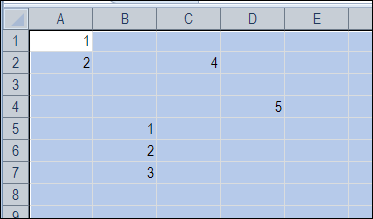
If the Ctrl + A shortcut selects a range, you can press Ctrl + A again, to select the entire sheet. In the screen shot below, cell A1 was active, and by pressing Ctrl + A twice, the entire worksheet is selected.
Select Filled Cells Only
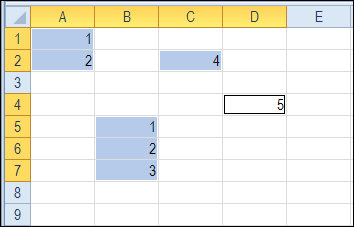
To select only the filled cells on a worksheet, you can use the Find dialog box.
- On the Excel Ribbon’s Home tab, click Find & Select, then click Find (or use the keyboard shortcut — Ctrl+F)
- Type an asterisk (*) in the “Find what” field
- Click the “Find All” button
- Press Ctrl+A to select all the ranges in the list
- Click Close
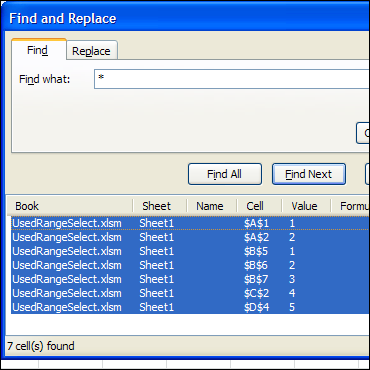
Only the filled cells on the worksheet are selected.
Select the Used Range
To select all the cells in the used range on a worksheet, you can use the following shortcut sequence:
- Press Ctrl + Home, to select cell A1
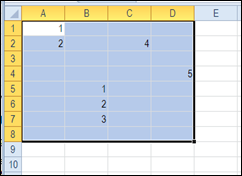
- Press Ctrl + Shift + End, to select all cells from A1 to the last used cell.
Select the Actual Used Range
As you can see in the screen shot above, there is nothing visible in cell D8, but it is included in the selected used range. Perhaps there was a value in that cell, and it was deleted, or the cell is formatted.
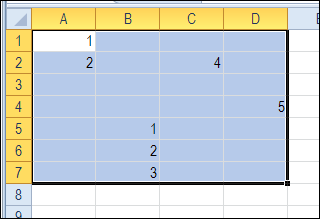
If you want to select only the cells in the actual used range, you can use this macro instead. The macro was written by Rick Rothstein, and looks for the last cell with a value, and ends the selection there.
Note: This code ignores cells with formulas that are displaying the empty string. If you need to identify formula cells that might be displaying the empty string, then change the xlValues argument to xlFormulas.
Sub PickedActualUsedRange()
  Range("A1").Resize(Cells.Find(What:="*", SearchOrder:=xlRows, _
      SearchDirection:=xlPrevious, LookIn:=xlValues).Row, _
      Cells.Find(What:="*", SearchOrder:=xlByColumns, _
      SearchDirection:=xlPrevious, LookIn:=xlValues).Column).Select
End Sub
After running the PickedActualUsedRange macro, the selection ends at cell D7, instead of D8.
Select from First Cell With Data
[Thanks to Jelle-Jeroen Lamkamp for his comment that the first used cell might not be A1. Here is Rick’s code to deal with that situation.]
Usually, selecting from cell A1 won’t hurt anything, but if you really want the actual used range on the worksheet, then you would need to use a macro like this one…
Sub SelectActualUsedRange()
  Dim FirstCell As Range, LastCell As Range
  Set LastCell = Cells(Cells.Find(What:="*", SearchOrder:=xlRows, _
      SearchDirection:=xlPrevious, LookIn:=xlValues).Row, _
      Cells.Find(What:="*", SearchOrder:=xlByColumns, _
      SearchDirection:=xlPrevious, LookIn:=xlValues).Column)
  Set FirstCell = Cells(Cells.Find(What:="*", After:=LastCell, SearchOrder:=xlRows, _
      SearchDirection:=xlNext, LookIn:=xlValues).Row, _
      Cells.Find(What:="*", After:=LastCell, SearchOrder:=xlByColumns, _
      SearchDirection:=xlNext, LookIn:=xlValues).Column)
  Range(FirstCell, LastCell).Select
End Sub
More Worksheet Code Examples
You can find this sample code, and a other examples, on Rick Rothstein’s Excel VBA – Worksheet page, on the Contextures website.
________________
Very useful information. I like the fact that you caught that front end of the range needed trimmed also instead of starting from cell A1. There are two things I noticed that I think the code needs. First, whenever the Find command is used if nothing is returned then an error occurs, so there needs to be some error handling. Secondly, this code has far more versatility if you use it as a function so that it can be used on any worksheet instead of just on the active worksheet. I modified the code some so it will do both.
Sub TestRange() ActualUsedRange(ActiveSheet).Select End Sub Function ActualUsedRange(MySheet As Worksheet) As Range Dim FirstCell As Range, LastCell As Range 'Go to the ErrorHandler line if an error occurs such as no data in the worksheet On Error GoTo ErrorHandler With MySheet 'Find the last cell Set LastCell = .Cells(.Cells.Find(What:="*", SearchOrder:=xlRows, _ SearchDirection:=xlPrevious, LookIn:=xlValues).Row, _ .Cells.Find(What:="*", SearchOrder:=xlByColumns, _ SearchDirection:=xlPrevious, LookIn:=xlValues).Column) 'Find the first cell Set FirstCell = .Cells(.Cells.Find(What:="*", After:=LastCell, SearchOrder:=xlRows, _ SearchDirection:=xlNext, LookIn:=xlValues).Row, _ .Cells.Find(What:="*", After:=LastCell, SearchOrder:=xlByColumns, _ SearchDirection:=xlNext, LookIn:=xlValues).Column) 'Set what the actual range is Set ActualUsedRange = .Range(FirstCell, LastCell) End With 'Exits the function so the error handler isn't called every time Exit Function ErrorHandler: 'Sets the range to cell A1 of the worksheet if no data is in the worksheet Set ActualUsedRange = MySheet.Range("A1") End FunctionSimply amazing.
I dont know how it does it exactly but i converted it into C# and it worked perfectly for me. Thanks a million.
Excel.Range last2 = range.Cells[range.Cells.Find(What: “*”, SearchOrder: Excel.XlRowCol.xlRows,
SearchDirection: Excel.XlSearchDirection.xlPrevious, LookIn: Excel.XlFindLookIn.xlValues).Row,
range.Cells.Find(What:”*”, SearchOrder:Excel.XlRowCol.xlColumns, SearchDirection: Excel.XlSearchDirection.xlPrevious,
LookIn: Excel.XlFindLookIn.xlValues).Column];
Thank you for posting this. Used this today, from Access with automation. I modified it to be a function returning the range, when being passed a worksheet, and needed to explicitly say which worksheet the Cells call had to work on, otherwise it can fail during automation if multiple excel are open.
Public Function GetActualUsedRange(ws As excel.Worksheet) As excel.Range
Set GetActualUsedRange = ws.Range(“A1″).Resize(ws.Cells.Find(What:=”*”, SearchOrder:=xlRows, _
SearchDirection:=xlPrevious, LookIn:=xlValues).Row, _
ws.Cells.Find(What:=”*”, SearchOrder:=xlByColumns, _
SearchDirection:=xlPrevious, LookIn:=xlValues).Column)
End Function
I know this an old post but…..
I have one more twist. I am filtering a table to select the data I need to copy and paste to another worksheet. I need to be able to select all the data from the current cursor location to the end of actual data. That may be one to 50 rows with a constant number of columns (9).
Currently there are two rows of data;
A2514 – I2514
A2516 – I2516
Any ideas? I’m thinking I’m close with Rick’s solution but I need to start from current cursor location.
Hello,
Thank you for posting this thread, found it very useful 🙂 I have one problem though.
The code works well only once. I created a word form and users can upload their excel tables by clicking a command button. This works once but when I push the command button for second time (to add a second excel table) the vba gives an error text “Run-time error ’91’: Object variable or With block variable not set”. My code is this:
————————————-
Private Sub Commandbutton_Click()
Dim intChoice As Integer
Dim strPath As String
‘only allow the user to select one file
Application.FileDialog(msoFileDialogOpen).AllowMultiSelect = False
‘make the file dialog visible to the user
intChoice = Application.FileDialog(msoFileDialogOpen).Show
‘determine what choice the user made
If intChoice 0 Then
‘get the file path selected by the user
strPath = Application.FileDialog( _
msoFileDialogOpen).SelectedItems(1)
End If
‘ The function below receives as input a file path and automates that excel workbook
Dim objExcel As Object
Dim objWorkbook As Object
Set objExcel = CreateObject(“Excel.Application”)
objExcel.Visible = True
Set objWorkbook = objExcel.Workbooks.Open(strPath)
ActiveSheet.UsedRange.Copy <— Debugger said the problem is here
'move the cursor to the bookmark
Selection.GoTo What:=wdGoToBookmark, Name:="Bookmark"
Selection.Paste
' Close Excel bits
Excel.Application.Quit
End Sub
——————————————————-
Please, help?
I suppose you need to activate the sheet like this:
Worksheets(1).Activate
Instead of (1) you may use (“Sheet1”) or another number if appropriate.
Insert the instruction just before
ActiveSheet.UsedRange.Copy
Good luck.
Between the quotes should be the name of the sheet. It fell off from the reply.
@TheoDeed, thanks and I fixed that in your comment