
Last week, we saw the steps for entering project start and stop times in Excel, by using keyboard shortcuts. Then, Excel formulas can calculate the total project time, based on the start and stop times.
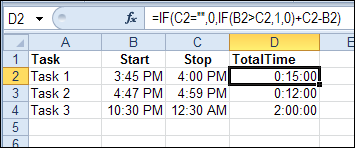
One problem with using the keyboard shortcut to enter the current time is that it doesn’t include the seconds in the time. All the times are entered as 00 seconds, as you can see in the screen shot below.
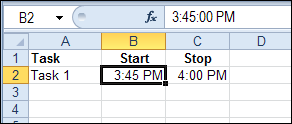
So, if you’re keeping track of very short tasks, or need precision to the second, the keyboard shortcut for entering time won’t help you.
Enter Current Time with Excel VBA
Instead of using the default shortcut for entering the current time, you can use Excel VBA to enter the time.
For example, you can select a cell on the worksheet, and run the following macro, to enter the current time in the active cell. The time will automatically include hours, minutes, and seconds.
Sub EnterTime()
    ActiveCell.Value = Time
End Sub
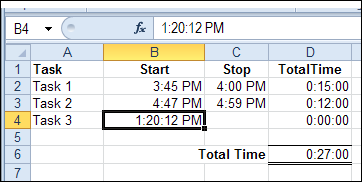
Enter the Current Time with a Double-Click
It’s not very convenient to manually run a macro when you want to enter the current time. So, to make it easier, you can use Event code, and automatically run the macro when a cell is double-clicked.
In this example, the start and stop times will be entered in a range named TimeEntry. That range is selected in the screen shot below – cells B2:C4
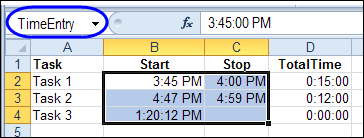
The following code is stored on the code module for the worksheet where you want to enter the times.
The code only runs if you double-click an empty cell (.Value = “”) in the TimeEntry range.
Private Sub Worksheet_BeforeDoubleClick(ByVal Target As Range, Cancel As Boolean)
On Error Resume Next
Dim rng As Range
Set rng = Range("TimeEntry")
If Target.Count > 1 Then Exit Sub
If Not Intersect(Target, rng) Is Nothing Then
    Application.EnableEvents = False
    Cancel = True 'stop the edit mode
    With Target
        If .Value = "" Then
            .Value = Time
        End If
    End With
End If
Application.EnableEvents = True
End Sub
After you put this procedure onto the worksheet module, double-click in an empty Start or Stop time cell. The current time, including seconds, is automatically entered.
Move to the Next Cell
As a refinement to the previous procedure, you can add a line that moves you to the next cell, after entering the time. In the following revised code, the cell that is one column to the right is activated, after the time is entered.
Private Sub Worksheet_BeforeDoubleClick(ByVal Target As Range, Cancel As Boolean)
On Error Resume Next
Dim rng As Range
Set rng = Range("TimeEntry")
If Target.Count > 1 Then Exit Sub
If Not Intersect(Target, rng) Is Nothing Then
    Application.EnableEvents = False
    Cancel = True 'stop the edit mode
    With Target
        If .Value = "" Then
            .Value = Time
            .Offset(0, 1).Activate
        End If
    End With
End If
Application.EnableEvents = True
End Sub
Download the Sample File
To see the time tracking macro, and the formulas, you can download the sample Excel Time Tracking file from the Contextures website.
In the Functions section, look for FN0021 – Track Project Time
______________
Is there a way to use your code above to enter current time but if it is 7 min after the quarter to round down and 8 min past quarter to round up to next quarter
Thanks Debra, the double click was something a student asked me a while ago and left me stumped.
Thanks, Dan! I’m glad it helped
i want cell to freeze with the value once we double click and no more manual editing and no another double click to the cell
Is it possible with the help of macro ?
Is there way we can track break when system is locked for certain time. For an example if user is away from desk for more than 5 minutes then it should start capturing the idle time and all those events should sum up at day end
Hello,
Can i allocate a macro like this to a button ?
Also, I want disable manual update for those columns which time has updated.
Is it possible?
Please help me