
Last week, we saw the steps for entering project start and stop times in Excel, by using keyboard shortcuts. Then, Excel formulas can calculate the total project time, based on the start and stop times.
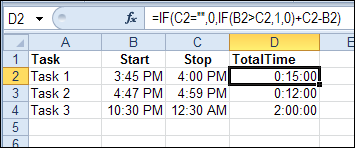
One problem with using the keyboard shortcut to enter the current time is that it doesn’t include the seconds in the time. All the times are entered as 00 seconds, as you can see in the screen shot below.
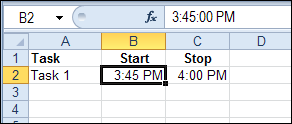
So, if you’re keeping track of very short tasks, or need precision to the second, the keyboard shortcut for entering time won’t help you.
Enter Current Time with Excel VBA
Instead of using the default shortcut for entering the current time, you can use Excel VBA to enter the time.
For example, you can select a cell on the worksheet, and run the following macro, to enter the current time in the active cell. The time will automatically include hours, minutes, and seconds.
Sub EnterTime()
    ActiveCell.Value = Time
End Sub
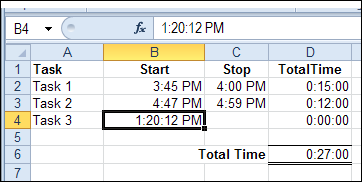
Enter the Current Time with a Double-Click
It’s not very convenient to manually run a macro when you want to enter the current time. So, to make it easier, you can use Event code, and automatically run the macro when a cell is double-clicked.
In this example, the start and stop times will be entered in a range named TimeEntry. That range is selected in the screen shot below – cells B2:C4
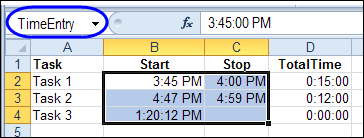
The following code is stored on the code module for the worksheet where you want to enter the times.
The code only runs if you double-click an empty cell (.Value = “”) in the TimeEntry range.
Private Sub Worksheet_BeforeDoubleClick(ByVal Target As Range, Cancel As Boolean)
On Error Resume Next
Dim rng As Range
Set rng = Range("TimeEntry")
If Target.Count > 1 Then Exit Sub
If Not Intersect(Target, rng) Is Nothing Then
    Application.EnableEvents = False
    Cancel = True 'stop the edit mode
    With Target
        If .Value = "" Then
            .Value = Time
        End If
    End With
End If
Application.EnableEvents = True
End Sub
After you put this procedure onto the worksheet module, double-click in an empty Start or Stop time cell. The current time, including seconds, is automatically entered.
Move to the Next Cell
As a refinement to the previous procedure, you can add a line that moves you to the next cell, after entering the time. In the following revised code, the cell that is one column to the right is activated, after the time is entered.
Private Sub Worksheet_BeforeDoubleClick(ByVal Target As Range, Cancel As Boolean)
On Error Resume Next
Dim rng As Range
Set rng = Range("TimeEntry")
If Target.Count > 1 Then Exit Sub
If Not Intersect(Target, rng) Is Nothing Then
    Application.EnableEvents = False
    Cancel = True 'stop the edit mode
    With Target
        If .Value = "" Then
            .Value = Time
            .Offset(0, 1).Activate
        End If
    End With
End If
Application.EnableEvents = True
End Sub
Download the Sample File
To see the time tracking macro, and the formulas, you can download the sample Excel Time Tracking file from the Contextures website.
In the Functions section, look for FN0021 – Track Project Time
______________
Hey, thanks for the code it works, but I can only hover the pointer over the cell to view the time. It has those # symbols in the cell. Any idea how to fix this so it shows in the cell?
never mind the last post i fixed my idiot problem lol! what I am experiencing is the double click does not work when cells are merged only un-merged cells function properly. Is there some more to add to the VBA?
Hello Deb,
I track time a lot and I love the double-click to insert a static time. Saves time over the keyboard shortcut. My time tracking needs for a project cover a period of weeks and I must total daily times and also cumulative times per specific job function over the course of the project. Therefore, I need to include the date as well as the time. If I change the cell formatting to what I use, m/d h:mm AM/PM, the date displays as 1/0 1900. How can I modify the code to produce the current date along with the time?
Cheers,
Pete
Hi Pete,
To enter the date and time into the cell, use this line of code:
Hello Deb,
Worked like a charm. Thanks for the great help.
Cheers,
Pete
Hello Deb,
I need a macro code which automatically captures the time and date in one cell and the time should not be edited to make changes. Please help me.
@Aruna, I don’t have any sample code that does what you need. You could protect the worksheet, and lock the Date/Time cell.
Then, write a little macro to unprotect the sheet, put the value of Now in the date cell, and re-protect the sheet.
How to restrict the time which displays on double click on excel sheet to only to rows or column of the entire worksheet
Dear Debra, it´s been great following your advice and solutions, and many of those have saved my skin on my personal needs, but I have a question about time as a value in a cell.
I’m doing a research and my datalog sends me data every 5 minutes, on a spreadsheet. I wonder if it would be possible to use a macro to select all readings every hour and then run an average on those values, copying everything to a new tab, minding that I have the time well specified in a specific cell. Sure you don’t need to do it for me but could you tell me if I am onto something possible or if I have to look in another direction? Twitter(I_will_adapt
Hi Ricardo, if this is something that should happen even if Excel is closed, you could try using the Windows Task Scheduler to open the file.
Then, have a macro that runs automatically when the file opens, to copy the data, calculate the average, and save and close the file.