
Last week, we saw the steps for entering project start and stop times in Excel, by using keyboard shortcuts. Then, Excel formulas can calculate the total project time, based on the start and stop times.
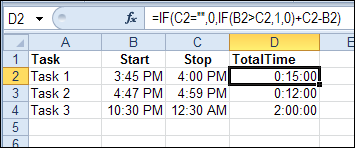
One problem with using the keyboard shortcut to enter the current time is that it doesn’t include the seconds in the time. All the times are entered as 00 seconds, as you can see in the screen shot below.
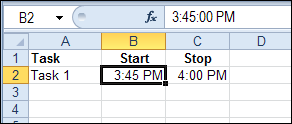
So, if you’re keeping track of very short tasks, or need precision to the second, the keyboard shortcut for entering time won’t help you.
Enter Current Time with Excel VBA
Instead of using the default shortcut for entering the current time, you can use Excel VBA to enter the time.
For example, you can select a cell on the worksheet, and run the following macro, to enter the current time in the active cell. The time will automatically include hours, minutes, and seconds.
Sub EnterTime()
    ActiveCell.Value = Time
End Sub
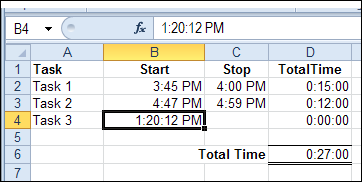
Enter the Current Time with a Double-Click
It’s not very convenient to manually run a macro when you want to enter the current time. So, to make it easier, you can use Event code, and automatically run the macro when a cell is double-clicked.
In this example, the start and stop times will be entered in a range named TimeEntry. That range is selected in the screen shot below – cells B2:C4
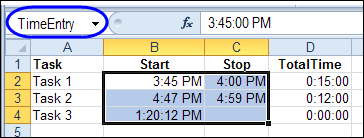
The following code is stored on the code module for the worksheet where you want to enter the times.
The code only runs if you double-click an empty cell (.Value = “”) in the TimeEntry range.
Private Sub Worksheet_BeforeDoubleClick(ByVal Target As Range, Cancel As Boolean)
On Error Resume Next
Dim rng As Range
Set rng = Range("TimeEntry")
If Target.Count > 1 Then Exit Sub
If Not Intersect(Target, rng) Is Nothing Then
    Application.EnableEvents = False
    Cancel = True 'stop the edit mode
    With Target
        If .Value = "" Then
            .Value = Time
        End If
    End With
End If
Application.EnableEvents = True
End Sub
After you put this procedure onto the worksheet module, double-click in an empty Start or Stop time cell. The current time, including seconds, is automatically entered.
Move to the Next Cell
As a refinement to the previous procedure, you can add a line that moves you to the next cell, after entering the time. In the following revised code, the cell that is one column to the right is activated, after the time is entered.
Private Sub Worksheet_BeforeDoubleClick(ByVal Target As Range, Cancel As Boolean)
On Error Resume Next
Dim rng As Range
Set rng = Range("TimeEntry")
If Target.Count > 1 Then Exit Sub
If Not Intersect(Target, rng) Is Nothing Then
    Application.EnableEvents = False
    Cancel = True 'stop the edit mode
    With Target
        If .Value = "" Then
            .Value = Time
            .Offset(0, 1).Activate
        End If
    End With
End If
Application.EnableEvents = True
End Sub
Download the Sample File
To see the time tracking macro, and the formulas, you can download the sample Excel Time Tracking file from the Contextures website.
In the Functions section, look for FN0021 – Track Project Time
______________
My preference for putting in the time is the NOW() function since it does the day also, so, if you have a late night, your resulting time won’t be off.
Hi there,
Your double-click sub really improved my own time tracking sheet.
I got one question, though: Say I want to enter the date, too. In a different column, a different range. How do I do that? Excel doesn’t let you name two subs with a double-click event.
Your help would be greatly apprreciated. Thanks again for the nice inspiration.
Best,
Andy
@Andy, thanks, glad it helped! To have different entries for a double-click, you could check the column of the target cell. For example, if the date will be entered in the first column of the named range, use something like this:
Private Sub Worksheet_BeforeDoubleClick(ByVal Target As Range, Cancel As Boolean) On Error Resume Next Dim rng As Range Dim lCol As Long Set rng = Range("TimeEntry") lCol = Target.Column If Target.Count > 1 Then Exit Sub If Not Intersect(Target, rng) Is Nothing Then Application.EnableEvents = False With Target If .Value = "" Then If lCol = rng.Columns(1).Column Then .Value = Date Else .Value = Time() End If .Offset(0, 1).Activate End If End With End If Application.EnableEvents = True End SubDear Debra
Thanks, that was extremely helpful. As it is, I am relatively new to VBA and don’t fully understand your code. I know enough to manipulate it to serve my means, but that’s about it. I couldn’t have altered it to account for the date as well on my own.
Thank you so much, I shall be following your blog from now on 😉
Andy
@Andy, you’re welcome, and thanks for visiting the blog and posting your question.
If you look at the function call, you’ll notice the Cancel parm. This tells excel not to go into edit mode (if you’re nutty enough to use edit in cell!).
You may want to add a line:
…bunch of code…
Application.EnableEvents = False
cancel = true ‘stop the edit mode
With Target
…more code…
And I don’t know why you use time(). Why not just:
.Value = Time
Thanks Dave! I updated the code in the blog post.
Thanks, Deb.
I had a less than sign, vbg, greater than sign after the time() note, but those HTML thingies are too much for me to remember.
No problem — I read it that way anyway. You’ll have to use emoticons now, like everyone else. 😉
Just for those who are keyboard centric, could use the following keystrokes:
CTRL-: (colon) will insert the current date
CTRL-; (semi-colon or rather CTRL+SHIFT-{colon}) will insert the current time.
So IF you need the current date & time in one cell, you would type:
CTRL-: {space} CTRL+;
Easy-peasy!
🙂
@Nick, thanks for the reminder on the keyboard shortcuts.
@Nick,
I had never tried entering date & time in the same cell using shorcuts but it worked just great! Thanks for the tip.
I finished my time card add-in recently. Go try it out if you are interested. It is free. There are still more things I need to work on but this is the initial release.
(Hope it’s OK that I post this here Debra 🙂