
Someone emailed me this week, about a problem he was having with my sample Part Data Entry UserForm.
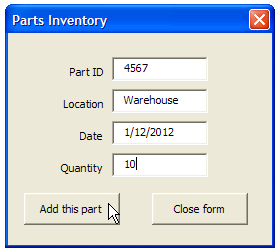
When I took a look at the workbook, everything seemed okay, and the code had been copied and altered correctly.
Excel Named Table
Then I noticed that there was a formatted Excel table on the data collection sheet, which wasn’t in my original file.
That can cause problems if you’re using Excel VBA to add data to the first blank row on the worksheet.
Change the Last Row Code
In the comments for my Find First Blank Row blog post, Rick Rothstein suggested this code revision:
LastRow = Cells.Find(What:="*", SearchOrder:=xlRows,
SearchDirection:=xlPrevious, LookIn:=xlValues).Row
Rick mentioned that this formula ignores cells with formulas that are displaying the empty string. If your situation is such that you need to identify formula cells that might be displaying the empty string, then change the xlValues argument to xlFormulas.
Revised Excel VBA Code
So, I changed the Part Data Entry code, to use the Find method for finding the last row. I replaced this old line of code:
'find first empty row in database
iRow = ws.Cells(Rows.Count, 1) _
  .End(xlUp).Offset(1, 0).Row
With this line of code:
iRow = ws.Cells.Find(What:="*", SearchOrder:=xlRows, _
       SearchDirection:=xlPrevious, LookIn:=xlValues).Row + 1
Parts Data Entry UserForm With Combo Boxes
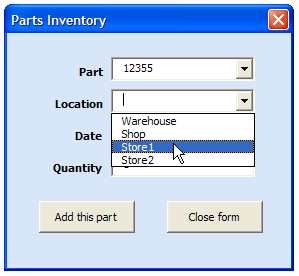
There is another version of the Parts Data Entry UserForm, and it’s a little fancier, with combo boxes to select parts and locations.
I’ve updated the Parts Data Entry UserForm With Combo Boxes too, with the revised last row code.
Get the Updated Sample Files
You can download the updated versions of the parts data entry forms on the Contextures website.
Parts Data Entry UserForm With Combo Boxes
_________________
Your tutorial on how to create a UserForm in Excel was great!! This is a great way to add new data, but what if we want to update data already in the spreadsheet/database? Do you have a tutorial for that? Thanks so much!! David
@David, there is a worksheet data entry form in which you can update the existing data:
http://www.contextures.com/exceldataentryupdateform.html
I haven’t done a UserForm version with that feature yet, and thanks for the suggestion.
Dear Sir,
I went to your site it is nice and got idea how to add an record is it possible you to help on the below topics.
1.By entiring the more than two data’s in a each colum able to select the total data
2.Need help in the excel vba macros pls send the smaple form to follow.
Awaiting your reply
regards.
Abrar
Dear Sir,
Instead of saving data in the same file, I created another one for database purpose only. Using your sample as the main form (PartLocDB.xls), how can I add (instead of the same worksheet)the data directly to other file like (PartLocDB2.xls)as main database.
Below is the parameters that need adjustment
Set ws = Worksheets(“PartsData”)
No matter what VBA code I use I cannot get the second line of information (entered from a UserForm) copied into the second line of a Table.
The first line of information from the UserForm copies just fine into the first line of the Table. It’s the second line that is giving me fits.
The Code is…Thanks Debra for any suggestions – I’m about Googled Out – smile.
Private Sub cmdbtnSave_Click()
Dim NewRowOfData As Long
Dim ws As Worksheet
Set ws = Worksheets(“WasteWaterUsage”)
Set rRng = ws.Range(“B6″)
‘Test to see if 1st cell in row is empty
If IsEmpty(rRng.Value) Then
NewRowOfData = 6
Else
‘NewRowOfData = ws.Cells(Row.Count, 1).End(xlUp).Offset(1, 0).Row
NewRowOfData = ws.Cells.Find(What:=”*”, SearchOrder:=xlRows, _
SearchDirection:=xlPrevious, LookIn:=xlValues).Row + 1
End If
‘Input data from UserForm to Worksheet
With ws
.Cells(NewRowOfData, 2).Value = Me.txtbStartDate.Value
.Cells(NewRowOfData, 3).Value = Me.txtbEndDate.Value
.Cells(NewRowOfData, 8).Value = Me.txtbGallons.Value
.Cells(NewRowOfData, 5).Value = Me.txtbWeekends.Value
.Cells(NewRowOfData, 6).Value = Me.txtbIdleDays.Value
‘.Cells(NewRowOfData, 2).Activate – this was in another workbook where data input works fine – here gives an error
End With
‘Clear Input Values
Me.txtbStartDate.Value = “”
Me.txtbEndDate.Value = “”
Me.txtbGallons.Value = “”
Me.txtbWeekends.Value = “”
Me.txtbIdleDays.Value = “”
End Sub
Data begins in column B row 6 but actually covers 9 columns,
the Table itself covers Columns A through I, A is calculated, therefore actual input begins in column B.
Best wishes, Mort
@Mort, I’m not clear on what you mean by a second row of data from the User Form.
Your code is finding the first blank row, and putting all the values in that row.
Should something be going into the row below that?
Thanks Debra so much – and I get soooo frustrated with the way folks write and seems I’m one of’em – smile.
Have a Table – will have 6 rows of data for 6 months of information, and about 6-7-8 columns of data per row.
At the end of the 6 months, the Table will be cleared – have that code, and the formulas will be maintained.
Beginning with the next 6 months, month 1, user will enter information via a UserForm and that info should be copied to the Table by cmdSave button on UserForm.
I then need to find the next empty row for which month 2’s data will be inserted. While I try to get month 2 inserted, it never works….now row 1 is not working.
My Table has headers by the way….I’ve copied I don’t know how many codes and tried them and there are errors with every single one of them – NONE WORK.
Col A is calculated so entry begins with column B – because there is a “leg” of calculations hanging below the table on the right of it – like a fly lying “L”
I think I need to do the next empty row specific to column B?
My brain cells hurt to day – thanks…
Mort, Dallas
I was correct – the “L” shape is causing the issues, I have to find a way to search for next empty row via column B.