
There is a new sample file on the Contextures website, with a macro to change all pivot tables with one selection, when you change a report filter in one pivot table.
Change All Pivot Tables
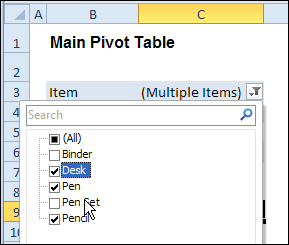
In the sample workbook, if you change the “Item” Report Filter in one pivot table, all the other pivot tables with an “Item” filter will change.
They get the same report filter settings that were in the pivot table that you changed.
Select Multiple Items
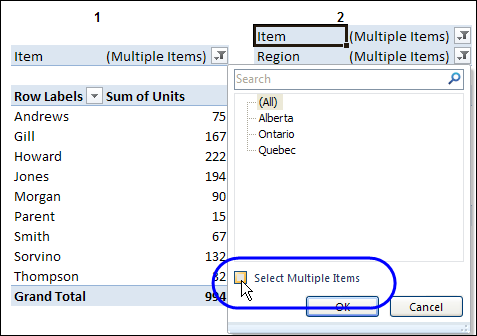
In this version of the sample file, the “Select Multiple Items” setting is also changed, to match the setting that is in the pivot table that you changed.
In the screen shot below, the Item field has the “Select Multiple Items” setting turned off. If any other pivot tables in the workbook have an “Items” filter, the “Select Multiple Items” setting for those fields will also change.
How It Works
The multiple pivot table filtering works with event programming. There is Worksheet_PivotTableUpdate code on each worksheet, and it runs when any pivot table on that worksheet is changed or refreshed.
For each report filter field, the code checks for the Select Multiple Items setting, to change all Pivot Tables with the same report filter field.
The code loops through all the worksheets in the workbook, and loops through each pivot table on each sheet.
Private Sub Worksheet_PivotTableUpdate _
  (ByVal Target As PivotTable)
Dim wsMain As Worksheet
Dim ws As Worksheet
Dim ptMain As PivotTable
Dim pt As PivotTable
Dim pfMain As PivotField
Dim pf As PivotField
Dim pi As PivotItem
Dim bMI As Boolean
On Error Resume Next
Set wsMain = ActiveSheet
Set ptMain = Target
Application.EnableEvents = False
Application.ScreenUpdating = False
For Each pfMain In ptMain.PageFields
  bMI = pfMain.EnableMultiplePageItems
  For Each ws In ThisWorkbook.Worksheets
    For Each pt In ws.PivotTables
      If ws.Name & "_" & pt <> _
          wsMain.Name & "_" & ptMain Then
        pt.ManualUpdate = True
        Set pf = pt.PivotFields(pfMain.Name)
          bMI = pfMain.EnableMultiplePageItems
          With pf
            .ClearAllFilters
            Select Case bMI
              Case False
                .CurrentPage _
                  = pfMain.CurrentPage.Value
              Case True
                .CurrentPage = "(All)"
                For Each pi In pfMain.PivotItems
                  .PivotItems(pi.Name).Visible _
                    = pi.Visible
                Next pi
                .EnableMultiplePageItems = bMI
            End Select
          End With
          bMI = False
        Set pf = Nothing
        pt.ManualUpdate = False
      End If
    Next pt
  Next ws
Next pfMain
Application.EnableEvents = True
Application.ScreenUpdating = True
End Sub
Download the Sample File
To test the Change All Pivot Tables code, you can download the sample file from the Contextures website.
On the Sample Excel Files page, in the Pivot Tables section, look for PT0025 – Change All Page Fields with Multiple Selection Settings.
The file will work in Excel 2007 or later, if you enable macros.
Watch the Video
To see the steps for copying the code into your worksheet, and an explanation of how the code works, watch this short video.
______________________
Jeff, I am using 2007.
Jeff, I should also probably clarify that I am using the code posted at the top of this blog under the how it works section.
Rob: First, try the code at http://blog.contextures.com/archives/2013/06/18/update-multiple-pivot-tables-20130618/ because it may fix the issue (and even if it doesn’t, it’s substantially faster).
If that doesn’t work, you could put this macro into a worksheet code module for a sheet that contains a Pivot, and then add a button on the worksheet with the title ‘Reset’ and make the button trigger the macro:
Sub SetToAll()
Dim pt As PivotTable
Dim pf As PivotField
Set pt = ActiveSheet.PivotTables(1)
For Each pf In pt.PivotFields
pf.ClearAllFilters
Next
End Sub
I liked the idea of using a button, but I can’t seem to make your code work. Thanks!
Jeff,
I downloaded the sample file PT0029 from the link you provided, The code is very minimal in this workbook and doesn’t seem to work for me. I assume that you mean to use this code:
Option Explicit
Private Sub Worksheet_PivotTableUpdate(ByVal Target As PivotTable)
SyncPivotsAnyVersion Target
End Sub
First, I have enabled macros. If I make filter selections in one pivot in your file it doesn’t change any other pivots. And if I use the code in my workbook I get the following error. Complie error Sub of function not defined.
Thanks for you time Jeff!
Hi Rob. That’s just the ‘trigger’ that sits in a sheet module. The actual ‘gun’ is the code in the three Code Modules called modGeneral, modSlicers, and modSyncPivotsAnyVersion.
Drop me an email on [email protected] if you can’t see this, or if the code doesn’t play well with Excel 2007, and i’ll help you out.
I have a question, how can I change this code to change the filter on the “Row Labels” of the pivot tables. The code works great, but only if I change a filter from the “Report Filter” field list. I have 44 pivot tables on two sheets. I would appreciate your prompt response.